20
TURNING ON VOICEMAIL
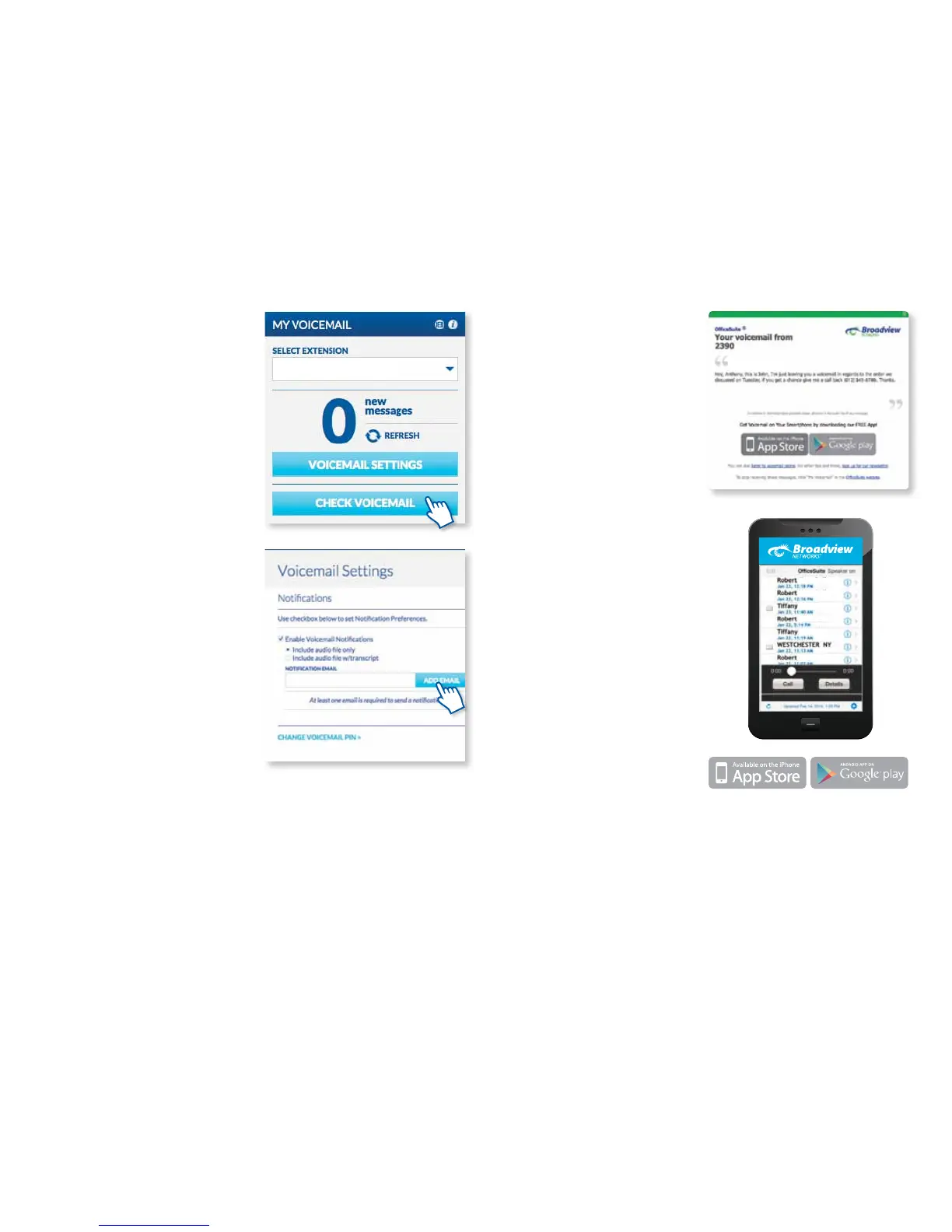
TRANSCRIPTION
Receive your voicemail messages via
email along with a transcription of
the audio. Check the box for Enable
Voicemail Notication and then click
the button to Include audio le w/
transcript. Monthly charges do apply,
see the portal for details.
ACTIVATING AND USING YOUR
VOICEMAIL APP
The OceSuite® Mobile Voicemail
App is available for free. The Voicemail
App allows access to your OceSuite®
voicemail messages on your mobile
device and displays a list of all of
the messages in your voicemail box,
indicating the time, caller and status.
The app allows you to listen to your
messages and features touch-controlled
fast forward and rewind. It also allows
callback, forwarding and general
integration with the contacts on your
smartphone. The app is integrated with
the Message Waiting Indicator on your
OceSuite® phone, so listening to a
message in the app marks it as listened
to and the message waiting light on your
OceSuite® phone will go out.
To get the app, simply download
it from your smartphone and follow
the simple instructions.
Using the System
LISTENING TO VOICEMAIL
To listen to your messages online,
simply click Check Voicemail from the
MyVoicemail widget.
Now, choose any message you would
like to listen to and use the built-in
controls to pause or stop the message.
From here, you can download messages
or delete them, ag messages for future
use, or forward them instantly right from
the portal. You can even nd important
messages by ltering for specic
voicemails with just a few key strokes, just
enter the date, name or phone number
and press enter.
SETTING UP HOW YOU RECEIVE
VOICEMAIL MESSAGES
Click on Voicemail Settings on the
MyVoicemail widget and select how
you would like to receive your voicemail
messages in the notication section.
GETTING VOICEMAIL MESSAGES
VIA EMAIL
OceSuite® Phone can send your
voicemail message to any email address.
To enable this, click on Voicemail
Settings on the My Voicemail widget
and click Enable Voicemail Settings.
Here, you can select to receive just an
audio le of the message or the audio le
with a transcript of the message. Then,
enter the email address you would like to
receive messages at and click Add Email
and Save.



 To Next Page