7
For helpful videos, guides and other tools, visit:
http://www.broadviewnet.com/getting-started
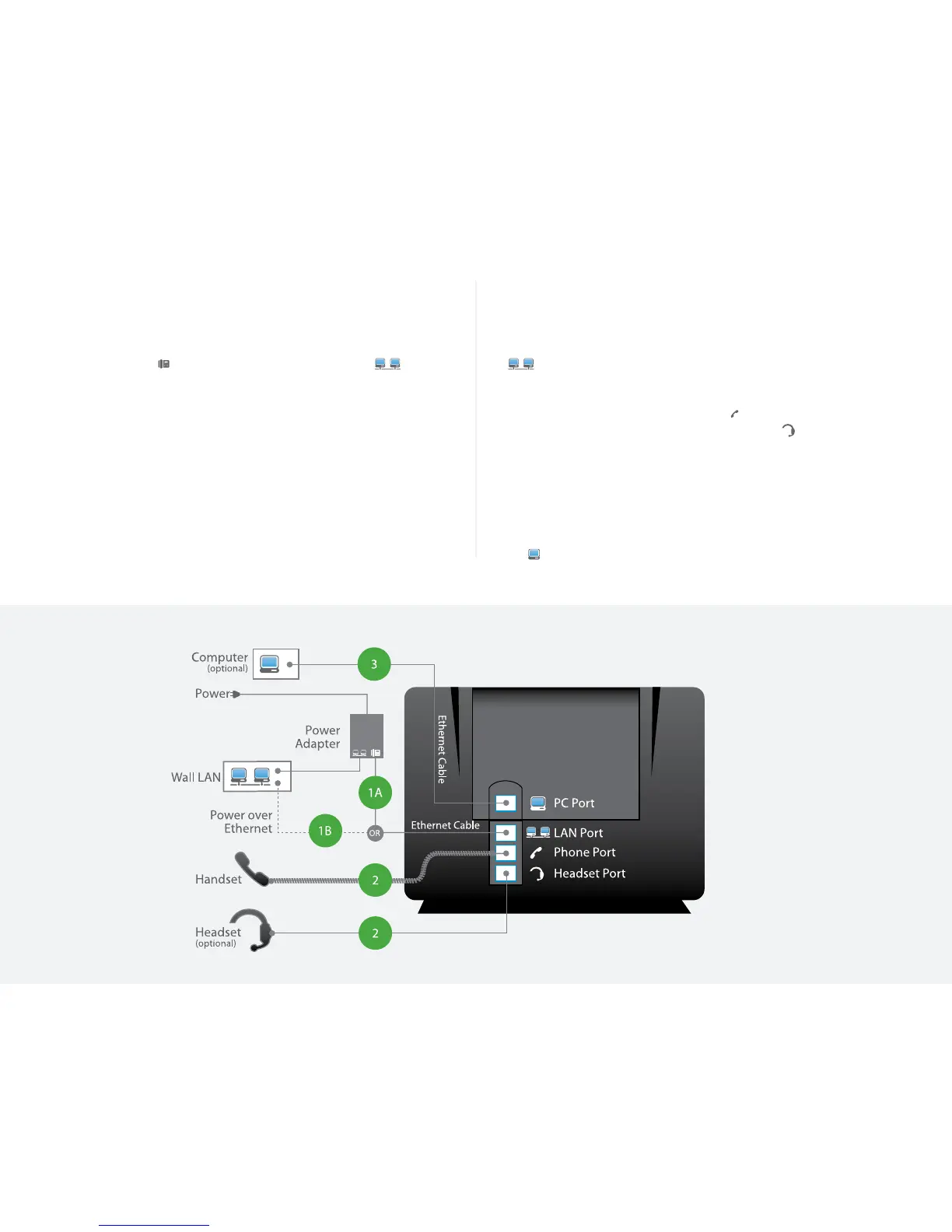
1: CONNECT YOUR PHONE TO THE LOCAL AREA NETWORK
Connect one of the provided Ethernet cables into your existing local area network (LAN)
and into the port on the included power adapter. Next, connect another
Ethernet cable into the
port on your power adapter and into the port
on the back of your OceSuite® phone.
Installing Your Phone Without Power Over Ethernet
1: CONNECT YOUR PHONE TO THE LOCAL AREA NETWORK
If your network is Power over Ethernet enabled, you do not need the power adapter and
should simply connect an Ethernet cable into your existing local area network and into
the port on the back of your OceSuite® phone.
2: CONNECT YOUR PHONE HANDSET
Connect your phone handset into the port next to on the back of your OceSuite®
phone. You may also connect a headset into the port next to on the back of your
OceSuite® phone.
3: CONNECT YOUR PC TO YOUR PHONE OPTIONAL
OceSuite® can utilize an integrated Ethernet switch that allows you to connect
to your computer without requiring an Ethernet Port.
To do this, connect one of the provided Ethernet cables to your computer and into the
PC port on the back of your OceSuite® phone.
Installing Your Phone With Power Over Ethernet
For a list of recommended headsets,
go to www.broadviewnet.com/ready



 To Next Page