SETTING UP SPEED DIALS AND MEMORY KEYS
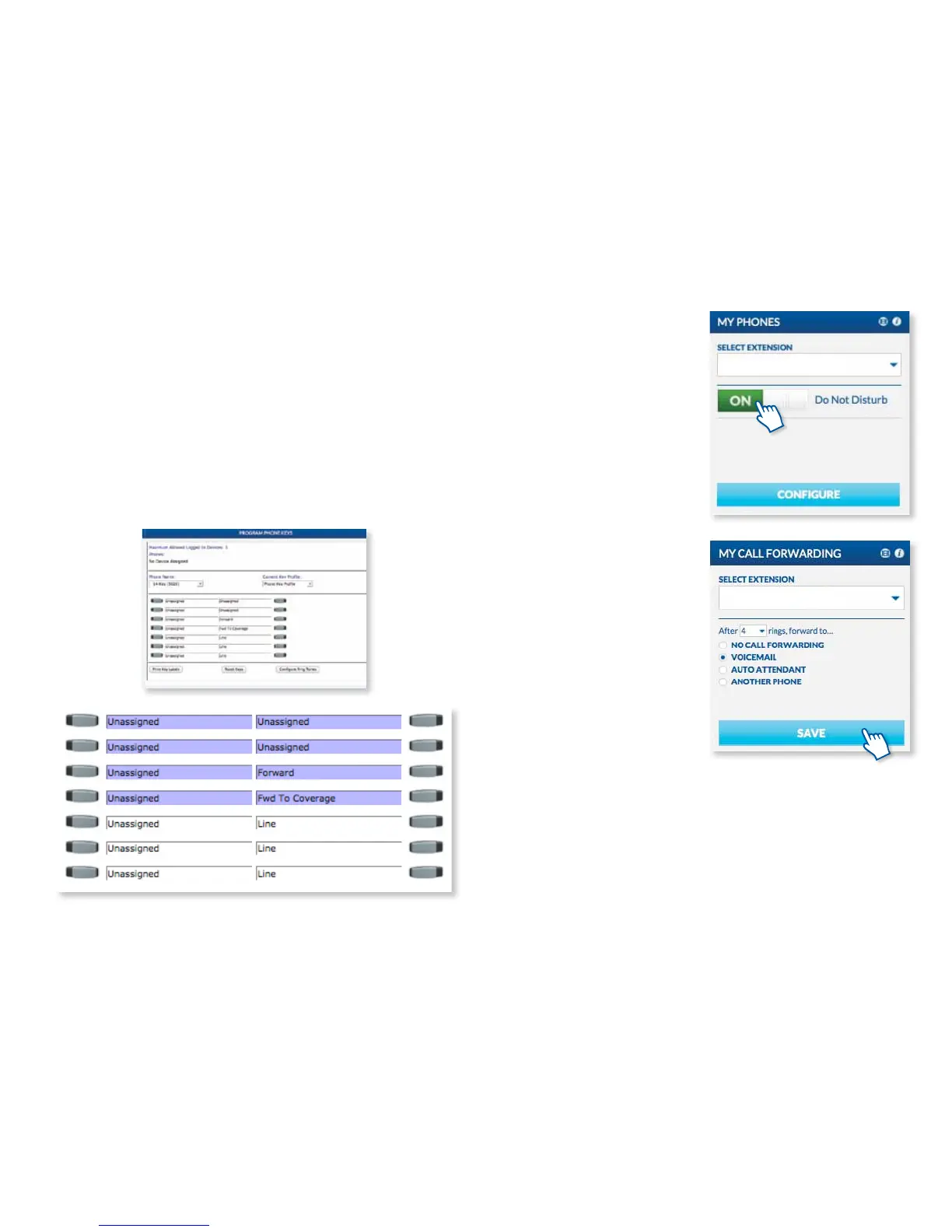
Your OceSuite® phone has memory keys that you can easily set up as
one-touch speed dials or to access the powerful features of the system. Setting up your
memory keys is easy. Click Congure from the My Phones widget. Scroll down and
you click any memory key that is not grey. From here, choose the feature you would like
to assign to the memory key. You will notice that when you make a selection there is a
description of what the feature does.
Enter a label for your new memory key and the details. For speed dials, remember to
type a nine followed by the ten-digit phone number. Some features you can choose to
turn a feature on or o by selecting active or inactive from the state drop-down, be sure
to click Save and the feature will be instantly saved to your phone and is ready to be
put into action.
FORWARDING YOUR BUSINESS
CALLS TO AN OUTSIDE PHONE
OceSuite® Phone allows you to forward
any of your calls to any outside number so
you can work from anywhere. To program
this, simply go to the My Phones widget
on the MyOceSuite® Dashboard and click
Congure and program any unassigned
key as Forward to Number and label
the key as FWD to Home, or FWD to Cell
as appropriate. Then, enter the phone
number you wish to forward the calls to,
be sure to enter 9+1+the 10 digit phone
number. Follow the simple instructions
in the pop-up window to determine if
you want this feature Active (all calls
will automatically be forwarded to this
number) or Inactive (forward incoming
calls to this number only when you press
the FWD to # memory key).
SETTING UP CALL FORWARDING
FOR UNANSWERED CALLS
Unanswered calls can be forwarded to
voicemail, an auto attendant, another
employee on the system, or any another
phone, anywhere. Use the My Call
Forwarding widget on the My Account
Dashboard to set up call forwarding.
Select the extension you wish to forward
from the drop-down list, then select the
number of rings (from 1 to 10) and choose
one of the forward options by clicking the
appropriate radio button.
If you select Another Phone, either select
an extension on the system from the drop-
down list, or enter an external number
starting with the area code. Press Save
when done to save your call forwarding
conguration.
Using the System
21



 To Next Page