Administering the System
CREATING GROUPS OF EXTENSIONS
OR CALL GROUPS
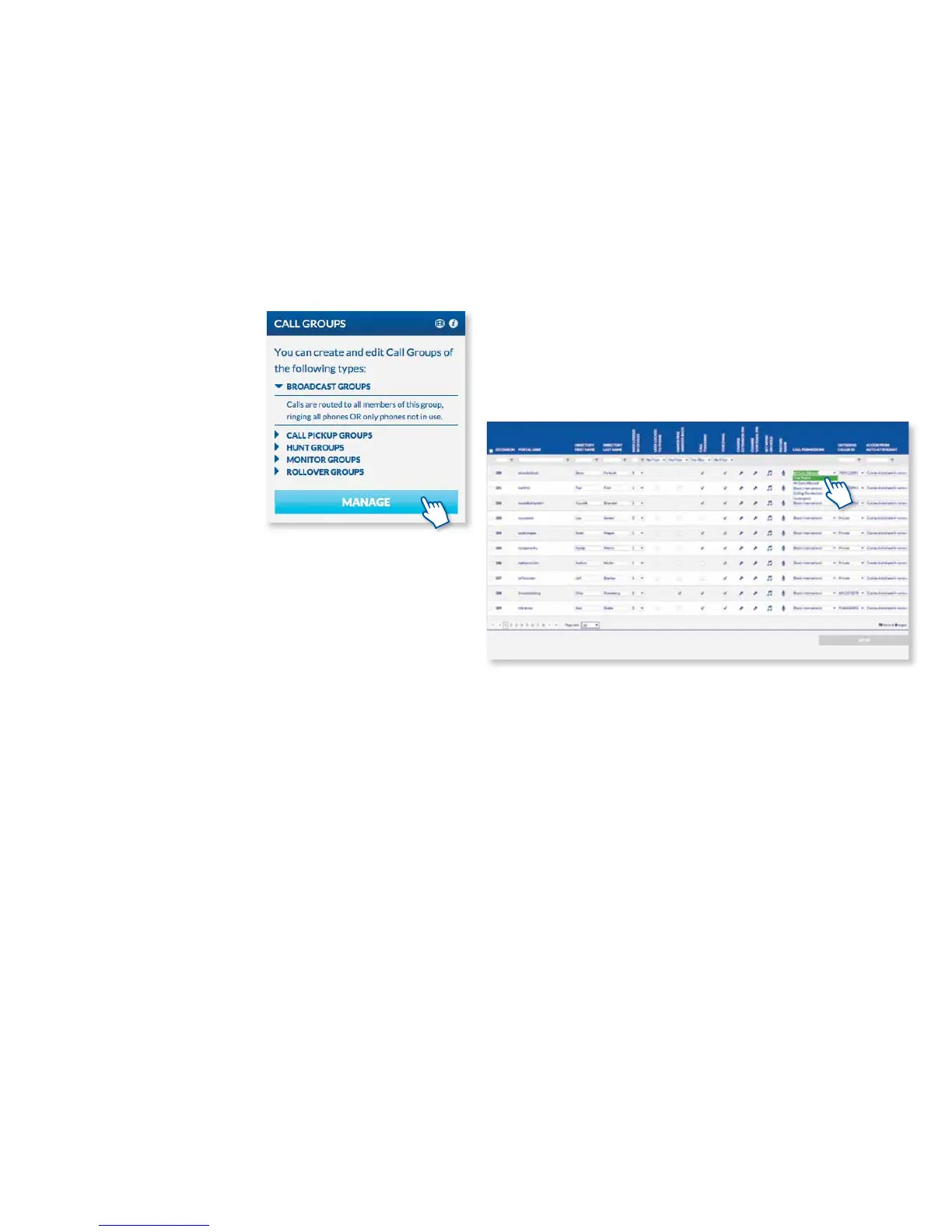
Setting up a Call Group is easy with
MyOceSuite®. Simply click the Manage
button on the Call Groups widget. Next,
from the Add drop-down menu, select
the type of call group you would like to
create.
OceSuite® Phone allows you to create
several dierent types of Call Groups:
Broadcast groups – Calls are routed to
all members of this group; all phones can
ring or only those that are not in use.
Call Pickup groups – Calls to any
member of the group can be picked up
by any other member of the group.
Hunt groups – Calls to a linear hunt group are routed to each group member in turn,
and always start with the rst member listed; calls to a circular hunt group are routed
in the same way, but the starting member role rotates among members.
Monitor groups – Members (secondary) can monitor calls of another member
(primary)
Rollover groups – A call rings the phones of a rollover group one at a time until the
call is answered or sent to call coverage.
Enter a name for the group and choose an extension from the drop-down. Complete
any other selections like Call Behavior in the general information settings to dene
how you would like calls routed. Finally, add members to the group by dragging and
dropping them from the available column into the selected column or by clicking the
plus sign. Then, scroll down and choose how you would like to forward calls that are
unanswered by this group. Unanswered group calls can continue to ring or be sent to a
voicemail box, to an auto attendant, another employee, or to any other phone number,
anywhere. When you complete the details, click Save.
*Remember to update your company incoming call routing or employee call
forwarding selections to take advantage of the new Call Group.
MAKING CHANGES TO SETTINGS FOR MULTIPLE USERS
The MyOceSuite® portal allows you to make changes like call permissions, outgoing
caller ID, and enabling features like call twinning and more, for multiple users at one
time. To quickly change the settings on more than one extension, go to Extension
Manager under the Phone System tab and change the settings you need for the
appropriate employees instantly. You can also add additional extensions.
ASSIGNING EXTENSIONS TO USERS
OceSuite® Phone is so exible that any extension can be assigned to any users. To
assign or change phones and extensions, go to the MyOceSuite® portal, click the
Phone System tab and choose Extension Manager. Here, you will see a list of each
of the extensions on your system. You can customize the options for your employees,
for example, their call permissions, music on hold, twinning and more.
15



 To Next Page