Administering the System
CREATING AN AUTO ATTENDANT
TO ANSWER CALLS
An auto attendant can answer calls
coming into any of your phone numbers,
including your toll-free numbers. Many
organizations use auto attendants
to automate call routing, presenting
options such as: Press 1 for Sales, Press
2 for Service, Press 3 to hear a company
directory by last name and Press 4 to
repeat this menu. Each prompt can be
assigned to an extension, call group, or
another auto attendant.
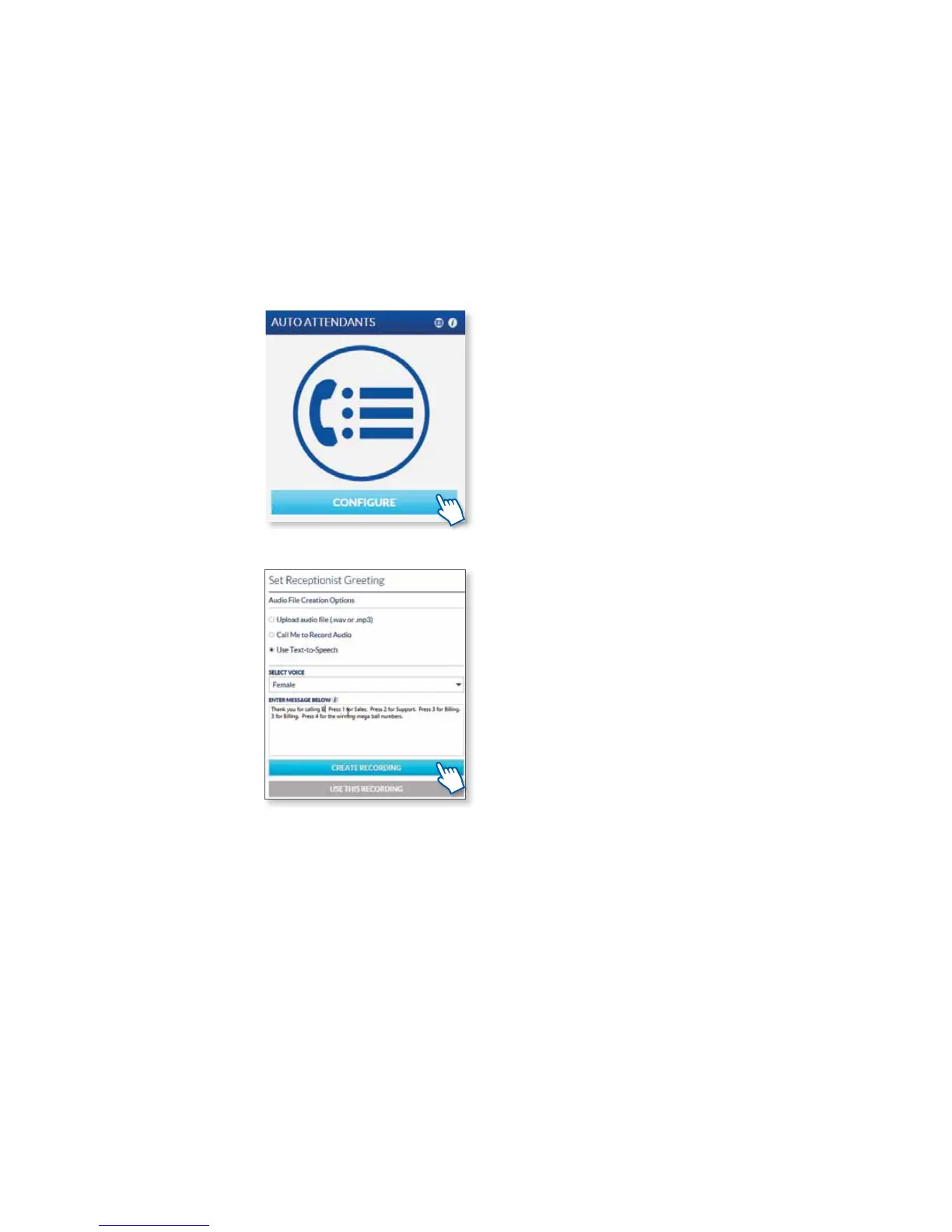
Click the Congure button on the Auto
Attendants widget to begin. Then, click
on the arrow on the left hand side of your
list of greetings. Here you can add a new
greeting and name it.
RECORDING YOUR AUTO ATTENDANT
GREETING
To manage and record your Auto
attendant greetings, click on the
Congure button on the Auto
Attendants widget. Then, click on the
arrow on the left-hand side of your list
of greetings, and click on the Set Auto
Attendant tab on top. There, you will
see the options to create your greetings.
With OceSuite® Phone, there are three
ways you can record your auto attendant
greeting.
1. You can record your own greeting for the auto attendant by uploading a .wav or
.mp3 le. To record a .wav le on most Windows PCs that have a microphone, open the
Sound Recorder Program and click Start Recording. For Apple Macintosh, you can
use Audacity or a similar program that can record .wav and .mp3 les. Both the Apple
and Google app stores also have several apps that can record .wav or .mp3 les. Record
and send yourself an email with the le, then save the le to your desktop. Click the
Upload a .wav le or .mp3 le radio button under Audio File Options on the Auto
Attendants widget. Click Browse, choose your le, then click Use This Audio File.
2. To record your greeting right through your phone, just select the Call Me to Record
Audio option and nd your extension in the drop-down menu and click on Call, your
phone will start ringing. You will then be prompted to speak the greeting right into
your phone.
3. You can even use the OceSuite® Text-To-Speech option to automatically record
your greeting. Click the Use Text-to-Speech radio button, then choose a male or
female voice by clicking the appropriate radio button. Type your script in the Message
Box (it may be helpful to spell words phonetically to ensure they are pronounced
accurately) then click Create Recording. After the recording is complete, an option will
be presented so you can listen to your recording. If you are satised, click the Use this
Recording button. If you want to change the recording, modify your written text in the
Message Box and repeat the steps above.
Once a new auto attendant has been created, you will congure each key (Press 1,
Press 2, Press 3) with a result and if needed, an extension where calls will be sent. In this
example, callers that press 1 or 2 will be directed to user extensions, those who press 3
will go to the Last Name Directory and 4 will repeat the options.
Click the Save Menu Keys button when you are satised with the menu setup.
The next step is to record what the callers hear when calling the auto attendant.
17



 To Next Page