MUTING A CALL
Press to mute the microphone during
a call. Then press to turn o mute.
NOTE: This command works whether
you are using the headset, handset or
speakerphone. When on a call, if your
phone is muted and you need to enter
command keys, unmute the microphone
to ensure that they transmit properly.
Using Other Phones
PARKING A CALL ON ONE PHONE AND RETRIEVING IT ON ANOTHER
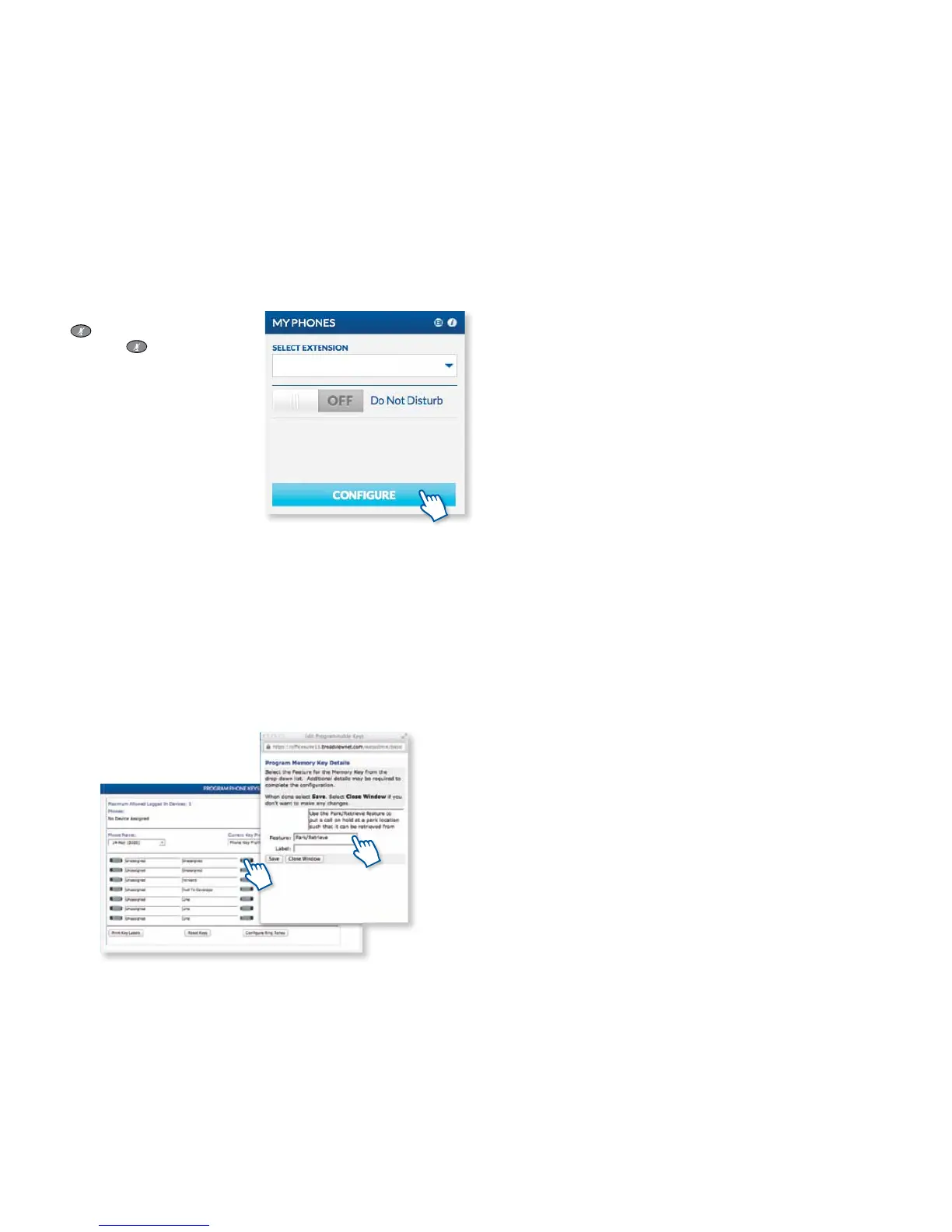
The Park/Retrieve feature allows you to put a call on hold at one phone and retrieve it
from any other phone in your organization. To use the Park/Retrieve feature, you must
rst program a Park/Retrieve key on each phone. Do this via the My Phones widget
in the MyOceSuite® portal. Select any unassigned key and then select Park/Retrieve
from the drop-down menu. When active in a call, press the Park/Retrieve key to park
the call. The phone display will show the parking lot assignment. The receptionist
can then page the party for whom the call is intended and convey the parking space
number. The other party retrieves the call from another phone by pressing the Park/
Retrieve key and the parking space number of the call. Up to 9 calls can be parked
at any time.
LOG OUT OF YOUR OFFICESUITE® PHONE
1. Press the Menu soft key.
2. Press the Logout soft key.
3. Press Yes to conrm your log out.
NOTE: When you log in to a dierent phone, you will be automatically logged out of
any other phone that is active unless multi-desking has been enabled.
HOT DESKING/MULTIDESKING
Hot Desking allows you to move around your oce and in between multiple locations
and simply log into any OceSuite® phone and use it as your own – same number,
same speed dials, same voicemail. There is nothing to set up! Simply go to any other
OceSuite® phone and if someone else is logged into it, press the Menu soft key and
then Log Out (When no one is logged into a phone, the screen will say Logged Out at
the top). Click the Activate button and enter your extension and your PIN.
THE PHONE IS NOW YOURS!
NOTE: When you log into another phone, you will automatically be logged out of all
other phones, unless your multi-desking is set to greater than one device – up to 5
devices can be used at once when multi-desking is activated.
CHECKING VOICEMAIL FROM ANY PHONE OUTSIDE YOUR OFFICE
Call your own phone number and during your voicemail greeting, press the Star (*) key
and then follow the prompts.
Using Your OceSuite® Phone
9



 To Next Page