EasyManua.ls Logo

Brother DCP-1610W - User Manual

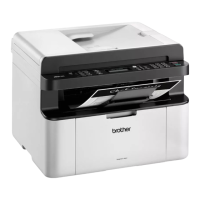
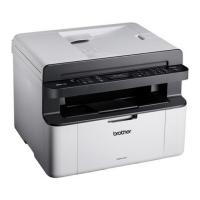
Brother DCP-1610W
136 pages
Print Icon
To Next Page IconTo Next Page
Loading...
User’s Guide
DCP-1600
DCP-1601
DCP-1610W
DCP-1615NW
DCP-1616NW
MFC-1900
MFC-1901
MFC-1905
MFC-1910W
MFC-1911NW
MFC-1916NW
Not all models are available in all countries.
Version 0
OCE/ASA

Table of Contents

Other manuals for Brother DCP-1610W

Questions and Answers

  • W
    williamsbradSep 14, 2025
    Why are sent faxes blank from my Brother DCP-1610W?
    • C
      Christopher BlakeSep 14, 2025
      If the faxes sent from your Brother All in One Printer are blank, make sure you are loading the document correctly. The document should be face down when using the ADF or the scanner glass.
  • D
    davidvegaAug 25, 2025
    What to do if my Brother DCP-1610W says 'Document Jam'?
    • A
      Amy CoffeyAug 25, 2025
      If you're experiencing a 'Document Jam' error on your Brother All in One Printer, it's likely because the document wasn't inserted or fed correctly, or the document scanned from the ADF was too long. Try to gently pull the jammed paper out of the ADF unit.
  • S
    stephanie80Aug 25, 2025
    Why does my Brother All in One Printer say 'Drum End Soon Replace Drum'?
    • R
      rachelwestAug 26, 2025
      If your Brother All in One Printer displays 'Drum End Soon Replace Drum', it indicates that the drum unit needs replacement or the drum unit counter was not reset when a new drum was installed. Replace the drum unit or reset the drum unit counter when a new drum is installed. (See the instructions that are supplied with the new drum unit.)
  • G
    George BellAug 26, 2025
    What does 'Toner Low' mean on my Brother DCP-1610W?
    • A
      alexis30Aug 26, 2025
      If the LCD of your Brother All in One Printer shows 'Toner Low', it means the toner cartridge is near the end of its life, but you can still print. It's recommended to order a new Brother toner cartridge now, so you have a replacement available when the LCD shows 'Replace Toner' or 'Toner Ended'.
  • A
    Amber MillerSep 14, 2025
    What to do if my Brother All in One Printer shows 'Out of Memory'?
    • B
      Bryan TurnerSep 14, 2025
      If your Brother All in One Printer displays 'Out of Memory', it means the printer's memory is full. You can press the Start button to send or copy the scanned pages. Alternatively, press the Stop/Exit button and wait for other operations to finish before trying again. If a print operation is in process, press Stop/Exit to cancel the print job and clear it from memory. You can also lower the print quality.
  • A
    Alyssa HernandezSep 23, 2025
    What causes 'Comm.Error' on Brother All in One Printer?
    • D
      Dawn FisherSep 23, 2025
      If your Brother All in One Printer displays 'Comm.Error', it indicates a communication error. This might be due to poor telephone line quality. Try sending the fax again.
  • T
    Terrence FowlerSep 7, 2025
    How to improve poor sending quality on Brother Printer?
    • T
      Thomas CurrySep 7, 2025
      To improve poor sending quality on your Brother Printer, try changing your resolution to Fine or S.Fine. You can also try cleaning the scanner.
  • M
    Matthew RamosSep 8, 2025
    Why are sent faxes blank from my Brother Printer?
    • K
      Kevin WilliamsonSep 8, 2025
      Make sure you are loading the document correctly. The document should be face down when using the ADF or the scanner glass.
  • S
    Sherry SummersSep 23, 2025
    What does 'Disconnected' mean on my Brother All in One Printer?
    • L
      lawrencerobinsonSep 23, 2025
      If your Brother All in One Printer displays 'Disconnected', it means the other person or their fax machine stopped the call. Try sending or receiving again.
  • L
    Larry RomeroAug 31, 2025
    What to do if my Brother DCP-1610W says 'Document Jam (For ADF models)'?
    • K
      Karen McdanielAug 31, 2025
      If your Brother All in One Printer displays 'Document Jam (For ADF models)', it means the document was not inserted or fed correctly, or the document scanned from the ADF was too long. Pull the jammed paper out of the ADF unit.

Summary

MFC Model Features and Settings

Initial Setup Procedures

Step-by-step guide for the initial setup of MFC models.

General Setup Options

Configuration options for general settings like paper, volume, and ecology.

Fax Operations

Detailed instructions for configuring and using fax functions on MFC models.

DCP Model Features and Settings

General Setup

Configuration options for general settings on DCP models.

Copy Operations

Instructions and settings for performing copy functions on DCP models.

Network Configuration

Settings and procedures for connecting DCP models to a network.

Fax Operations (MFC Models)

Sending a Fax

Step-by-step guide on how to send a fax using the machine.

Receiving Faxes (MFC Models)

Receive Modes Overview

Explanation of different receive modes based on line services and devices.

PC-FAX Usage (MFC Models)

PC-FAX Receive Setup

Instructions for setting up PC-FAX Receive to store faxes on your computer.

PC-FAX Sending Procedure

Guide on how to send files from your PC as a fax.

Copying Functions

Basic Copying Procedure

Step-by-step guide for making standard copies.

ID Card Copying

Instructions for making one-sided and double-sided copies of identification cards.

Scanning to a Computer

Scanning via ControlCenter4 Software

Guide to scanning documents into PDF files using ControlCenter4 software.

Troubleshooting and Maintenance

Identifying and Resolving Problems

Basic troubleshooting steps and initial checks for common issues.

Error and Maintenance Messages

Explanation of common error messages and their corresponding causes and actions.

Document and Paper Jams

Procedures for clearing document jams in the ADF and paper jams in the machine.

Improving Print Quality

Tips and checks to improve the quality of printed documents.

Product Specifications

Fax Specifications

Technical details related to the fax functionality, such as modem speed and resolution.

Brother DCP-1610W Specifications

General IconGeneral
Duplex printingNo
Print technologyLaser
Maximum resolution2400 x 600 DPI
Time to first page (black, normal)10 s
Print speed (black, normal quality, A4/US Letter)20 ppm
Copier resize25 - 400 %
Maximum copy resolution600 x 600 DPI
Maximum number of copies99 copies
N-in-1 copy function (N=)2, 4
Copy speed (black, normal quality, A4)20 cpm
Scan toE-mail, File, Image
Scan driversICA, TWAIN, WIA
Maximum scan areaA4 (210 x 297) mm
Maximum scan resolution19200 x 19200 DPI
Optical scanning resolution600 x 1200 DPI
Digital sender-
Printing colorsBlack
Maximum duty cycle- pages per month
Recommended duty cycle250 - 1800 pages per month
Number of print cartridges1
Page description languagesGDI
Built-in processorYes
Sound pressure level (printing)52 dB
Total input capacity150 sheets
Total output capacity50 sheets
Custom media length148 - 355.6 mm
Paper tray media typesPlain paper, Recycled paper
Paper tray media weight65 - 105 g/m²
Non-ISO print media sizesExecutive (184 x 267mm), Folio (media size), Legal (media size), Letter (media size)
ISO A-series sizes (A0...A9)A4, A5, A6
ISO B-series sizes (B0...B9)B5
Maximum ISO A-series paper sizeA4
DisplayLCD
Product colorBlack, White
Market positioningHome & office
Display number of lines2 lines
Display number of characters16
Wi-Fi standards802.11b, 802.11g, Wi-Fi 4 (802.11n)
Security algorithms128-bit WEP, 64-bit WEP, SMTP-AUTH, WPA-AES, WPA-PSK, WPA-TKIP, WPA2-AES, WPA2-PSK, WPS
Mobile printing technologiesBrother iPrint & Scan
Supported network protocols (IPv4)ARP, RARP, BOOTP, DHCP, APIPA(Auto IP), WINS/NetBIOS, DNS resolver, mDNS, LLMNR responder, LPR/LPD, Custom Raw Port/Port 9100, IPP, FTP Server, SNMPv1/v2c, HTTP Server, TFTP Client/Server, SMTP Client, ICMP, Web Services
Supported network protocols (IPv6)NDP, RA, DNS Resolver, mDNS, LLMNR responder, LPR/LPD, Custom Raw Port/ Port 9100, IPP, FTP Server, SNMPv1/v2c, HTTP Server, TFTP Client/Server, SMTP Client, ICMPv6, Web Services
Standard interfacesUSB 1.1, USB 2.0, Wireless LAN
USB 2.0 ports quantityUSB 2.0 ports have a data transmission speed of 480 Mbps, and are backwards compatible with USB 1.1 ports. You can connect all kinds of peripheral devices to them.
AC input voltage220 - 240 V
AC input frequency50 - 60 Hz
Power consumption (max)1080 W
Power consumption (off)0.28 W
Power consumption (ready)50 W
Power consumption (PowerSave)0.9 W
Power consumption (average operating)390 W
Mac operating systems supportedMac OS X 10.7 Lion, Mac OS X 10.8 Mountain Lion, Mac OS X 10.9 Mavericks
Server operating systems supportedWindows Server 2003, Windows Server 2003 x64, Windows Server 2008, Windows Server 2008 R2, Windows Server 2008 x64, Windows Server 2012, Windows Server 2012 R2 x64
Windows operating systems supportedWindows 7 Home Basic, Windows 7 Home Basic x64, Windows 7 Home Premium, Windows 7 Home Premium x64, Windows 7 Professional, Windows 7 Professional x64, Windows 7 Starter, Windows 7 Starter x64, Windows 7 Ultimate, Windows 7 Ultimate x64, Windows 8, Windows 8 Enterprise, Windows 8 Enterprise x64, Windows 8 Pro, Windows 8 Pro x64, Windows 8 x64, Windows 8.1, Windows 8.1 Enterprise, Windows 8.1 Enterprise x64, Windows 8.1 Pro, Windows 8.1 Pro x64, Windows 8.1 x64, Windows Vista Business, Windows Vista Business x64, Windows Vista Enterprise, Windows Vista Enterprise x64, Windows Vista Home Basic, Windows Vista Home Basic x64, Windows Vista Home Premium, Windows Vista Home Premium x64, Windows Vista Ultimate, Windows Vista Ultimate x64, Windows XP Home, Windows XP Home x64, Windows XP Professional, Windows XP Professional x64
Bundled softwareBrother BRAdmin Light Network Management
Sustainability certificatesENERGY STAR
Package depth436 mm
Package width481 mm
Package height406 mm
Package weight9000 g
Storage temperature (T-T)0 - 40 °C
Operating temperature (T-T)10 - 32 °C
Storage relative humidity (H-H)35 - 85 %
Operating relative humidity (H-H)20 - 80 %
Harmonized System (HS) code84433100
Weight and Dimensions IconWeight and Dimensions
Depth340 mm
Width385 mm
Height255 mm

Related product manuals