EasyManua.ls Logo

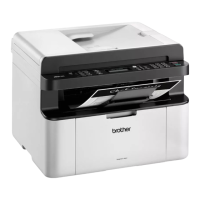
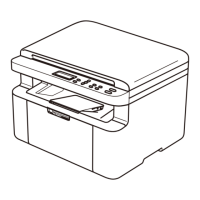
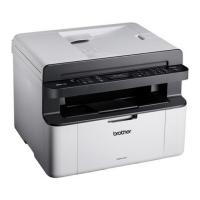
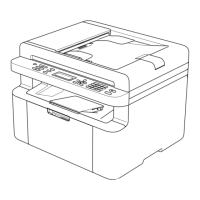
Brother DCP-1616NW - User Manual

Brother DCP-1616NW
136 pages
Print Icon
To Next Page IconTo Next Page
Loading...
User’s Guide
DCP-1600
DCP-1601
DCP-1610W
DCP-1615NW
DCP-1616NW
MFC-1900
MFC-1901
MFC-1905
MFC-1910W
MFC-1911NW
MFC-1916NW
Not all models are available in all countries.
Version 0
OCE/ASA

Table of Contents

Other manuals for Brother DCP-1616NW

Questions and Answers

  • N
    navarrodanielAug 16, 2025
    What to do if my Brother DCP-1616NW says 'Document Jam (For ADF models)'?
    • D
      David CoxAug 17, 2025
      If your Brother All in One Printer displays 'Document Jam (For ADF models)', it means the document was not inserted or fed correctly, or the document scanned from the ADF was too long. Pull the jammed paper out of the ADF unit.
  • C
    Charles HinesAug 19, 2025
    What to do if my Brother DCP-1616NW shows 'Out of Memory'?
    • E
      eric87Aug 19, 2025
      If your Brother All in One Printer displays 'Out of Memory', it means the machine's memory is full. You can either press Start to send or copy the scanned pages, or press Stop/Exit and wait for other operations to finish before trying again. If printing, pressing Stop/Exit will cancel the print job and clear it from the memory. Alternatively, try lowering the print quality.
  • R
    rmckayAug 22, 2025
    How to fix 'Cartridge Error' on Brother DCP-1616NW All in One Printer?
    • M
      Michael AyalaAug 22, 2025
      If your Brother All in One Printer displays a 'Cartridge Error', it indicates an issue with the toner cartridge. Make sure the toner cartridge is correctly installed in the drum unit, and then place it back into the machine. Also, ensure that you are using a genuine Brother toner cartridge and a Brother Original drum unit.
  • E
    Emily NealAug 25, 2025
    What does 'Toner Low' mean on my Brother DCP-1616NW?
    • C
      Christopher HunterAug 26, 2025
      If your Brother All in One Printer shows 'Toner Low', it means the toner cartridge is nearing the end of its life. Although you can still print, it's recommended to order a new Brother toner cartridge now. This ensures a replacement is available when the LCD shows 'Replace Toner' or 'Toner Ended'.
  • E
    Erin MartinezAug 27, 2025
    How to improve poor sending quality on Brother DCP-1616NW All in One Printer?
    • H
      Hannah WestAug 27, 2025
      If you are experiencing poor sending quality with your Brother All in One Printer, try changing the resolution to Fine or S.Fine. You can also try cleaning the scanner.
  • M
    Mr. Hector FlynnAug 30, 2025
    How to resolve 'Size mismatch' error on Brother DCP-1616NW?
    • D
      Dawn LopezAug 30, 2025
      If your Brother All in One Printer displays 'Size mismatch', it means the paper in the tray is not the correct size. Load the correct size of paper into the tray and then set the paper size accordingly.
  • M
    melanie27Sep 2, 2025
    Why are sent faxes blank from my Brother All in One Printer?
    • A
      Adrienne WilliamsonSep 2, 2025
      If your Brother All in One Printer is sending blank faxes, ensure you are loading the document correctly. When using the ADF or scanner glass, the document should be placed face down.
  • P
    Peter JacobsonSep 4, 2025
    What does 'Self-Diagnostic' mean on Brother All in One Printer and how to fix it?
    • S
      Sheila WilliamsSep 4, 2025
      If your Brother All in One Printer shows 'Self-Diagnostic', it could be due to the fuser unit's temperature. Turn the machine off, wait a few seconds, and then turn it back on. Leave the machine idle for 15 minutes with the power on.
  • W
    William WilliamsSep 7, 2025
    Why are there vertical black lines when sending faxes from my Brother DCP-1616NW?
    • B
      Barbara BaileySep 7, 2025
      If you see vertical black lines when sending faxes from your Brother All in One Printer, it's typically caused by dirt or correction fluid on the glass strip.
  • B
    Barry DiazSep 12, 2025
    What causes 'Comm.Error' on Brother DCP-1616NW?
    • T
      Tasha OwenSep 12, 2025
      If your Brother All in One Printer displays 'Comm.Error', it indicates a communication error. This might be due to poor telephone line quality. Try sending the fax again.

Summary

General Information

Using the Documentation

Guidance on how to use the user's guide and its features.

Symbols and Conventions Used in the Documentation

Explains symbols and conventions used throughout the manual for clarity.

Accessing Brother Utilities (Windows)

Instructions on accessing Brother software utilities on Windows systems.

Control Panel Overview

MFC Models Control Panel

Overview of the control panel buttons and functions for MFC models.

DCP Models Control Panel

Overview of the control panel buttons and functions for DCP models.

Menu and Features for MFC Models

On-Screen Programming

Explanation of how to use the LCD for on-screen programming via menu keys.

0. Initial Setup

0. Initial Setup (For MFC-1900, MFC-1901 and MFC-1905)

Initial setup procedures specific to MFC-1900, 1901, and 1905 models.

1. General Setup

1. General Setup (For MFC-1900, MFC-1901 and MFC-1905)

Basic setup configurations for MFC-1900, 1901, and 1905 models.

2. Fax

2. Fax (For MFC-1900, MFC-1901 and MFC-1905)

Detailed settings and operations for faxing on MFC-1900, 1901, and 1905 models.

3. Copy

How to Copy

Step-by-step instructions for performing copy operations on the machine.

ID COPY

Features for copying identification cards, including double-sided options.

5. Print Reports

5. Print Reports (For MFC-1900, MFC-1901 and MFC-1905)

How to view and print various reports like transmission logs and address books.

6. Network

6. Network (For MFC-1910 W)

Network configuration settings for MFC-1910W model.

4. Network (For DCP-1610 W)

Network configuration settings for DCP-1610W model.

7. Machine Info.

1. Serial No.

Checking the machine's serial number for identification and support.

Menu and Features for DCP Models

On-Screen Programming

Explanation of how to use the LCD for on-screen programming via menu keys.

1. General Setup (DCP Models)

1. Paper

Settings related to paper type and size for DCP models.

2. Copy (DCP Models)

How to Copy

Step-by-step instructions for performing copy operations on the machine.

10 How to Scan to a Computer

Scanning a Document as a PDF File using ControlCenter4

Guide to scanning documents to a PC as PDF files using Brother's software.

Scanning Using the SCAN Key

How to initiate scans directly from the machine's SCAN key.

A Troubleshooting and Other Information

Consumable Items

Information about toner cartridges and drum units, including model numbers.

Identifying Your Problem

Initial checks and steps to identify and resolve common machine issues.

Error and Maintenance Messages

Explanations of common error messages and maintenance alerts with their causes and actions.

Paper Jams

Procedures for clearing paper jams from the machine's paper path.

B Specifications

General Specifications

General specifications covering power, dimensions, and operating conditions.

Fax Specifications

Technical specifications related to fax functionality, including modem speed and resolution.

Scanner Specifications

Technical details of the scanning capabilities, including resolution and color depth.

Brother DCP-1616NW Specifications

General IconGeneral
FunctionsPrint, Copy, Scan
Print TechnologyLaser
Print Speed (Black)20 ppm
Print Resolution2400 x 600 dpi
Scan Resolution1200 x 1200 dpi
Copy Speed (Black)20 cpm
Copy Resolution600 x 600 dpi
Monthly Duty CycleUp to 10, 000 pages
Paper Capacity250 sheets
Memory32 MB
Duplex PrintingManual
Scanner TypeFlatbed
Supported Operating SystemsWindows, macOS, Linux
ConnectivityUSB, Wi-Fi
DisplayLCD
Paper SizeA4, Letter, Legal

Related product manuals