EasyManua.ls Logo

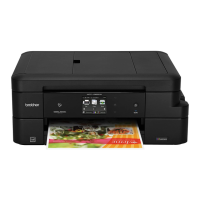
Brother DCP-J4120DW - User Manual

Brother DCP-J4120DW
56 pages
Print Icon
To Next Page IconTo Next Page
Loading...
Basic User’s Guide
DCP-J4120DW
Version 0
UK

Table of Contents

Other manuals for Brother DCP-J4120DW

Questions and Answers

  • G
    gainesalexanderNov 23, 2025
    What to do if my Brother DCP-J4120DW All in One Printer shows 'No Paper Fed'?
    • T
      Theresa MooreNov 23, 2025
      If your Brother All in One Printer is not feeding paper, consider these possibilities: * The machine is out of paper, or paper is not correctly loaded in the paper tray. Refill or reload the paper, and then press OK on the Touchscreen. * The paper tray was not fully inserted. Remove the paper tray and reinstall it until it locks into place, and then press OK on the Touchscreen. * The paper was not inserted in the centre position of the manual feed slot. Remove the paper and re-insert it in the centre of the manual feed slot, and then press OK on the Touchscreen. * The Jam Clear Cover is not closed correctly. Make sure the Jam Clear Cover is closed evenly at both ends. * Paper dust has accumulated on the surface of the paper pick-up rollers. * The paper is jammed in the machin...
  • M
    morancolleenAug 25, 2025
    Why is my Brother DCP-J4120DW All in One Printer only printing in B&W and asking to replace ink?
    • T
      thomas73Aug 26, 2025
      If your Brother All in One Printer is only printing in B&W 1-sided and prompts to replace ink, it means one or more of the colour ink cartridges have reached the end of their life. Replace the ink cartridges. Also, the machine will stop all print operations if you unplug the machine or take out the ink cartridge, or if you select Slow Drying Paper in the printer driver.
  • Q
    qandersonAug 27, 2025
    Why does my Brother DCP-J4120DW say 'Wrong Paper'?
    • D
      dylan24Aug 27, 2025
      If your Brother All in One Printer displays a 'Wrong Paper' error, it could be due to the following reasons: * The paper size setting does not match the size of paper in the tray. Check that the paper size you choose on the Touchscreen matches the size of the paper in the tray. * The paper orientation is incorrect for the paper size. * You did not set the paper guides in the tray to the indicators for the paper size you are using. * If you are printing from your computer, make sure the paper size you choose in the printer driver matches the size of paper in the tray.
  • L
    leslie69Aug 28, 2025
    What does 'Unable to Clean/Initialize/Print XX' mean on my Brother All in One Printer?
    • S
      Stephen MullinsAug 28, 2025
      If your Brother All in One Printer displays 'Unable to Clean XX', 'Unable to Initialize XX', or 'Unable to Print XX', it indicates a mechanical problem or a foreign object inside the machine. Open the scanner cover and remove any foreign objects and paper scraps from inside the machine. If the error message continues, disconnect the machine from the power for several minutes, and then reconnect it.
  • J
    jeremy62Nov 25, 2025
    What to do if my Brother All in One Printer says 'Cannot Detect' ink cartridge?
    • P
      Phyllis ObrienNov 25, 2025
      If your Brother All in One Printer shows 'Cannot Detect', here are a few possible reasons: * You installed a new ink cartridge too quickly. Take out the new ink cartridge and reinstall it slowly and firmly until the cartridge lever lifts. * A used ink cartridge was reinstalled. Remove the used ink cartridge and install a new one. * You are using non Brother Original ink. Replace the cartridge with a Brother Original ink cartridge. * The ink cartridge must be replaced. Replace the ink cartridge with a new, genuine Brother ink cartridge. * The new ink cartridge has an air bubble. Slowly turn the ink cartridge so that the ink supply port is pointing downward, and then reinstall the cartridge. * The wrong Brother model ink cartridge was installed. Check the model numbers of the in...
  • C
    Christopher VanceSep 15, 2025
    What to do if my Brother DCP-J4120DW All in One Printer shows 'Low Temperature'?
    • J
      Jacob RobinsonSep 15, 2025
      If your Brother All in One Printer displays 'Low Temperature', the room temperature is too low. After increasing the room temperature, allow the machine to warm up to room temperature. Try again when the machine has warmed up.
  • C
    Chris TownsendSep 13, 2025
    What does 'Image Too Long' mean on my Brother DCP-J4120DW?
    • A
      Austin TorresSep 13, 2025
      If your Brother All in One Printer displays 'Image Too Long', the proportions of your photo are irregular so effects could not be added. Choose a regularly proportioned image.
  • D
    Debbie YoungSep 14, 2025
    What does 'Image Too Small' mean on my Brother All in One Printer?
    • M
      Michelle HarperSep 14, 2025
      If your Brother All in One Printer displays 'Image Too Small', the size of your photo is too small to trim. Choose a larger image.
  • A
    Alan AndersonSep 6, 2025
    What does 'Unusable Device' mean on my Brother DCP-J4120DW?
    • M
      Michelle KingSep 6, 2025
      If your Brother All in One Printer displays 'Unusable Device Disconnect device from front connector & turn machine off & then on', a broken device has been connected to the USB direct interface. Unplug the device from the USB direct interface, and then turn the machine off and then on again.
  • E
    Edgar LeeSep 4, 2025
    What to do if my Brother All in One Printer shows 'No Ink Cartridge'?
    • T
      Tiffany MurphySep 4, 2025
      If your Brother All in One Printer displays 'No Ink Cartridge', an ink cartridge is not installed correctly. Take out the new ink cartridge and re-install it slowly and firmly until the cartridge lever lifts.

Summary

Printing from a Computer

How to Print a Document

Steps to install drivers and print documents from a connected computer.

Copying

How to Copy

Basic instructions for making copies using the machine's functions.

Scanning to a Computer

How to Scan as a PDF File

Detailed steps for scanning documents into PDF format using software or touchscreen.

Printing Photos

PhotoCapture Center Operations

How to print photos directly from memory cards or USB flash drives without a computer.

Routine Maintenance

Checking Print Quality and Alignment

Diagnosing and resolving print quality and alignment issues.

Troubleshooting

Error and Maintenance Messages

Explanations of common error messages and required actions.

Brother DCP-J4120DW Specifications

General IconGeneral
Print technologyInkjet
Maximum resolution6000 x 1200 DPI
Economical printingYes
Print speed (ISO/IEC 24734) mono20 ipm
Print speed (ISO/IEC 24734) color18 ipm
Print speed (black, normal quality, A4/US Letter)35 ppm
Print speed (color, normal quality, A4/US Letter)27 ppm
Copier resize25 - 400 %
Maximum copy resolution1200 x 2400 DPI
Maximum number of copies99 copies
Copy speed (black, normal quality, A4)12 cpm
Copy speed (color, normal quality, A4)9 cpm
Scan toE-mail, E-mail Server, File, FTP, Image, Memory Card, OCR, USB
Scan driversICA, TWAIN, WIA
Scanner typeFlatbed & ADF scanner
Grayscale levels256
Input color depth48 bit
Maximum scan areaA4 (210 x 297) mm
Output color depth24 bit
Image formats supportedJPG, TIF
Maximum scan resolution19200 x 19200 DPI
Document formats supportedPDF
Optical scanning resolution2400 x 2400 DPI
FaxingNo
Digital sender-
Printing colorsBlack, Cyan, Magenta, Yellow
Maximum duty cycle- pages per month
Number of print cartridges4
Paper input typePaper tray
Total input capacity150 sheets
Total output capacity50 sheets
Total number of input trays1
Auto document feeder (ADF) input capacity20 sheets
Envelopes sizes10, C5, DL, Monarch
Photo paper sizes9x13, 10x15, 13x18, 13x20 cm
Paper tray media typesCoated paper, Glossy paper, Matte paper, Photo paper, Plain paper
Paper tray media weight64 - 220 g/m²
Non-ISO print media sizes2L, Executive (184 x 267mm), Index card, L, Ledger (media size), Legal (media size), Letter (media size)
ISO A-series sizes (A0...A9)A3, A4, A5, A6
JIS B-series sizes (B0...B9)B4, B5
Borderless printing media sizes10x15, 2L, A3, A4, Ledger, Letter
Maximum ISO A-series paper sizeA3
DisplayLCD
Control typeTouch
Product colorBlack, White
Display diagonal2.7 \
Market positioningHome & office
Wi-Fi standards802.11b, 802.11g, Wi-Fi 4 (802.11n)
Security algorithms128-bit WEP, 64-bit WEP, WPA-AES, WPA-PSK, WPA-TKIP, WPA2-AES, WPA2-PSK, WPS
Online services supportedBox, Dropbox, Evernote, Facebook, Flickr, Google Drive, OneDrive, Picasa
Mobile printing technologiesApple AirPrint, Brother iPrint & Scan, Google Cloud Print
Standard interfacesNFC, USB 1.1, USB 2.0, Wireless LAN
USB 2.0 ports quantityUSB 2.0 ports have a data transmission speed of 480 Mbps, and are backwards compatible with USB 1.1 ports. You can connect all kinds of peripheral devices to them.
Compatible memory cardsMicroSD (TransFlash), MicroSDHC, MicroSDXC, MiniSD, MiniSDHC, MMC, MMC Mobile, MMC+, MS Duo, MS Micro (M2), MS PRO Duo, SD, SDHC, SDXC
Sound pressure level (printing)50 dB
AC input voltage220 - 240 V
AC input frequency50 - 60 Hz
Power consumption (off)0.04 W
Power consumption (standby)5 W
Power consumption (PowerSave)1.3 W
Power consumption (average operating)23 W
Minimum storage drive space50 MB
Mac operating systems supportedMac OS X 10.5 Leopard, Mac OS X 10.7 Lion, Mac OS X 10.8 Mountain Lion, Mac OS X 10.9 Mavericks
Server operating systems supportedWindows Server 2008 R2 x64, Windows Server 2003, Windows Server 2003 x64, Windows Server 2008, Windows Server 2008 x64
Windows operating systems supportedWindows 7 Home Basic, Windows 7 Home Basic x64, Windows 7 Home Premium, Windows 7 Home Premium x64, Windows 7 Professional, Windows 7 Professional x64, Windows 7 Starter, Windows 7 Starter x64, Windows 7 Ultimate, Windows 7 Ultimate x64, Windows 8, Windows 8 Enterprise, Windows 8 Enterprise x64, Windows 8 Pro, Windows 8 Pro x64, Windows 8 x64, Windows 8.1, Windows 8.1 Enterprise, Windows 8.1 Enterprise x64, Windows 8.1 Pro, Windows 8.1 Pro x64, Windows 8.1 x64, Windows Vista Business, Windows Vista Business x64, Windows Vista Enterprise, Windows Vista Enterprise x64, Windows Vista Home Basic, Windows Vista Home Basic x64, Windows Vista Home Premium, Windows Vista Home Premium x64, Windows Vista Ultimate, Windows Vista Ultimate x64, Windows XP Home, Windows XP Home x64, Windows XP Professional, Windows XP Professional x64
Bundled softwareBrother ControlCentre\\r NewSoft OCR\\r Brother ControlCentre\\r Nuance Paperport 12 SE
Sustainability certificatesNordic Swan Ecolabel, Blue Angel, ENERGY STAR
Package depth265 mm
Package width569 mm
Package height398 mm
Package weight11900 g
Storage temperature (T-T)20 - 33 °C
Operating temperature (T-T)10 - 35 °C
Operating relative humidity (H-H)20 - 80 %
Weight and Dimensions IconWeight and Dimensions
Depth290 mm
Width480 mm
Height163 mm

Related product manuals