EasyManua.ls Logo

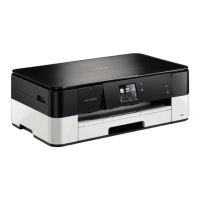
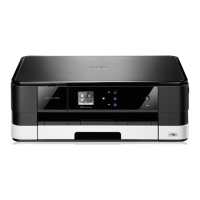
Brother DCP-J752DW - User Manual

Brother DCP-J752DW
124 pages
Print Icon
To Next Page IconTo Next Page
Loading...
Basic User’s Guide
DCP-J552DW
DCP-J752DW
Version 0
ARL/ASA/NZ

Table of Contents

Other manuals for Brother DCP-J752DW

Questions and Answers

  • M
    Melanie FreemanSep 8, 2025
    What does 'Low Temperature' mean on Brother DCP-J752DW All in One Printer?
    • B
      barrettcarlSep 8, 2025
      If your Brother All in One Printer displays 'Low Temperature', it means the room temperature is too low. After increasing the room temperature, allow the machine to warm up to room temperature. Try again later.
  • J
    Jennifer FlynnAug 23, 2025
    What to do if Brother DCP-J752DW All in One Printer says 'Paper Jam [Front]'?
    • S
      Samuel ChavezAug 23, 2025
      If your Brother All in One Printer shows 'Paper Jam [Front]', it means paper is stuck inside the machine. Remove the jammed paper, and ensure the paper length guide is set to the correct paper size. Remember not to extend the paper tray when loading A5 or smaller paper sizes.
  • R
    Rebecca VazquezAug 25, 2025
    Why is my Brother DCP-J752DW only printing in B&W and asking to replace ink?
    • D
      Donna LoweryAug 25, 2025
      If your Brother All in One Printer shows 'B&W 1-sided Print Only Replace ink', it signifies that one or more of the colour ink cartridges have reached the end of their life. Replace the ink cartridges to restore full printing functionality.
  • B
    brendagentryAug 26, 2025
    What to do if my Brother Printer shows low temperature?
    • A
      Ann SmithAug 27, 2025
      If your Brother Printer indicates a low temperature, the suggested solution is to increase the room temperature.
  • S
    sheppardchristyAug 27, 2025
    How to resolve 'No Paper Fed' error on Brother DCP-J752DW All in One Printer?
    • K
      Kimberly SnyderAug 27, 2025
      If your Brother All in One Printer displays 'No Paper Fed', it indicates that the machine is either out of paper or the paper is not correctly loaded in the paper tray. Refill the paper in the paper tray, and then press OK on the Touchscreen. Alternatively, remove and reload the paper, then press OK on the Touchscreen.
  • B
    Beverly PadillaSep 22, 2025
    How to fix 'Unusable Device Disconnect device from front connector' on Brother DCP-J752DW All in One Printer?
    • D
      daniel93Sep 22, 2025
      Unplug the device from the USB direct interface, then press to turn the machine off and then on again.
  • N
    Nathan ShepherdSep 16, 2025
    Why does my Brother DCP-J752DW All in One Printer say 'Wrong Ink Colour'?
    • S
      Samuel HouseSep 16, 2025
      If your Brother All in One Printer displays 'Wrong Ink Colour', it means that an ink cartridge has been installed in the wrong position. Check which ink cartridges are not matched by colour to their ink cartridge positions and move them to their correct positions.
  • K
    Karen Holland DDSSep 18, 2025
    What does 'Hub is Unusable' mean on Brother DCP-J752DW All in One Printer?
    • C
      Clayton MillerSep 18, 2025
      Hubs, including a USB Flash drive that have a hub built in, are not supported. Unplug the device from the USB direct interface.
  • H
    hdanielSep 7, 2025
    Why does my Brother All in One Printer say 'High Temperature'?
    • M
      Michelle RogersSep 7, 2025
      If your Brother All in One Printer displays 'High Temperature', it means the room temperature is too high. After lowering the room temperature, allow the machine to cool down to room temperature. Try again later.
  • L
    Laura DavidSep 4, 2025
    Why my Brother All in One Printer cannot detect ink volume?
    • S
      Sean FisherSep 4, 2025
      If your Brother All in One Printer displays 'Cannot Detect Ink Volume' and you are using non Brother Original ink, replace the cartridge with a Brother Original ink cartridge. If the error message remains, contact Brother customer service or your local Brother dealer.

Summary

General Information

Using the Documentation

Instructions on how to effectively use the user's guide and its components.

Symbols and Conventions

Explains symbols and typeface conventions used throughout the documentation.

Accessing Software Guides

Guide to accessing various user manuals like Advanced and Network User's Guides.

Accessing Brother Support

Information on how to access technical support via the CD-ROM and online resources.

Basic Operations and Settings

Control Panel Overview

Detailed explanation of the machine's control panel, LCD, and touchpanel features.

Basic Operations

Step-by-step guide for fundamental operations like navigating the touchscreen.

Shortcut Settings

Instructions on setting up and managing shortcuts for frequent operations.

Volume and Touchscreen Settings

How to adjust beep volume and touchscreen backlight brightness settings.

Loading Media and Documents

Loading Paper

Instructions for loading various types of paper into the paper tray.

Loading Documents via ADF;Glass

Guidance on loading documents using the Automatic Document Feeder or scanner glass.

Paper Settings and Media

Information on paper types, sizes, and acceptable media for printing.

Printing and Scanning Functions

Making Copies

Step-by-step guide on how to perform basic copying operations.

Printing Photos from Media;USB

Instructions for printing digital photos directly from memory cards or USB drives.

Printing from a Computer

Guide on how to send documents from a computer to the printer.

Scanning to a Computer

Instructions for scanning documents and saving them to a computer.

Troubleshooting

Identifying Problems

Initial checks and steps to identify common machine issues.

Error and Maintenance Messages

Explains common error messages and their corresponding causes and actions.

Document and Paper Jams

Procedures for clearing document jams in the ADF and paper jams in the machine.

Settings and Features Tables

Settings Tables

Tables detailing machine menu settings, options, and descriptions.

Features Tables Overview

Summary of features like Copy, Scan, and Print settings with their options.

Entering Text

Guide on how to input text using the touchscreen keyboard for various functions.

Specifications

General and Interface Specifications

Details on printer type, memory, power, interfaces, and network capabilities.

Paper, Document, and Media Specs

Technical specifications for paper types, sizes, document handling, and media compatibility.

Scanner, Printer, and PhotoCapture Specs

Technical details related to the scanner, printer, and PhotoCapture Center functions.

Computer Requirements and Consumables

Information on system requirements for software and details on ink cartridges.

Brother DCP-J752DW Specifications

General IconGeneral
Duplex printingYes
Print technologyInkjet
Maximum resolution1200 x 6000 DPI
Print speed (ISO/IEC 24734) mono12 ipm
Print speed (ISO/IEC 24734) color10 ipm
Duplex print speed (ISO/IEC 24734) mono3 ipm
Print speed (black, normal quality, A4/US Letter)33 ppm
Print speed (color, normal quality, A4/US Letter)27 ppm
Copier resize25 - 400 %
Maximum copy resolution1200 x 2400 DPI
Maximum number of copies99 copies
Copy speed (black, normal quality, A4)6 cpm
Scan toE-mail, File, Image, Memory Card, OCR, USB
Scan driversICA, TWAIN, WIA
Scanner typeADF scanner
Grayscale levels256
Input color depth30 bit
Output color depth24 bit
Image formats supportedBMP, JPG, PNG, TIF
Maximum scan resolution19200 x 19200 DPI
Document formats supportedPDF
FaxingNo
Printing colorsBlack, Cyan, Magenta, Yellow
Maximum duty cycle- pages per month
Number of print cartridges4
Paper input typePaper tray
Total input capacity100 sheets
Total output capacity50 sheets
Total number of input trays1
Auto document feeder (ADF) input capacity20 sheets
Envelopes sizes7 3/4, 10, C5, DL
Photo paper sizes10x15, 13x18 cm
Custom media width98 - 215.9 mm
Maximum print size216 x 356 mm
Custom media length148 - 355.6 mm
Paper tray media typesCoated paper, Glossy paper, Plain paper, Transparencies
Non-ISO print media sizesExecutive (184 x 267mm), index card, Letter (media size)
ISO A-series sizes (A0...A9)A4, A5, A6
Borderless printing media sizes2L, A4
Maximum ISO A-series paper sizeA4
DisplayTFT
Control typeTouch
Product colorBlack
Display diagonal2.7 \
Market positioningHome & office
Standard interfacesUSB 2.0
Wi-Fi standards802.11b, 802.11g, Wi-Fi 4 (802.11n)
Security algorithms128-bit WEP, 64-bit WEP, SSID, WPA-AES, WPA-PSK, WPA-TKIP, WPA2-AES, WPA2-PSK, WPS
Mobile printing technologiesApple AirPrint, Google Cloud Print
Processor familyRISC
Compatible memory cardsmicroSD (TransFlash), microSDHC, miniSD, miniSDHC, MMC, MMC Mobile, MMC+, MS Duo, MS Micro (M2), MS PRO Duo, SD, SDHC, SDXC
Sound pressure level (printing)50 dB
AC input voltage220 - 240 V
AC input frequency50 - 60 Hz
Power consumption (off)0.2 W
Power consumption (standby)3.5 W
Power consumption (average operating)16 W
Operating temperature (T-T)10 - 35 °C
Operating relative humidity (H-H)20 - 80 %
Mac operating systems supportedMac OS X 10.5 Leopard, Mac OS X 10.6 Snow Leopard, Mac OS X 10.7 Lion, Mac OS X 10.8 Mountain Lion
Server operating systems supportedWindows Server 2003, Windows Server 2008, Windows Server 2008 R2, Windows Server 2008 x64
Windows operating systems supportedWindows 7 Home Basic, Windows 7 Home Basic x64, Windows 7 Home Premium, Windows 7 Home Premium x64, Windows 7 Professional, Windows 7 Professional x64, Windows 7 Starter, Windows 7 Starter x64, Windows 7 Ultimate, Windows 7 Ultimate x64, Windows 8, Windows 8 Enterprise, Windows 8 Enterprise x64, Windows 8 Pro, Windows 8 Pro x64, Windows 8 x64, Windows Vista Business, Windows Vista Business x64, Windows Vista Enterprise, Windows Vista Enterprise x64, Windows Vista Home Basic, Windows Vista Home Basic x64, Windows Vista Home Premium, Windows Vista Home Premium x64, Windows Vista Ultimate, Windows Vista Ultimate x64, Windows XP Home, Windows XP Professional, Windows XP Professional x64
Sustainability certificatesNordic Swan Ecolabel, Blue Angel, ENERGY STAR
Weight and Dimensions IconWeight and Dimensions
Depth374 mm
Width410 mm
Height180 mm

Related product manuals