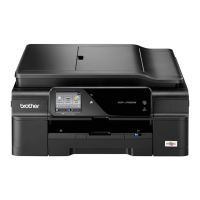
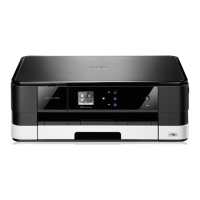
| Print technology | Inkjet |
|---|
| Maximum resolution | 6000 x 1200 DPI |
|---|
| Economical printing | Yes |
|---|
| Print speed (ISO/IEC 24734) mono | 12 ipm |
|---|
| Print speed (ISO/IEC 24734) color | 10 ipm |
|---|
| Print speed (color, draft quality, A4/US Letter) | 23 ppm |
|---|
| Print speed (black, normal quality, A4/US Letter) | 33 ppm |
|---|
| Print speed (color, normal quality, A4/US Letter) | 27 ppm |
|---|
| Copier resize | 25 - 400 % |
|---|
| Maximum copy resolution | 1200 x 1200 DPI |
|---|
| Maximum number of copies | 99 copies |
|---|
| N-in-1 copy function (N=) | 2, 4 |
|---|
| Copy speed (black, normal quality, A4) | 6 cpm |
|---|
| Scan to | E-mail, File, Image, USB |
|---|
| Scan drivers | ICA, SANE, TWAIN, WIA |
|---|
| Scanner type | Flatbed scanner |
|---|
| Grayscale levels | 256 |
|---|
| Input color depth | 30 bit |
|---|
| Output color depth | 24 bit |
|---|
| Image formats supported | BMP, JPG, PNG, TIF |
|---|
| Maximum scan resolution | 19200 x 19200 DPI |
|---|
| Document formats supported | PDF |
|---|
| Optical scanning resolution | 1200 x 2400 DPI |
|---|
| Faxing | No |
|---|
| Digital sender | - |
|---|
| Printing colors | Black, Cyan, Magenta, Yellow |
|---|
| Maximum duty cycle | - pages per month |
|---|
| Number of print cartridges | 4 |
|---|
| Compatible memory cards | MS Duo, MS PRO, MS PRO Duo, MicroSD (TransFlash), SD, SDHC, SDXC |
|---|
| Sound pressure level (printing) | 50 dB |
|---|
| Paper input type | Paper tray |
|---|
| Total input capacity | 100 sheets |
|---|
| Total output capacity | - sheets |
|---|
| Total number of input trays | 1 |
|---|
| Auto document feeder (ADF) input capacity | 20 sheets |
|---|
| Maximum print size | 210 x 297 mm |
|---|
| Duplex media weight | 64 - 105 g/m² |
|---|
| Paper tray media types | Glossy paper, Photo paper, Plain paper, Recycled paper |
|---|
| Paper tray media weight | 64 - 220 g/m² |
|---|
| Non-ISO print media sizes | 2L, L, Letter (media size) |
|---|
| ISO A-series sizes (A0...A9) | A4, A5, A6 |
|---|
| ISO C-series sizes (C0...C9) | C5 |
|---|
| Photo paper sizes (imperial) | 4x6, 5x7, 8.5x11 \ |
|---|
| Maximum ISO A-series paper size | A4 |
|---|
| Auto Document Feeder (ADF) media weight | 64 - 90 g/m² |
|---|
| Display | LCD |
|---|
| Control type | Touch |
|---|
| Product color | Black |
|---|
| Display diagonal | 2.67 \ |
|---|
| Market positioning | Home & office |
|---|
| Wi-Fi standards | 802.11b, 802.11g, Wi-Fi 4 (802.11n) |
|---|
| Security algorithms | WPA-PSK, WPA2-PSK, WPS |
|---|
| Online services supported | Box, Dropbox, Evernote, Facebook, Flickr, Google Drive, OneDrive, OneNote, Picasa |
|---|
| Mobile printing technologies | Apple AirPrint, Google Cloud Print, Kindle Fire Printing |
|---|
| Standard interfaces | USB 2.0, Wireless LAN |
|---|
| USB 2.0 ports quantity | USB 2.0 ports have a data transmission speed of 480 Mbps, and are backwards compatible with USB 1.1 ports. You can connect all kinds of peripheral devices to them. |
|---|
| Power consumption (off) | 0.2 W |
|---|
| Power consumption (sleep) | 1.3 W |
|---|
| Power consumption (standby) | 3.5 W |
|---|
| Power consumption (average operating) | 18 W |
|---|
| Mac operating systems supported | Mac OS X 10.7 Lion, Mac OS X 10.8 Mountain Lion, Mac OS X 10.9 Mavericks |
|---|
| Server operating systems supported | Windows Server 2003, Windows Server 2003 x64, Windows Server 2008, Windows Server 2008 R2, Windows Server 2008 x64, Windows Server 2012, Windows Server 2012 x64 |
|---|
| Windows operating systems supported | Windows 7, Windows 8, Windows 8.1, Windows Vista, Windows XP Home, Windows XP Professional, Windows XP Professional x64 |
|---|
| Sustainability certificates | Blue Angel, ENERGY STAR |
|---|


 To Next Page

 General
 Weight and Dimensions