Chapter 3
24
Send a cover page for all faxes 3
You can set the machine to send a cover
page whenever you send a fax.
a Make sure you are in FAX mode .
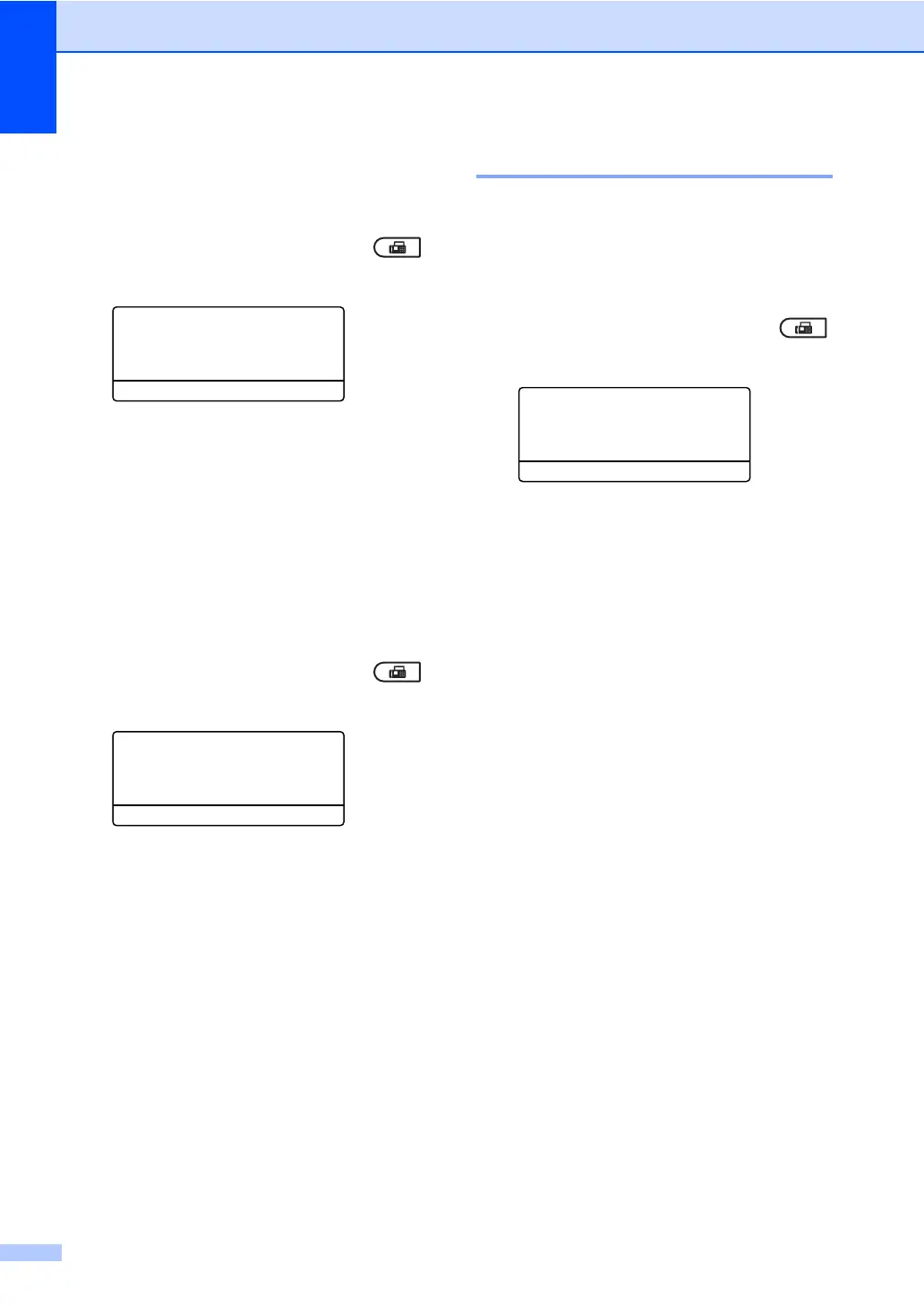
b Press Menu, 2, 2, 7, 1.
27.Coverpage
1.Setup
a Next Fax:On
b Next Fax:Off
Select ab or OK
c Press a or b to choose On (or Off).
Press OK.
d Press a or b to choose a comment.
Press OK.
Using a printed cover page 3
If you want to use a printed cover page that
you can write on, you can print the sample
page and attach it to your fax.
a Make sure you are in FAX mode .
b Press Menu, 2, 2, 7, 1.
27.Coverpage
1.Setup
a Next Fax:On
b Next Fax:Off
Select ab or OK
c Press a or b to choose Print Sample.
Press OK.
d Press Start.
e After the machine prints a copy of your
cover page, press Stop/Exit.
Destination Display 3
The machine displays the information
registered in the address book or the number
you dialed to send a fax. You can set the
machine to hide the destination information
on the LCD.
a Make sure you are in FAX mode .
b Press Menu, 2, 2, 9.
22.Setup Send
9.Destination
a Display
b Hidden
Select ab or OK
c Press a or b to choose Hidden (or
Display).
Press OK.
d Press Stop/Exit.


 To Next Page
 Loading...