EasyManua.ls Logo

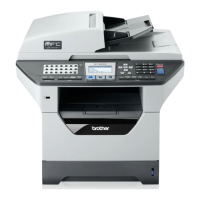
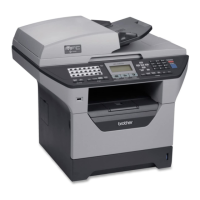
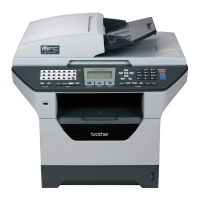
Brother MFC-8880DN - Service Manual

Brother MFC-8880DN
652 pages
Print Icon
To Next Page IconTo Next Page
Loading...
Confidential
Laser FAX/MFC
SERVICE MANUAL
Read this manual thoroughly before maintenance work.
Keep this manual in a convenient place for quick and easy reference at all times.
September 2009
SM-FAX105
8C5D01
(3)
MODEL:
DCP-8070D/8080DN/8085DN
MFC-8370DN/8380DN
MFC-8480DN/8880DN/8890DW

Table of Contents

Other manuals for Brother MFC-8880DN

Questions and Answers

  • S
    Stephanie WhiteSep 10, 2025
    Why is my Brother MFC-8880DN All in One Printer not dialling?
    • R
      Robert CaseSep 10, 2025
      If your Brother All in One Printer is not dialling, check for a dial tone. Change the Tone/Pulse setting. Check all line cord connections. Check that the machine is plugged in and switched on. If an external phone is connected to the machine, send a manual fax by lifting the handset of the external telephone and dialling the number. Wait to hear the fax receiving tones before pressing Start.
  • M
    Matthew VasquezAug 22, 2025
    What to do if I cannot install software or print with my Brother All in One Printer?
    • S
      Shannon Harris MDAug 22, 2025
      If your Brother All in One Printer is not printing or you cannot install software, run the Repair MFL-Pro Suite program on the CD-ROM. This program will repair and reinstall the software.
  • S
    Sarah AcostaAug 25, 2025
    Why won't my Brother MFC-8880DN All in One Printer print in duplex mode?
    • R
      Robert ConwayAug 25, 2025
      If the machine does not print on both sides of the paper even though the printer driver setting is Duplex for your Brother All in One Printer, check the paper size setting in the printer driver. You need to choose A4 size of paper.
  • A
    Alexandra YoungAug 26, 2025
    Why does the Transmission Verification Report say ‘RESULT:ERROR’ on my Brother All in One Printer?
    • S
      Shannon HerreraAug 26, 2025
      If the Transmission Verification Report displays ‘RESULT:ERROR’ when sending a fax with your Brother All in One Printer, try resending the fax. This error often occurs due to temporary noise or static on the phone line. If you're sending a PC Fax and encounter this error, the printer might be low on memory. To resolve this, disable fax storage, print faxes from memory, or cancel any delayed fax or polling jobs. Should the issue persist, contact your telephone company to inspect the line. If you frequently experience transmission errors, consider changing the Compatibility setting to Basic(for VoIP).
  • S
    Seth SmithAug 27, 2025
    Why does my Brother All in One Printer have a vertical black line in copies?
    • N
      Nathan WardAug 27, 2025
      Vertical black lines on copies made with your Brother All in One Printer are usually caused by dirt or correction fluid on the glass strip, or the corona wire for printing may be dirty. Clean the scanner and the corona wire.
  • C
    Christy JohnsonAug 29, 2025
    Why does my Brother MFC-8880DN have vertical black lines when receiving faxes?
    • S
      Stephen WaltersAug 29, 2025
      If you see vertical black lines when receiving faxes on your Brother All in One Printer, the corona wire for printing may be dirty. Try cleaning the corona wire. Also, the sender’s scanner may be dirty, so ask the sender to make a copy to see if the problem is with their sending machine. Try receiving from another fax machine. If the problem continues, call your dealer for service.
  • R
    Rebecca HoganSep 18, 2025
    Why is there no printout from my Brother MFC-8880DN All in One Printer?
    • H
      hlynchSep 18, 2025
      If there is no printout from your Brother All in One Printer, check that the machine is plugged in and the power switch is turned on. Check that the toner cartridge and drum unit are installed correctly. Check the interface cable connection on both the machine and your computer. Check that the correct printer driver has been installed and chosen. Check to see if the LCD is showing an error message. Check the machine is online. Contact your administrator to check your Secure Function Lock settings.
  • A
    Ashley BradfordSep 12, 2025
    Why are received faxes split or blank on my Brother MFC-8880DN?
    • D
      David WhiteSep 12, 2025
      If received faxes appear as split or blank pages on your Brother All in One Printer, your paper size setting may not be correct for the paper you are using. Turn on Auto Reduction.
  • J
    Jeffrey FaulknerSep 8, 2025
    Why don't the headers or footers print on my Brother MFC-8880DN?
    • J
      Julie AndrewsSep 8, 2025
      If the headers or footers appear when the document displays on the screen but they do not show up when it is printed on your Brother All in One Printer, there is an unprintable area on the top and bottom of the page. Adjust the top and bottom margins in your document to allow for this.
  • C
    Chad VasquezSep 5, 2025
    Why is my Brother MFC-8880DN All in One Printer printing garbage?
    • C
      Charles GlennSep 5, 2025
      If your Brother All in One Printer prints unexpectedly or prints garbage, pull out the paper tray and wait until the machine stops printing. Then turn off the machine and disconnect from the power for several minutes. Check the settings in your application to make sure it is set up to work with your machine. If you are using the parallel port connection, check that the port is BRMFC and not LPT1.

Summary

CHAPTER 1 SPECIFICATIONS

1. COMPONENTS

Lists the main physical components of the machine.

2. SPECIFICATIONS LIST

Details technical specifications for printing, functions, connectivity, and more across models.

2.1 Printing

Provides detailed printing specifications, including method, resolution, speed, and consumables.

2.2 Functions

Outlines the controller functions, interfaces, emulation, and network connectivity for different models.

2.6 Paper

Details paper handling capabilities, media types, weights, and sizes supported by the machines.

CHAPTER 2 THEORY OF OPERATION

1. OVERVIEW

Provides a block diagram of the machine's main sections and their interconnections.

3. MECHANICS

Explains the mechanical workings of the printer, scanner, and ADF units with diagrams.

3.1 Cross-section Drawing

Illustrates the internal printer parts and their arrangement.

3.2 Scanner Mechanism

Describes the operation of the document scanner unit and ADF for CCD and CIS models.

3.3 Paper Feeding

Details the paper paths and feeding mechanisms from various trays.

CHAPTER 3 ERROR INDICATION AND TROUBLESHOOTING

2.1.1 Error messages appearing on the LCD

Lists error messages displayed on the LCD, their types, actions, and corresponding page references.

3.2 Error Code Cause and Remedy

Details error codes, their causes, and specific remedies for troubleshooting.

4. PAPER FEEDING PROBLEMS

Provides solutions for common paper feeding issues like no feeding, double feeding, and paper jams.

5.3 Troubleshooting for Image Defect

Guides on troubleshooting various print image defects like light prints, faulty registration, and dark output.

9. TROUBLESHOOTING OF THE CONTROL PANEL

Addresses issues related to the control panel, such as no display or non-responsive buttons.

CHAPTER 4 PERIODICAL MAINTENANCE

1.1 Periodical Maintenance Parts

Lists parts requiring periodic replacement for maintaining product quality and their approximate life.

1.2 Procedures to Replace Periodical Maintenance Parts

Provides step-by-step instructions for replacing the Fuser unit, Laser unit, and Paper feeding kits.

CHAPTER 5 DISASSEMBLY;REASSEMBLY

1. SAFETY PRECAUTIONS

Outlines essential safety warnings and precautions to follow before performing maintenance work.

9. DISASSEMBLY PROCEDURE

Details the step-by-step process for disassembling various parts of the machine.

9.1 Paper Tray

Details the removal of the paper tray and its components.

9.4 Fuser Unit

Provides instructions for removing and replacing the Fuser unit.

9.8 ADF Unit

Details the disassembly procedures for the Automatic Document Feeder (ADF) unit for CCD and CIS models.

CHAPTER 6 ADJUSTMENTS AND UPDATING OF SETTINGS, REQUIRED AFTER PARTS REPLACEMENT

1. IF YOU REPLACE THE MAIN PCB

Details the necessary steps after replacing the Main PCB, including firmware rewriting and driver installation.

CHAPTER 7 SERVICE MODE

1. ENTRY INTO THE MAINTENANCE MODE

Explains how to access the machine's maintenance mode using control panel buttons.

4. DETAILED DESCRIPTION OF MAINTENANCE-MODE FUNCTIONS

Provides detailed explanations of various maintenance mode functions and their codes.

4.15 Fine Adjustment of Scan Start;End Positions (Function code 54)

Describes how to adjust scanning start and end positions for ADF and document scanner units.

4.16 Acquisition of White Level Data and CCD Scanner Area Setting (Function code 55)

Explains obtaining white level data and setting the CCD scanner area.

4.24 Counter Reset After Replacing the Fuser Unit, Laser Unit and Paper Feed Kit (Function code 88)

Provides instructions to reset counters after replacing key components like the Fuser, Laser, and Paper Feed Kits.

APPENDIX 1 WORKER SWITCH (WSW)

FIRMWARE SWITCHES (WSW)

Lists and describes the functions and settings of various firmware switches.

APPENDIX 4 SCREW CATALOGUE

Brother MFC-8880DN Specifications

General IconGeneral
Print technologyLaser
Maximum resolution1200 x 1200 DPI
Economical printingYes
Time to first page (black, normal)8.5 s
Print speed (black, normal quality, A4/US Letter)30 ppm
Scan toE-mail, E-mail Server, File, FTP, Image, OCR, USB
Scanner typeFlatbed & ADF scanner
Grayscale levels256
Input color depth24 bit
Maximum scan resolution19200 x 19200 DPI
Optical scanning resolution600 x 2400 DPI
Copier resize25 - 400 %
Maximum copy resolution1200 x 600 DPI
Maximum number of copies99 copies
N-in-1 copy function (N=)2, 4, 9, 16
Time to first copy (black, normal)10.5 s
Copy speed (black, normal quality, A4)30 cpm
FaxingMono faxing
Fax memory500 pages
Modem speed33.6 Kbit/s
Fax speed dialing (max numbers)300
Total input capacity250 sheets
Total output capacity150 sheets
Auto document feeder (ADF) input capacity50 sheets
Internal memory64 MB
Card reader integratedNo
Sound power level (standby)30 dB
Sound pressure level (printing)56 dB
DisplayLCD
Market positioningBusiness
Dimensions (WxDxH)531 x 451 x 475 mm
All-in-one functionsCopy, Fax, Print, Scan
Maximum internal memory0.576 GB
Color all-in-one functionsScan
Maximum print size216 x 356 mm
Paper tray media typesPlain paper, Recycled paper
ISO A-series sizes (A0...A9)A4, A5, A6
ISO B-series sizes (B0...B9)B5, B6
Maximum ISO A-series paper sizeA4
Standard interfacesEthernet
USB 2.0 ports quantity1
AC input frequency50 - 60 Hz
Power consumption (standby)85 W
Power consumption (PowerSave)18 W
Power consumption (average operating)680 W
Maximum duty cycle- pages per month
Package weight22100 g
Mac operating systems supportedMac OS X 10.3 Panther, Mac OS X 10.4 Tiger, Mac OS X 10.5 Leopard, Mac OS X 10.6 Snow Leopard, Mac OS X 10.7 Lion
Server operating systems supportedWindows 2000 Advanced Server, Windows 2000 Server, Windows Server 2003, Windows Server 2003 x64, Windows Server 2008, Windows Server 2008 R2, Windows Server 2008 x64
Windows operating systems supportedWindows 2000, Windows 2000 Professional, Windows 7 Home Premium, Windows 7 Home Premium x64, Windows 7 Ultimate, Windows Vista Business, Windows Vista Business x64, Windows Vista Home Basic, Windows Vista Home Basic x64, Windows Vista Home Premium, Windows Vista Home Premium x64, Windows Vista Ultimate, Windows Vista Ultimate x64, Windows XP Home, Windows XP Home x64, Windows XP Professional, Windows XP Professional x64

Related product manuals