EasyManua.ls Logo

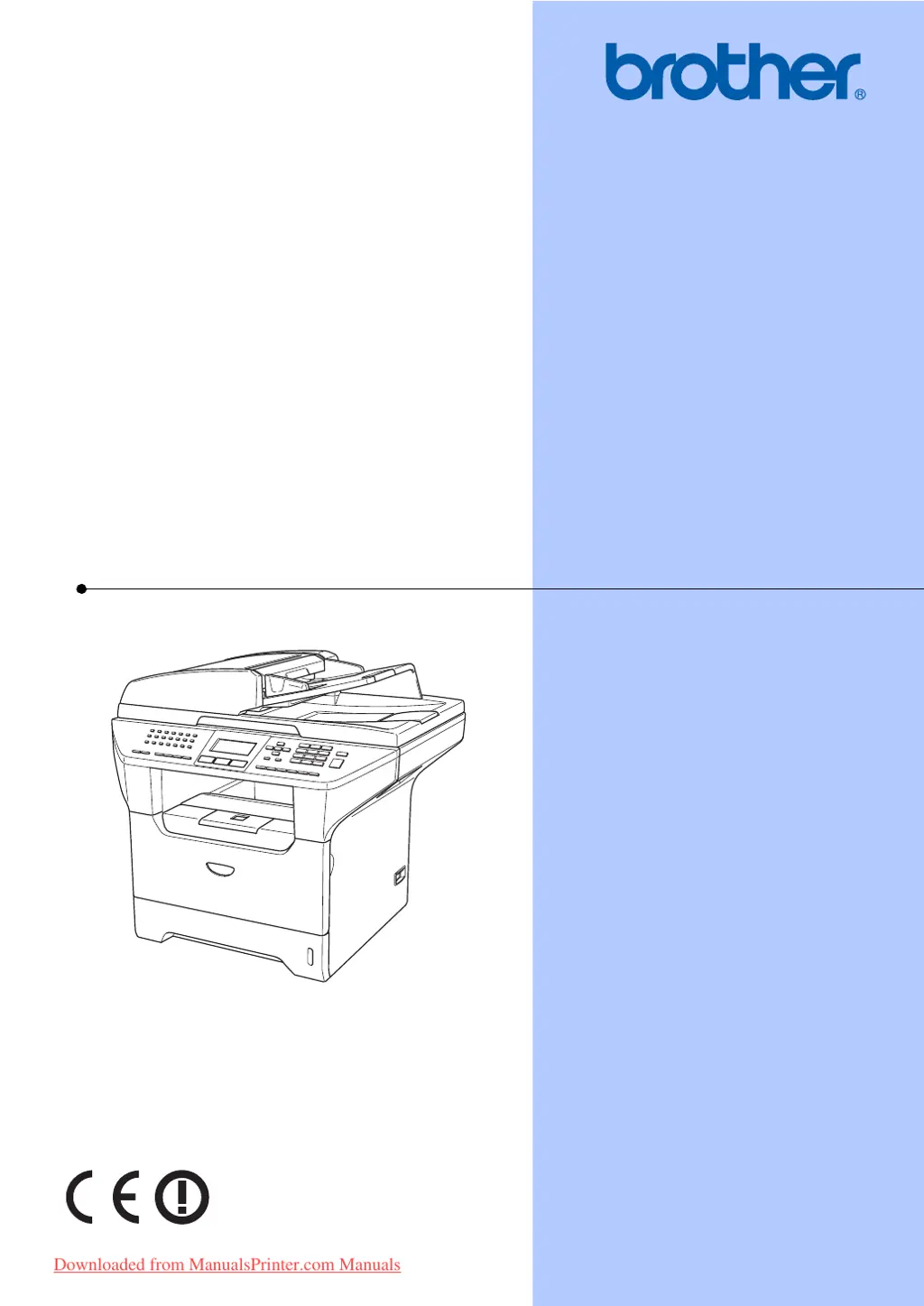
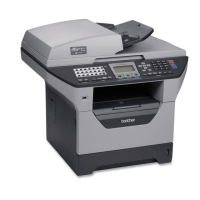
Brother MFC-8860DN - User Manual

Brother MFC-8860DN
178 pages
Print Icon
To Next Page IconTo Next Page
Loading...
USER’S GUIDE
MFC-8460N
MFC-8860DN
MFC-8870DW
Downloaded from ManualsPrinter.com Manuals

Table of Contents

Other manuals for Brother MFC-8860DN

Questions and Answers

  • T
    Tyler FernandezAug 19, 2025
    Why does my Brother All in One Printer have no print out?
    • R
      Ruth BlackwellSep 12, 2025
      If your Brother All in One Printer has no print out, verify that the machine is plugged in and the power switch is on. Also, ensure that the toner cartridge and drum unit are installed correctly. Check the interface cable connection on both the printer and your computer, and confirm that the correct printer driver is installed. If the issue continues, check the LCD for any error messages.
  • K
    Kenneth CollierAug 21, 2025
    How to resolve vertical black lines when receiving on my Brother MFC-8860DN?
    • J
      Joseph ParkAug 21, 2025
      If your Brother All in One Printer is producing vertical black lines when receiving faxes, the primary corona wire for printing may be dirty. Clean your primary corona wire.
  • N
    Nancy RobinsonAug 23, 2025
    Why does my Brother MFC-8860DN produce vertical black lines when sending?
    • M
      Mathew MartinezAug 23, 2025
      If your Brother All in One Printer is producing vertical black lines when sending faxes, and a copy shows the same problem, clean the scanner.
  • G
    gutierrezjessicaAug 26, 2025
    Why does my Brother MFC-8860DN Transmission Verification Report say ‘RESULT:ERROR’?
    • D
      David SandersAug 26, 2025
      If the Transmission Verification Report shows ‘RESULT:ERROR’ when sending a fax from your Brother All in One Printer, it's likely due to temporary noise or static on the phone line. Try resending the fax. If you're sending a PC FAX and see ‘RESULT:NG’, the printer might be out of memory. If transmission errors persist, ask your telephone company to check the phone line. For frequent errors due to phone line interference, try changing the Compatibility setting to Basic.
  • L
    leejohnAug 28, 2025
    What to do if my Brother All in One Printer has poor paper loading?
    • A
      allison49Aug 28, 2025
      If your Brother All in One Printer is not loading paper correctly, first, ensure there is paper in the tray. If there is paper, make sure it is straight and not curled. Load a new stack of paper into the paper tray. If the LCD shows a Paper Jam message, see Paper jams on page 112.
  • C
    cwatsonAug 30, 2025
    What does Comm.Error message mean on my Brother MFC-8860DN All in One Printer?
    • A
      Andrea JohnsonAug 30, 2025
      If your Brother All in One Printer displays a 'Comm.Error' message, it indicates a communication error due to poor phone line quality. Try resending the fax, or connect the machine to another telephone line. If the problem persists, contact your telephone company to check your phone line.
  • T
    Timothy MahoneySep 1, 2025
    How to improve sending quality on my Brother All in One Printer?
    • W
      westellenSep 1, 2025
      To address poor sending quality on your Brother All in One Printer, try increasing the resolution to Fine or S.Fine. Create a copy to evaluate the scanner. If the copy quality is also poor, clean the scanner.
  • R
    Ronnie HughesSep 3, 2025
    How to fix 'Check Paper Size' message on my Brother MFC-8860DN?
    • J
      Javier NunezSep 3, 2025
      If your Brother All in One Printer displays a 'Check Paper Size' message, it means the loaded paper is not the correct size. Load the correct size of paper (A4, Letter, Legal, or Folio), and then set the Paper Size and Tray Use in Fax Mode accordingly.
  • A
    anthonyhodgesSep 5, 2025
    What to do if my Brother MFC-8860DN All in One Printer prints unexpectedly or garbage?
    • S
      Sheena HillSep 5, 2025
      If your Brother All in One Printer prints unexpectedly or prints garbage, turn off the machine’s power switch and then turn it on again. If the error message continues, leave the machine for several minutes and then try it again.
  • C
    Christopher CraneSep 7, 2025
    Why does my Brother MFC-8860DN hear a voice as a CNG Tone?
    • N
      Nicole OrtegaSep 7, 2025
      If your Brother All in One Printer 'hears' a voice as a CNG Tone, and Fax Detect is set to on, the machine is likely interpreting voices or music as a fax machine. The device may mistakenly respond with fax receiving tones due to its sensitivity to sounds.

Summary

Section I General

Control panel overview

Details the functions and layout of the machine's control panel keys and display.

2 Loading documents and paper

Guides on loading documents into ADF/scanner glass and acceptable media types.

4 Security features

Section II Fax

5 Sending a fax

Provides instructions on how to send faxes using the ADF or scanner glass.

6 Receiving a fax

Explains how to configure receive modes and settings for incoming faxes.

Section III Copy

12 Making copies

Covers the basic process of making single and multiple copies, along with copy options.

Section V Appendices

A Safety and Legal

Contains important safety precautions, legal information, and compliance statements.

C Troubleshooting and routine maintenance

Provides solutions for common problems and guidance on routine maintenance.

Brother MFC-8860DN Specifications

General IconGeneral
Duplex printingYes
Print technologyLaser
Maximum resolution1200 x 1200 DPI
Time to first page (black, normal)8.5 s
Print speed (black, normal quality, A4/US Letter)28 ppm
Scan toe-mail, file, image, OCR
Grayscale levels256
Input color depth48 bit
Copier resize25 - 400 %
Maximum copy resolution1200 x 600 DPI
Maximum number of copies99 copies
Copy speed (black, normal quality, A4)28 cpm
FaxingMono faxing
Fax memory500 pages
Modem speed33.6 Kbit/s
Fax speed dialing (max numbers)300
Total input capacity250 sheets
Total output capacity150 sheets
Auto document feeder (ADF) input capacity50 sheets
Maximum internal memory544 MB
Sound power level (standby)30 dB
Sound pressure level (printing)55 dB
DisplayLCD
Market positioningBusiness
Paper tray media typesEnvelopes, Plain paper, Recycled paper
Non-ISO print media sizesExecutive
ISO A-series sizes (A0...A9)A4, A5, A6
ISO B-series sizes (B0...B9)B5, B6
Maximum ISO A-series paper sizeA4
Font styles66 Scaleable fonts, Letter, Gothic 16.66, OCR-A, OCR-B, 11 Barcodes
Dimensions (WxDxH)531 x 450 x 475 mm
Networking features10/100 Base-TX
All-in-one functionsCopy, Fax, Scan
Color all-in-one functionsscan, n
Compatible operating systemsWindows98(SE)/Me/2000/XP/NT4.0WS Mac OS 9.1-9.2/ OS X 10.2.4 +
Standard interfacesUSB 2.0
Power consumption (standby)85 W
Power consumption (PowerSave)15 W
Power consumption (average operating)1104 W
Sustainability certificatesENERGY STAR

Related product manuals