EasyManua.ls Logo

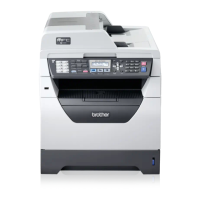
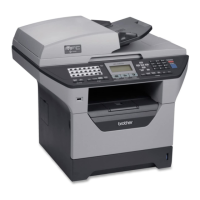
Brother MFC-8520DN - User Manual

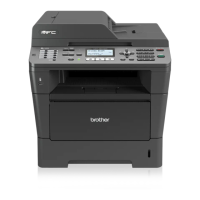
Brother MFC-8520DN
181 pages
Print Icon
To Next Page IconTo Next Page
Loading...
Basic User’s Guide
MFC-8510DN
MFC-8520DN
Not all models are available in all countries.
Version 0
UK/IRE

Table of Contents

Other manuals for Brother MFC-8520DN

Questions and Answers

  • N
    Nancy CampbellSep 5, 2025
    What does 'Unusable Device' mean on my Brother MFC-8520DN All in One Printer?
    • C
      Carl JacksonSep 5, 2025
      The 'Unusable Device' error on your Brother All in One Printer indicates that a defective USB device or a high power consumption USB device has been connected to the USB direct interface, or a USB device or USB Flash memory drive that is not supported/is encrypted has been connected to the USB direct interface. Unplug the device from the USB direct interface and turn the machine off and then on again.
  • E
    elizabeth25Aug 25, 2025
    How to fix 'No Toner' error on Brother MFC-8520DN?
    • K
      Kelly FloresAug 25, 2025
      If your Brother All in One Printer shows a 'No Toner' error, it means the toner cartridge or the drum unit and toner cartridge assembly is not installed correctly. Remove the drum unit and toner cartridge assembly, then remove the toner cartridge from the drum unit, and re-install the toner cartridge back into the drum unit again. Re-install the drum unit and toner cartridge assembly back in the machine.
  • R
    ramoswilliamAug 25, 2025
    What does 'Replace Parts Drum' mean on my Brother MFC-8520DN All in One Printer and how to fix it?
    • E
      Eric YoungAug 26, 2025
      The 'Replace Parts Drum' message on your Brother All in One Printer indicates that it is time to replace the drum unit or that the drum unit counter was not reset when a new drum was installed. Replace the drum unit and reset the drum unit counter.
  • J
    James ThomasSep 14, 2025
    Why does my Brother All in One Printer say 'Manual Feed'?
    • E
      emaySep 14, 2025
      If your Brother All in One Printer displays 'Manual Feed', it means manual was selected as the paper source when there was no paper in the MP tray. Place paper in the MP tray. If the machine is in Pause mode, press Start.
  • K
    Kurt CooperSep 23, 2025
    Why does my Brother All in One Printer say 'Rename the File'?
    • K
      Kevin BakerSep 23, 2025
      If your Brother All in One Printer displays 'Rename the File', it means there is already a file on the USB Flash memory drive with the same name as the file you are trying to save. Change the file name of the file on the USB Flash memory drive or the file you are trying to save.
  • H
    heidibrownSep 9, 2025
    What to do if my Brother All in One Printer says 'Cover is Open'?
    • M
      Michele NavarroSep 10, 2025
      If your Brother All in One Printer displays 'Cover is Open', it means that the front cover, the ADF cover, or the fuser cover is not completely closed. Ensure that all covers are properly closed. If the ADF is open while loading a document, close the ADF cover and press Stop/Exit. Also, ensure that paper is not jammed behind the fuser cover.
  • S
    Stefanie WeberSep 1, 2025
    Why does my Brother MFC-8520DN All in One Printer say 'Cooling Down Wait for a while'?
    • D
      David CrawfordSep 1, 2025
      The 'Cooling Down Wait for a while' message on your Brother All in One Printer appears because the temperature of the drum unit or toner cartridge is too high. Ensure the fan in the machine is spinning and the exhaust outlet is not blocked. If the fan is spinning, clear any obstructions around the exhaust. If the fan isn't spinning, disconnect the machine from power for a few minutes, then reconnect it.
  • J
    Justin JenkinsSep 23, 2025
    What to do if my Brother MFC-8520DN says 'Too Many Files'?
    • R
      rodriguezjacobSep 23, 2025
      If your Brother All in One Printer displays 'Too Many Files', it means there are too many files stored on the USB Flash memory drive. Reduce the number of files stored on the USB Flash memory drive.
  • D
    Diana ShortSep 18, 2025
    How to fix 'DIMM Error' on Brother MFC-8520DN?
    • G
      greenjillSep 18, 2025
      If your Brother All in One Printer displays 'DIMM Error', it means the DIMM is not installed correctly or the DIMM is broken. Turn off the machine and remove the DIMM. Confirm the DIMM meets the required specifications. Re-install the DIMM correctly. Wait a few seconds, and then turn it on again. If this error message appears again, replace the DIMM with a new one.
  • J
    James SmithAug 28, 2025
    Why does my Brother All in One Printer show 'Wrong Paper Size'?
    • C
      Christine BennettAug 28, 2025
      If your Brother All in One Printer displays 'Wrong Paper Size', it means the machine cannot find paper of the same size in any other tray after the tray currently in use has run out of paper during a copy operation. Load the paper in the paper tray shown on the LCD.

Summary

General Information

Using the Documentation

Explains how to use the manual and understand its conventions.

Accessing Other Guides and Support

Instructions on accessing advanced guides and Brother support resources.

Control Panel Overview and Settings

Details the machine's control panel, indicators, and volume settings.

Loading Paper

Loading Paper and Print Media

Guidelines for loading various types of paper and print media into the machine.

Paper Tray Loading Instructions

Steps for loading paper into standard, optional, and multi-purpose trays.

Paper Settings and Usage

Configuration of paper type, size, tray usage, and unscannable areas.

Loading Documents

How to Load Documents

General instructions for loading documents for faxing, copying, and scanning.

Using the Automatic Document Feeder (ADF)

Step-by-step guide for loading documents into the ADF for processing.

Using the Scanner Glass

Instructions for placing documents on the scanner glass for faxing, copying, or scanning.

Sending a Fax

How to Send a Fax

Basic steps for sending a fax, including document loading and number entry.

Fax Settings and Verification

Options for customizing fax transmission and verifying sent faxes.

Receiving a Fax

Receive Modes and Settings

Explanation of different fax reception modes and their configuration.

Fax Detect Feature

How the Fax Detect feature automatically receives faxes without manual intervention.

Using PC-FAX

How to Use PC-FAX

Instructions for sending and receiving faxes directly from a computer.

PC-FAX Receive and Send

Setting up PC-FAX receive for Windows and sending faxes from computer applications.

Telephone and External Devices

Telephone Line Services

How to configure the machine for different telephone line types like PBX or ISDN.

Connecting External Devices

Guides for connecting external TADs and telephones for enhanced functionality.

Remote Operation and Codes

How to operate the machine remotely and use remote activation codes.

Dialling and Storing Numbers

Dialling Methods

Methods for dialling numbers, including manual, One Touch, and Speed Dial.

Storing Numbers and Contacts

Guidance on storing One Touch, Speed Dial, and Group numbers, including options.

Making Copies

How to Copy

Basic steps to perform a copy operation using the machine.

Copy Settings

Options available for customizing copy jobs like paper type, size, and quality.

Printing from USB;Camera

Direct Printing from USB Devices

How to connect and print files directly from USB flash drives or digital cameras.

Printing from a Computer

Printing a Document

Instructions for printing documents from a computer after installing the printer driver.

Scanning to a Computer

Scanning using ControlCenter4

Guide to scanning documents using the ControlCenter4 software for PDF creation.

Scanning using the SCAN Key

Step-by-step process to initiate scanning directly from the machine's SCAN key.

Routine Maintenance

Replacing Consumables

Information on replacing toner cartridges and drum units when prompted by the machine.

Cleaning Procedures

Guides for cleaning the machine's exterior, scanner glass, corona wire, and rollers.

Troubleshooting

Problem Identification and Error Messages

Initial checks, error codes, and maintenance messages to diagnose machine issues.

Paper Handling and Document Jams

Procedures for clearing paper jams in trays, ADF, and document areas.

Faxing and Printing Issues

Solutions for problems related to sending/receiving faxes and printing quality/operation.

Connectivity and Network Problems

Troubleshooting steps for computer connectivity, network, and software issues.

Menu and Features

On-Screen Programming

Explanation of how to navigate and use the machine's menu for programming.

Menu Table

A comprehensive table detailing menu options, settings, and corresponding page numbers.

Entering Text

Instructions on how to input text characters using the machine's dial pad for menu selections.

Specifications

General Machine Specifications

Details on model, power, dimensions, and general operational parameters.

Function-Specific Specifications

Technical details for Fax, Copy, Scanner, Printer, and PC-FAX functions.

Document and Media Handling

Specifications for document sizes, print media types, and paper handling capabilities.

Brother MFC-8520DN Specifications

General IconGeneral
Print technologyLaser
Maximum resolution1200 x 1200 DPI
Economical printingYes
Duplex printing modeAuto
Time to first page (black, normal)8.5 s
Print speed (black, normal quality, A4/US Letter)36 ppm
Duplex print speed (black, normal quality, A4/US Letter)9 ppm
PictBridgeNo
Scan speed2.68 sec/page
Dimensions (WxDxH)405 x 415 x 423 mm
All-in-one functionsCopy, Fax, Print, Scan
Color all-in-one functionsScan
Printing colorsBlack
Maximum duty cycle- pages per month
Recommended duty cycle500 - 3500 pages per month
Number of print cartridges1
Page description languagesBR-Script 3, Epson FX, IBM ProPrinter, PCL 6
Copier resize25 - 400 %
Maximum copy resolution1200 x 600 DPI
Maximum number of copies99 copies
N-in-1 copy function (N=)2, 4, 9, 16, 25
Time to first copy (black, normal)10.5 s
Copy speed (black, normal quality, A4)36 cpm
Scan toE-mail, E-mail Server, File, FTP, Image, OCR, USB
Scan driversICA, ISIS, TWAIN
Scanner typeFlatbed & ADF scanner
Grayscale levels256
Input color depth48 bit
Maximum scan areaLegal (216 x 356) mm
Output color depth24 bit
Image formats supportedBMP, JPG
Maximum scan resolution19200 x 19200 DPI
Document formats supportedPDF
FaxingMono faxing
Fax memory500 pages
Modem speed33.6 Kbit/s
Fax coding methodsJBIG, JPEG, MH, MMR (Fax coding method), MR
Fax speed dialing (max numbers)300
Paper input typePaper tray
Total input capacity250 sheets
Total output capacity150 sheets
Maximum input capacity850 sheets
Maximum number of input trays2
Multi-Purpose tray input capacity50 sheets
Auto document feeder (ADF) input capacity35 sheets
Custom media width76.2 - 215.9 mm
Maximum print size216 x 356 mm
Custom media length127 - 355.6 mm
Paper tray media typesBond paper, Plain paper, Pre-Printed, Recycled paper, Thin paper
Paper tray media weight60 - 105 g/m²
Non-ISO print media sizesLegal
ISO A-series sizes (A0...A9)A4, A5, A6
ISO B-series sizes (B0...B9)B5, B6
Multi-purpose tray media typesBond paper, Envelopes, Heavyweight paper, Labels, Plain paper, Recycled paper
Maximum ISO A-series paper sizeA4
Multi-Purpose Tray media weight60 - 163 g/m²
Auto Document Feeder (ADF) media weight64 - 90 g/m²
DisplayLCD
Market positioningHome & office
Display number of lines5 lines
Display number of characters22
Standard interfacesEthernet, USB 2.0
Security algorithms802.1x RADIUS, EAP, EAP-TLS, EAP-TTLS, MD5, PEAP
Processor familyStar Sapphire
Maximum internal memory384 MB
Sound power level (standby)37 dB
Sound pressure level (printing)59 dB
Sound pressure level (quiet mode)54 dB
AC input voltage220 - 240 V
AC input frequency50 - 60 Hz
Power consumption (off)1.2 W
Power consumption (standby)8.1 W
Power consumption (PowerSave)336 W
Power consumption (average operating)651 W
Package weight20.100 g
Sustainability certificatesENERGY STAR

Related product manuals