EasyManua.ls Logo

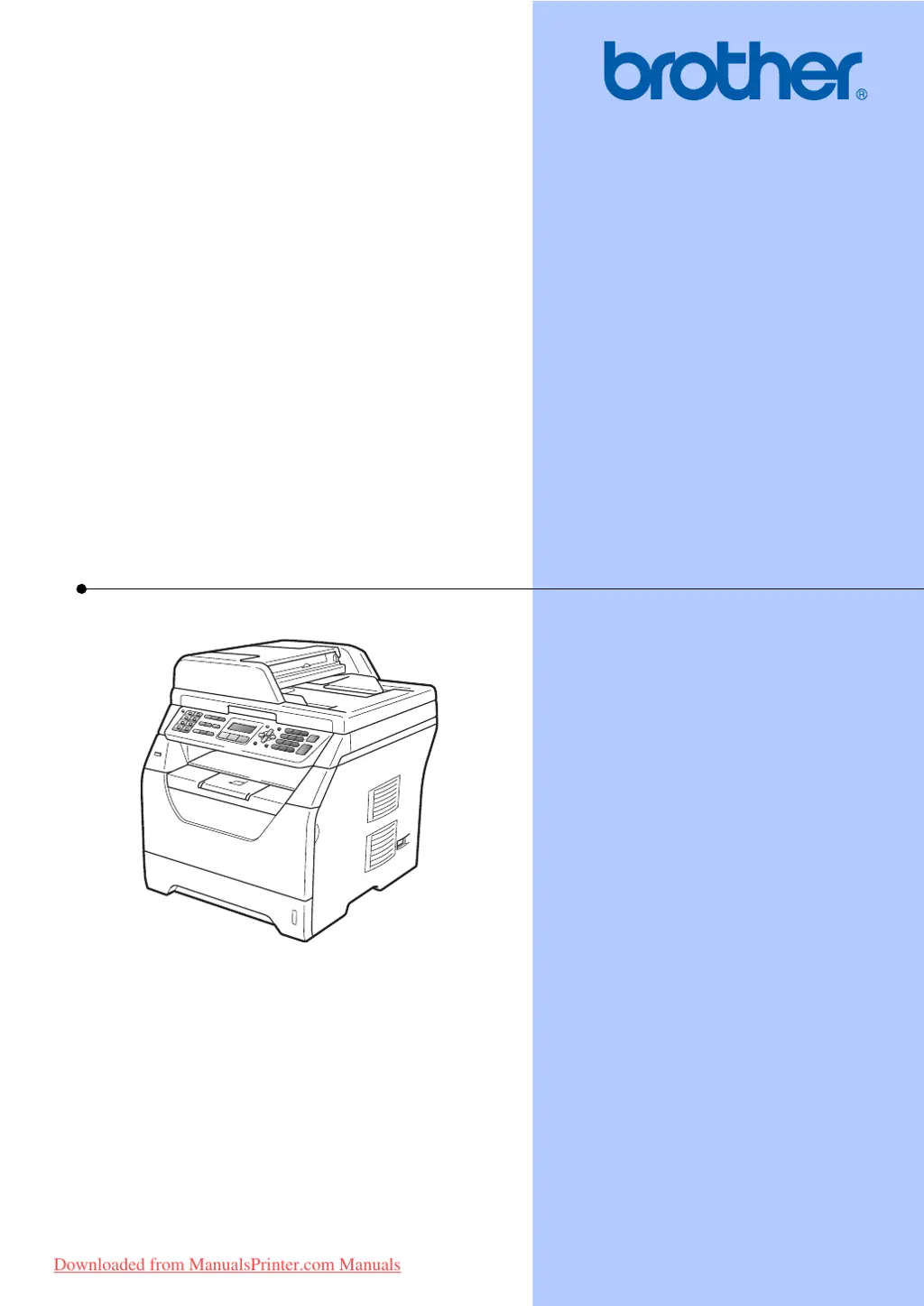
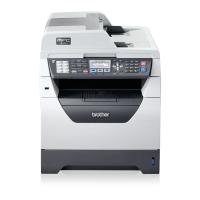
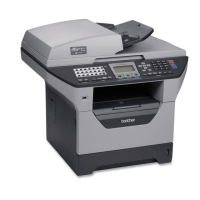
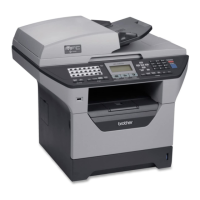
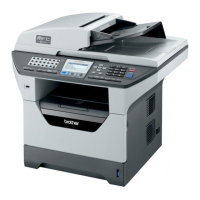
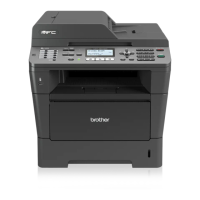
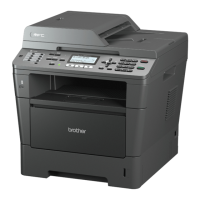
Brother MFC-8370DN - User Manual

Brother MFC-8370DN
210 pages
Print Icon
To Next Page IconTo Next Page
Loading...
USER’S GUIDE
MFC-8370DN
MFC-8380DN
Version A
UK/IRE
Downloaded from ManualsPrinter.com Manuals

Table of Contents

Other manuals for Brother MFC-8370DN

Questions and Answers

  • S
    Sarah LongSep 4, 2025
    What to do if dialling does not work on my Brother All in One Printer?
    • K
      Kevin HudsonSep 4, 2025
      If you're having trouble with dialling on your Brother All in One Printer, check for a dial tone. Change the Tone/Pulse setting. Check all line cord connections. Ensure that the machine is plugged in and switched on. If an external phone is connected to the machine, send a manual fax by lifting the handset of the external telephone and dialling the number.
  • H
    Hannah BrownSep 18, 2025
    Why don't headers/footers print on my Brother MFC-8370DN All in One Printer?
    • S
      Stephanie WilliamsSep 18, 2025
      If the headers or footers appear when the document displays on the screen but they do not show up when it is printed on your Brother All in One Printer, there is an unprintable area on the top and bottom of the page.
  • L
    Lance SantosSep 16, 2025
    How to fix a vertical black line in copies from my Brother MFC-8370DN?
    • H
      hawkinsalexisSep 16, 2025
      If you see a vertical black line appears in copies from your Brother All in One Printer, the glass strip or corona wire may be dirty. Clean the scanner and corona wire.
  • W
    William FullerSep 14, 2025
    Why does my Brother MFC-8370DN All in One Printer beep when accessing Setup Receive/Send menus?
    • J
      Jose AndersonSep 14, 2025
      If your Brother All in One Printer beeps when you try to access the Setup Receive and Setup Send menus, and if Fax is not illuminated, press it to turn on Fax mode.
  • J
    James WebbSep 12, 2025
    Why do received faxes appear as split or blank pages on my Brother All in One Printer?
    • T
      Troy MataSep 12, 2025
      If received faxes appear as split or blank pages on your Brother All in One Printer, your paper size setting may not be correct for the paper you are using. Turn on Auto Reduction.
  • A
    Allison CannonSep 12, 2025
    How to fix custom features on a single line on Brother All in One Printer?
    • B
      Brittany JacksonSep 12, 2025
      If you're experiencing custom features on a single line with your Brother All in One Printer, Brother’s ECM feature should help overcome this problem.
  • F
    frank98Sep 9, 2025
    Why does my Brother MFC-8370DN All in One Printer ‘Hear’ a voice as a CNG Tone?
    • A
      Angela MarshallSep 9, 2025
      If your Brother All in One Printer ‘Hears’ a voice as a CNG Tone, it may be because Fax Detect is set to On. Deactivate the machine by pressing Stop/Exit. You can also try avoiding this problem by turning Fax Detect to Off.
  • Y
    Yolanda MilesSep 7, 2025
    How to resolve vertical black lines when sending from Brother MFC-8370DN?
    • B
      brian87Sep 7, 2025
      If you see vertical black lines when sending from your Brother All in One Printer, it may be due to dirt or correction fluid on the glass strip. Clean the scanner.
  • T
    Tara YoungSep 5, 2025
    What to do if I still cannot receive a fax on my Brother MFC-8370DN All in One Printer?
    • J
      john61Sep 5, 2025
      If you cannot receive a fax (continued) on your Brother All in One Printer, your answering machine may not be set up correctly, so make sure it is. Make sure your Brother machine's Fax Detect feature is turned On. Try changing the Compatibility setting to Basic(for VoIP).
  • S
    Stephen PhillipsAug 20, 2025
    Why do scanned documents jam on the ADF output tray of my Brother MFC-8370DN All in One Printer?
    • M
      Michael MoodyAug 20, 2025
      If the scanned documents jam on the ADF output tray of your Brother All in One Printer, make sure your documents are not too thin or too thick and are correctly loaded in the ADF.

Summary

Section I General

General Information

Overview of the user guide, symbols, and conventions used within the documentation.

Control Panel Overview

Details the function and layout of the machine's control panel keys and display for operation.

Loading Paper and Documents

Loading Paper and Print Media

Explains how to load various types of paper and print media into the machine's trays.

Type and Size of Paper

Specifies the types, sizes, and capacities of paper supported by the machine's trays.

Loading Documents

Provides instructions for loading documents into the Automatic Document Feeder (ADF) and scanner glass.

General Setup

Paper Settings

Guides users on setting the paper type and size for different trays to optimize print quality.

Volume Settings

Explains how to adjust ring volume, beeper volume, and speaker volume for the machine.

Security Features

Secure Function Lock 2.0 (MFC-8380 DN)

Details how to restrict access to machine functions and set up user profiles for security.

Setting the Password for the Administrator

Provides steps to set an administrator password for managing security features and user access.

Fax

Sending a Fax

Covers the procedures for sending faxes, including single-sided, double-sided, and from scanner glass.

Receiving a Fax

Explains how to set up receive modes, manage incoming faxes, and configure related settings.

Dialing and Storing Numbers

Details methods for dialing numbers, storing contacts, and managing speed dial and one-touch dialing.

Direct Printing

Printing Data from a USB Flash Memory Drive or a Digital Camera Supporting Mass Storage

Guides on printing files directly from USB drives or digital cameras without a computer.

Software

Software and Network Features

Information on using the machine's software, including HTML user guides and network features.

Appendixes

Safety and Legal

Important safety instructions, legal information, and compliance statements for the machine.

Troubleshooting and Routine Maintenance

Guidance on resolving common problems, error messages, and performing regular maintenance tasks.

Brother MFC-8370DN Specifications

General IconGeneral
Duplex printingYes
Print technologyLaser
Maximum resolution1200 x 1200 DPI
Time to first page (black, normal)8.5 s
Print speed (black, normal quality, A4/US Letter)28 ppm
Input color depth48 bit
Optical scanning resolution600 x 2400 DPI
Copier resize25 - 400 %
Maximum copy resolution1200 x 600 DPI
Maximum number of copies99 copies
N-in-1 copy function (N=)2, 4, 9, 16, 25
Copy speed (black, normal quality, A4)28 cpm
FaxingMono faxing
Fax memory500 pages
Modem speed33.6 Kbit/s
Total input capacity250 sheets
Total output capacity150 sheets
Multi-Purpose tray input capacity50 sheets
Auto document feeder (ADF) input capacity20 sheets
DisplayLCD
Product colorGrey, White
Market positioningHome & office
Display number of lines2 lines
Display number of characters16
Card reader integrated-
Sound power level (standby)30 dB
Sound pressure level (printing)56 dB
Paper tray media typesBond paper, Envelopes, Labels, Plain paper, Recycled paper, Transparencies
Non-ISO print media sizesExecutive
ISO A-series sizes (A0...A9)A4, A5, A6
ISO B-series sizes (B0...B9)B5
Maximum ISO A-series paper sizeA4
Multi-Purpose Tray media weight60 - 163 g/m²
Standard interfacesEthernet, USB 2.0
USB 2.0 ports quantity1
Dimensions (WxDxH)531 x 451 x 475 mm
All-in-one functionsCopy, Fax, Scan
Color all-in-one functionsScan
Power consumption (standby)85 W
Power consumption (average operating)680 W
Package weight21100 g
Digital senderNo
Maximum duty cycle- pages per month
Weight and Dimensions IconWeight and Dimensions
Depth443 mm
Width390 mm
Height442 mm

Related product manuals