20
6
Before scanning 6
To use the machine as a scanner, install a
scanner driver. If the machine is on a
network, configure it with a TCP/IP address.
Install the scanner drivers from the
installer CD-ROM. (See Quick Setup
Guide.)
Configure the machine with a TCP/IP
address if network scanning does not
work.
For more information, see Online User’s
Guide: Configure Network Scanning for
Windows
®
.
How to scan a
document as a PDF file
using ControlCenter4
(Windows
®
) 6
For more information, see Online User’s
Guide: Scan Using ControlCenter4 Advanced
Mode (Windows
®
).
• The screens on your PC may vary
depending on your model.
• This section is based on using Advanced
Mode in ControlCenter4.
ControlCenter4 is a software utility that lets
you access the applications you use most
often without having to manually launch
specific applications.
a Load your document. (See How to load
documents on page 15.)
b Click the (ControlCenter4) icon in
the task tray, and then click Open.
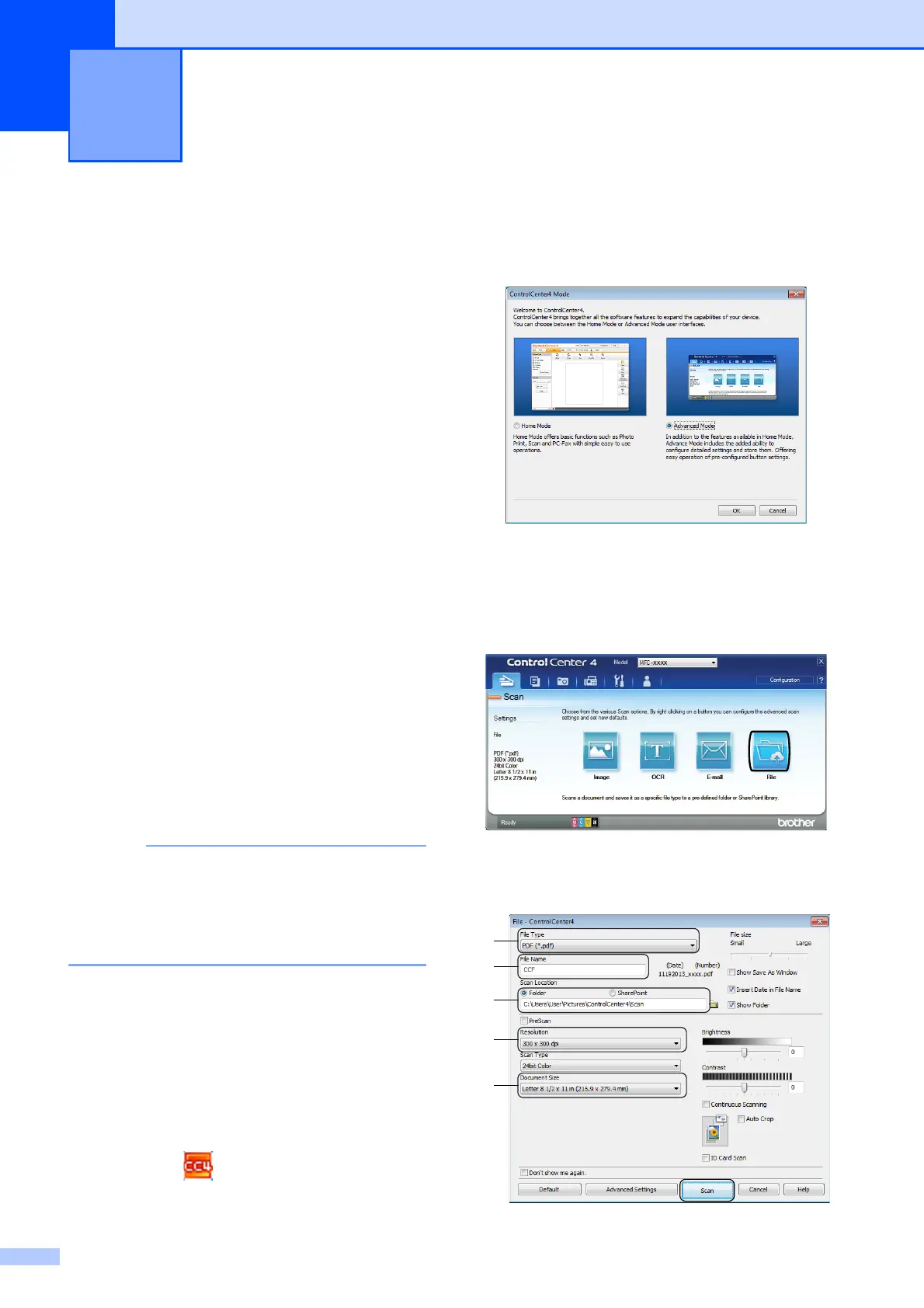
c If the ControlCenter4 Mode screen
appears, click Advanced Mode, and
then click OK.
d Select your machine from the Model
drop-down list at the top of the screen.
e Click the Scan tab. Then click File.
The configuration dialog box appears.
Change the default settings if needed.
Scanning to a computer 6


 To Next Page
 Loading...