Home > Shortcut Settings > Delete Shortcuts
Delete Shortcuts
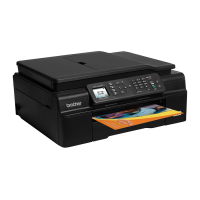
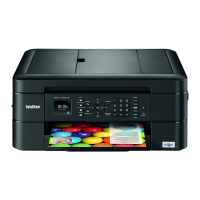
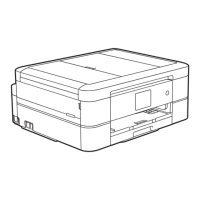
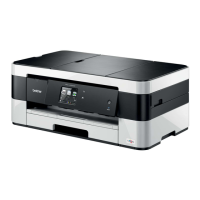
>> DCP-J4120DW/MFC-J2320/MFC-J4420DW/MFC-J5320DW
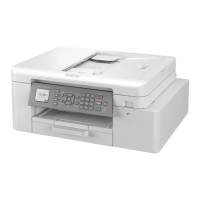
>> MFC-J2720/MFC-J4620DW/MFC-J4625DW/MFC-J5620DW/MFC-J5625DW/MFC-J5720DW/MFC-J5920DW
DCP-J4120DW/MFC-J2320/MFC-J4420DW/MFC-J5320DW
1. Press (Shortcuts).
2. Press d or c to display the Shortcut you want to delete.
3. Do one of the following:
• Press and hold the Shortcut until the options appear.
• Press Edit/Delete, and then press the Shortcut you want.
4. Press Delete to delete the Shortcut you selected.
5. Press Yes to confirm.
6. Press .
MFC-J2720/MFC-J4620DW/MFC-J4625DW/MFC-J5620DW/MFC-J5625DW/
MFC-J5720DW/MFC-J5920DW
1. Press (Shortcuts).
2. Press and hold the Shortcut until the dialog box appears.
You can also press (Settings) > All Settings > Shortcut Settings.
3. Press Delete to delete the Shortcut you selected.
4. Press Yes to confirm.
Related Information
• Shortcut Settings
63


 To Next Page
 Loading...