EasyManua.ls Logo

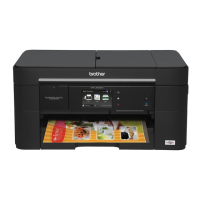
Brother MFC-J5320DW - User Manual

Brother MFC-J5320DW
80 pages
Print Icon
To Next Page IconTo Next Page
Loading...
Basic User’s Guide
MFC-J2320
MFC-J5320DW
Version 0
OCE/ASA/SAF/GLF

Table of Contents

Other manuals for Brother MFC-J5320DW

Questions and Answers

  • J
    Jill WilkersonSep 16, 2025
    Why does my Brother All in One Printer say 'Hub is Unusable.'?
    • R
      Robin RyanSep 16, 2025
      The 'Hub is Unusable' message on your Brother All in One Printer indicates that a hub or USB flash drive with hub has been connected to the USB direct interface. Hubs, including USB flash drives with built-in hubs, are not supported. Unplug the device from the USB direct interface.
  • R
    Ricky HallAug 25, 2025
    Why does my Brother MFC-J5320DW All in One Printer only print B&W 1-sided and says 'Replace ink'?
    • J
      Joseph JacksonAug 25, 2025
      Your Brother All in One Printer may only print in black and white and display a 'Replace ink' message because one or more of the colour ink cartridges have reached the end of their life. Replace the ink cartridges. Note that the machine will stop all print operations until a new ink cartridge is installed if you unplug the machine or take out the ink cartridge, or if you select Slow Drying Paper in the printer driver settings.
  • V
    Veronica PerkinsAug 26, 2025
    What to do if my Brother MFC-J5320DW displays 'Paper Jam'?
    • T
      Teresa MelendezAug 26, 2025
      If your Brother All in One Printer displays a 'Paper Jam' error, it means the paper is jammed in the machine. Remove the jammed paper.
  • C
    Christopher CoxAug 27, 2025
    What causes paper jams during duplex printing on a Brother MFC-J5320DW All in One Printer?
    • C
      Charles PerkinsAug 27, 2025
      A paper jam during duplex printing may occur because the recording papers are fed in reverse on the platen when switchback drive is started, triggering switchback sensor as paper feeding condition.
  • R
    Ruben BurkeSep 18, 2025
    What does 'No Caller ID' mean on my Brother MFC-J5320DW All in One Printer?
    • V
      veronicasinghSep 18, 2025
      The 'No Caller ID' message on your Brother All in One Printer indicates that there is no incoming call history because you did not receive calls or you have not subscribed to the Caller ID service from your telephone company. If you want to use the Caller ID feature, call your telephone company.
  • J
    Jeremy WeberSep 23, 2025
    What does 'Ink cartridge side IC chip relation defective' mean for my Brother All in One Printer?
    • C
      Claire HamptonSep 23, 2025
      The error 'Ink cartridge side IC chip relation defective' on your Brother All in One Printer means there may be an identification number mismatch, the cartridge is judged as incompatible, or the printer detects a wrong color setting.
  • V
    vreynoldsSep 8, 2025
    Why does my Brother MFC-J5320DW All in One Printer say 'High Temperature'?
    • P
      petersjenniferSep 9, 2025
      Your Brother All in One Printer displays 'High Temperature' because the room temperature is too high. After lowering the room temperature, allow the machine to cool down to room temperature. Try again when the machine has cooled down.
  • A
    andrea86Sep 9, 2025
    Why does my Brother MFC-J5320DW All in One Printer say 'Low Temperature'?
    • J
      James BonillaSep 10, 2025
      Your Brother All in One Printer displays 'Low Temperature' because the room temperature is too low. After increasing the room temperature, allow the machine to warm up to room temperature. Try again when the machine has warmed up.
  • A
    Alexander GonzalezSep 3, 2025
    Why does my Brother All in One Printer say 'Out of Fax Memory'?
    • G
      garyolsonSep 3, 2025
      The 'Out of Fax Memory' message on your Brother All in One Printer indicates that the fax memory is full. To resolve this, clear the data from the memory, or print the faxes that are in the memory. You can also turn off Memory Receive to gain extra memory.
  • M
    Melanie SalazarSep 1, 2025
    How to fix 'Paper Tray not detected' error on Brother MFC-J5320DW All in One Printer?
    • D
      Dr. Jonathan Medina DDSSep 1, 2025
      The 'Paper Tray not detected' error on your Brother All in One Printer can be resolved by: slowly pushing the paper tray completely into the machine. If jammed paper or a foreign object is preventing the paper tray from being inserted properly, pull the paper tray out of the machine and remove the obstruction, then slowly push the paper tray completely into the machine.

Summary

General Information

How to Use the Documentation

Explains how to use the documentation and its conventions.

Symbols and Conventions

Details symbols and conventions used throughout the documentation.

About Brother Utilities (Windows)

Describes the Brother Utilities application launcher for Windows.

Control Panel Overview

Details the machine's control panel, LCD, and touchpanel.

Entering Text

Explains how to enter text using the on-screen keyboard.

Loading Paper

Before Loading Paper

Guidelines for loading paper correctly, including size and type.

Loading Paper in the Paper Tray

Instructions for loading paper into the paper tray with orientation details.

Loading Paper in the Manual Feed Slot

Instructions for loading paper into the manual feed slot.

Paper Settings

How to set paper size and type for optimal print quality.

Loading Documents

How to Load Documents

Methods for loading documents for faxing, copying, or scanning.

Using the ADF

Instructions for using the Automatic Document Feeder (ADF).

Using the Scanner Glass

Instructions for using the scanner glass for single pages or book pages.

Printing from a Computer

How to Print a Document

Step-by-step guide to print documents from a computer.

Copying

How to Copy

Instructions on how to perform copying operations.

Copy Options Overview

Overview of available copy settings and options.

Paper Type

Setting the paper type for optimal copy quality.

Paper Size

Setting the paper size for copying operations.

Scanning to a Computer

Before Scanning

Prerequisites for scanning, including driver installation.

How to Scan a Document as a PDF File using ControlCenter4 (Windows)

Guide to scanning documents to PDF using ControlCenter4 software.

How to Scan a Document as a PDF File Using the Touchscreen

Guide to scanning documents to PDF directly from the machine's touchscreen.

Printing Photos from a USB Flash Drive

PhotoCapture Center Operations (PHOTO mode)

Operations for printing photos directly from a USB flash drive.

How to Print Images

Step-by-step instructions for viewing and printing photos.

Telephone Services and External Devices

Voice over Internet Protocol (VoIP)

Information on using the machine with VoIP systems.

Connecting an External Telephone Answering Device (TAD)

Guidance on connecting an external answering device.

Distinctive Ring (For some countries)

Using the Distinctive Ring service for multiple phone numbers.

Sending a Fax

How to Send a Fax

Step-by-step guide to sending faxes from the machine.

Storing Address Book Numbers

How to store contact numbers in the Address Book for faxing.

How to Set Your Station ID

Setting the Station ID for fax identification.

Receiving a Fax

Choose the Receive Mode

Guidance on selecting the correct Receive Mode for fax reception.

Using Receive Modes

Explanation of how different receive modes operate.

Receive Mode Settings

Detailed settings for Ring Delay and F/T Ring Time.

Routine Maintenance

How to Clean and Check the Machine

Instructions for cleaning the machine's components.

Checking the Print Quality

Procedures to check and improve print quality.

Checking the Print Alignment

Steps to adjust print alignment for clarity.

Troubleshooting

Error and Maintenance Messages

Common error messages, their causes, and actions.

Paper Handling Difficulties

Solutions for problems related to paper feeding and jams.

Printing Difficulties

Common issues encountered during printing and their solutions.

Machine Information

Information about the machine's serial number, firmware, and resets.

Brother MFC-J5320DW Specifications

General IconGeneral
Print technologyInkjet
Maximum resolution6000 x 1200 DPI
Economical printingYes
Duplex printing modeAuto
Print speed (ISO/IEC 24734) mono22 ipm
Print speed (ISO/IEC 24734) color20 ipm
Print speed (black, normal quality, A4/US Letter)35 ppm
Print speed (color, normal quality, A4/US Letter)27 ppm
Copier resize25 - 400 %
Maximum copy resolution1200 x 2400 DPI
Maximum number of copies99 copies
Copy speed (black, normal quality, A4)12 cpm
Copy speed (color, normal quality, A4)9 cpm
Scan toE-mail, E-mail Server, File, FTP, Image, Memory Card, OCR, USB
Scan driversICA, TWAIN, WIA
Scanner typeFlatbed & ADF scanner
Grayscale levels256
Input color depth48 bit
Maximum scan areaA4 (210 x 297) mm
Output color depth24 bit
Image formats supportedJPG, TIF
Maximum scan resolution19200 x 19200 DPI
Document formats supportedPDF
Optical scanning resolution2400 x 2400 DPI
FaxingColor faxing
Modem speed14.4 Kbit/s
Digital sender-
Printing colorsBlack, Cyan, Magenta, Yellow
Maximum duty cycle- pages per month
Number of print cartridges4
Email protocolsAPOP, IMAP4, POP, SMTP
Wi-Fi standards802.11b, 802.11g, Wi-Fi 4 (802.11n)
Cabling technology10/100Base-T(X)
Security algorithms128-bit WEP, 64-bit WEP, APOP, SMTP-AUTH, SSID, SSL/TLS, WPA-AES, WPA-PSK, WPA-TKIP, WPA2-AES, WPA2-PSK, WPS
Ethernet LAN data rates10, 100 Mbit/s
Online services supportedBox, Dropbox, Evernote, Facebook, Flickr, Google Drive, OneDrive, Picasa
Mobile printing technologiesApple AirPrint, Brother iPrint & Scan, Google Cloud Print
Paper input typePaper tray
Total input capacity250 sheets
Total output capacity50 sheets
Auto document feeder (ADF) input capacity35 sheets
Envelopes sizes10, C5, DL, Monarch
Photo paper sizes9x13, 10x15, 13x18, 13x20 cm
Duplex media weight64 - 120 g/m²
Paper tray media typesCoated paper, Matte paper, Photo paper, Plain paper
Paper tray media weight64 - 220 g/m²
Non-ISO print media sizes2L, Executive (184 x 267mm), Folio (media size), Index card, L, Ledger (media size), Letter (media size)
ISO A-series sizes (A0...A9)A3, A4, A5, A6
JIS B-series sizes (B0...B9)B4, B5
Borderless printing media sizes10x15, 2L, A3, A4, L, Ledger, Letter
Maximum ISO A-series paper sizeA3
DisplayLCD
Control typeTouch
Product colorBlack
Display diagonal3.7 \
Market positioningBusiness
Standard interfacesEthernet, USB 1.1, USB 2.0, Wireless LAN
USB 2.0 ports quantity1
Compatible memory cardsMicroSD (TransFlash), MicroSDHC, MicroSDXC, MiniSD, MiniSDHC, MMC, MMC Mobile, MMC+, MS Duo, MS PRO Duo, SD, SDHC, SDXC
Sound pressure level (printing)50 dB
AC input voltage220 - 240 V
AC input frequency50 - 60 Hz
Power consumption (off)0.04 W
Power consumption (standby)5.5 W
Power consumption (PowerSave)1.8 W
Power consumption (average operating)32 W
Minimum storage drive space50 MB
Mac operating systems supportedMac OS X 10.7 Lion, Mac OS X 10.8 Mountain Lion, Mac OS X 10.9 Mavericks
Server operating systems supportedWindows Server 2008 R2 x64, Windows Server 2003, Windows Server 2003 x64, Windows Server 2008, Windows Server 2008 x64, Windows Server 2012 x64
Windows operating systems supportedWindows 7 Home Basic, Windows 7 Home Basic x64, Windows 7 Home Premium, Windows 7 Home Premium x64, Windows 7 Professional, Windows 7 Professional x64, Windows 7 Starter, Windows 7 Starter x64, Windows 7 Ultimate, Windows 7 Ultimate x64, Windows 8, Windows 8 Enterprise, Windows 8 Enterprise x64, Windows 8 Pro, Windows 8 Pro x64, Windows 8 x64, Windows 8.1, Windows 8.1 Enterprise, Windows 8.1 Enterprise x64, Windows 8.1 Pro, Windows 8.1 Pro x64, Windows 8.1 x64, Windows Vista Business, Windows Vista Business x64, Windows Vista Enterprise, Windows Vista Enterprise x64, Windows Vista Home Basic, Windows Vista Home Basic x64, Windows Vista Home Premium, Windows Vista Home Premium x64, Windows Vista Ultimate, Windows Vista Ultimate x64, Windows XP Home, Windows XP Home x64, Windows XP Professional, Windows XP Professional x64
Bundled softwareBrother ControlCentre 2\\r NewSoft Presto! PageManager 9
Sustainability certificatesNordic Swan Ecolabel, Blue Angel, ENERGY STAR
Package weight14700 g
Storage temperature (T-T)20 - 33 °C
Operating temperature (T-T)10 - 35 °C
Operating relative humidity (H-H)20 - 80 %
Weight and Dimensions IconWeight and Dimensions
Depth368 mm
Width589 mm
Height362 mm

Related product manuals