EasyManua.ls Logo

Brother MFC-J5910DW - User Manual

Brother MFC-J5910DW
155 pages
Print Icon
To Next Page IconTo Next Page
Loading...
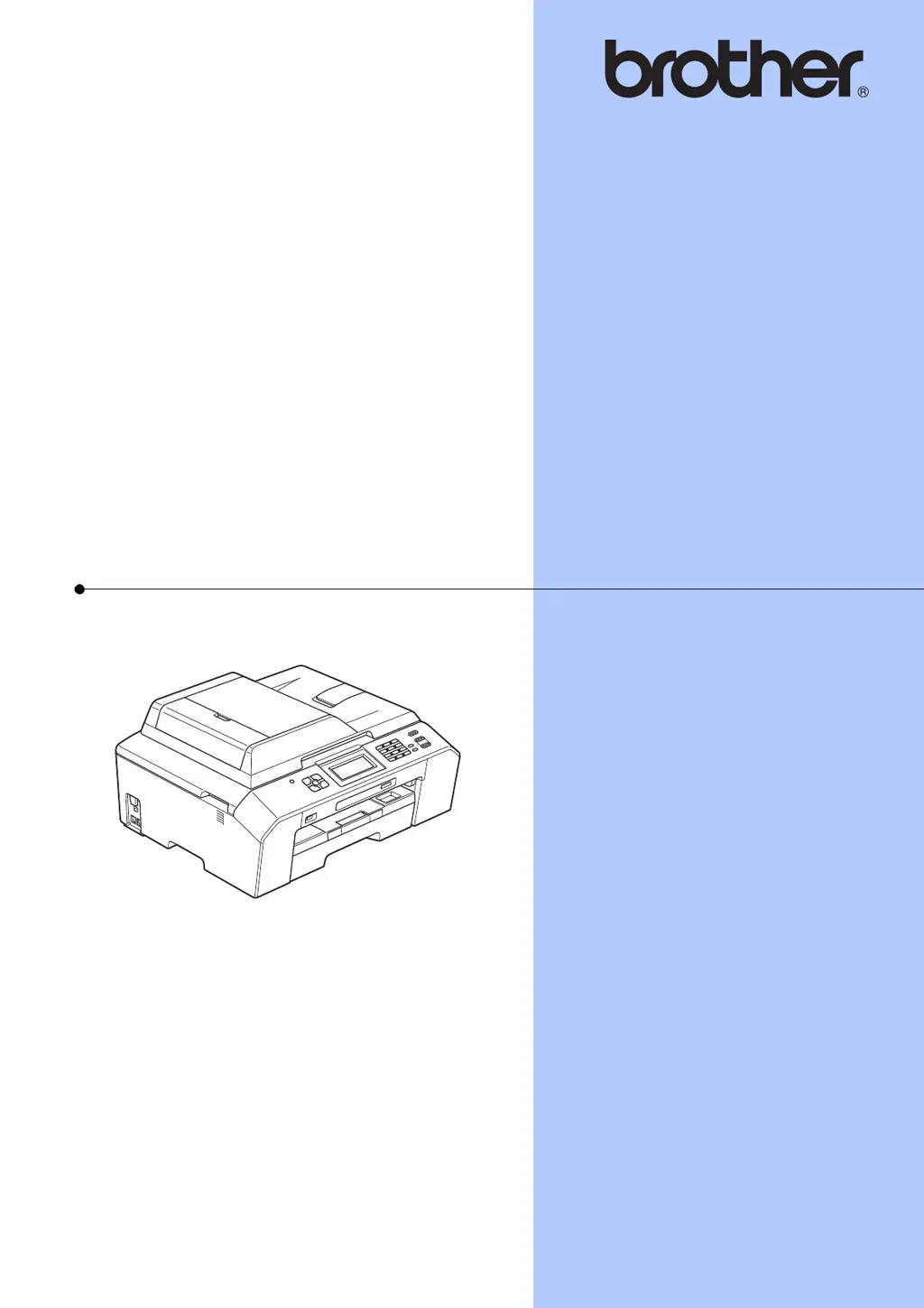
BASIC USER’S GUIDE
MFC-J5910DW
Version 0
USA/CAN

Table of Contents

Other manuals for Brother MFC-J5910DW

Questions and Answers

  • R
    Russell VillarrealJul 26, 2025
    What to do if my Brother MFC-J5910DW All in One Printer says 'Cannot Print Replace Ink'?
    • A
      Aaron BaileyJul 26, 2025
      If your Brother All in One Printer displays a 'Cannot Print Replace Ink' message, it indicates that one or more of the ink cartridges have reached the end of their life. To resolve this, replace the ink cartridges.
  • S
    Sarah HughesAug 1, 2025
    How to fix 'B&W Print Only Replace Ink' error on Brother MFC-J5910DW All in One Printer?
    • R
      Robert WoodAug 1, 2025
      The 'B&W Print Only Replace Ink' error on your Brother All in One Printer means that one or more of the color ink cartridges have reached the end of their life. You should replace the ink cartridges to fix this.
  • J
    Jennifer GreenAug 7, 2025
    What to do if my Brother MFC-J5910DW All in One Printer says 'Cover is Open'?
    • K
      Kyle WarnerAug 7, 2025
      If your Brother All in One Printer displays a 'Cover is Open' message, it could be due to two reasons. First, the scanner cover might not be completely closed; lift it and close it again. Second, the ink cartridge cover might not be completely closed; firmly close it until it clicks.
  • R
    Robin MooreAug 13, 2025
    Why my Brother All in One Printer 'Cannot Detect' ink cartridge?
    • J
      Jennifer CordovaAug 13, 2025
      Your Brother All in One Printer may show 'Cannot Detect' for several reasons: * If you installed a new ink cartridge too quickly, the machine might not have detected it. Try taking out the new ink cartridge and re-installing it slowly until it clicks. * The machine may not detect the ink cartridge if you are not using Genuine Brother Innobella™ ink. Use a new Genuine Brother Innobella™ Ink Cartridge. If the error persists, contact Brother Customer Service. * The ink cartridge might not be installed properly. Remove the ink cartridge and re-install it slowly until it clicks.
  • T
    thorntonjasonAug 19, 2025
    What does 'Comm.Error' mean on my Brother MFC-J5910DW All in One Printer and how to fix it?
    • S
      Samantha RogersAug 19, 2025
      A 'Comm.Error' on your Brother All in One Printer indicates a communication error, often due to poor telephone line quality. Try sending the fax again or connect the machine to another telephone line. If the problem continues, contact your telephone company to check your telephone line.

Summary

Brother numbers

For Customer Service

Contact information and support channels for Brother customers.

Chapter 1 General information

Control panel overview

Explanation of the machine's control panel buttons and functions for operation.

Favorite Settings

How to save and recall frequently used fax, copy, and scan settings.

Chapter 2 Loading paper

Loading paper and other print media

Instructions for correctly loading various types and sizes of paper into the tray.

Loading envelopes and postcards

Specific guidance for loading envelopes and postcards to prevent misfeeds.

Paper settings

How to configure paper type and size settings for optimal print quality.

Chapter 3 Loading documents

Using the ADF

Detailed steps for using the Automatic Document Feeder for scanning or copying.

Chapter 4 Sending a fax

Chapter 5 Receiving a fax

Receive Modes

Explanation of different modes for automatically receiving faxes and voice calls.

Chapter 6 Telephone services and external devices

Chapter 7 Dialing and storing numbers

Storing Speed Dial numbers

Steps for saving frequently used phone numbers for quick dialing.

Chapter 8 Making copies

Copy settings

How to adjust copy resolution, paper type, and size for desired output.

Chapter 9 PhotoCapture Center

Print Images

How to preview and print photos from memory cards or USB drives.

Chapter 10 How to print from a computer

Chapter 11 How to scan to a computer

Chapter A Routine maintenance

Replacing the ink cartridges

Step-by-step guide for replacing ink cartridges when they are low or empty.

Chapter B Troubleshooting

Chapter C Menu and features

Chapter D Specifications

Brother MFC-J5910DW Specifications

General IconGeneral
Typeall in one
Colorblack
Tray Capacity250
Automatic Document Feeder Capacity35 sheets
Paper Sizeledger, letter, legal, executive, envelope (c5 envelope, com-10, dl envelope, monarch, je4 envelope), a4, photo 4" x 6", 3.5" x 5", 5" x 7", 5" x 8", 8" x 10"
Paper Handlingup to 250 sheets
Color Print Speed10 pages per minute
Mono Print Speed12 pages per minute
Print Resolution Monoup to 6000 x 1200
Print Resolution Colorup to 6000 x 1200
Maximum Number of Pages Per Monthup to 7, 000
Scanner Typeflatbed
Scan Resolutionup to 2400 x 2400
Copier Resolution Monoup to 1200 x 1200
Copier Resolution Colorup to 1200 x 1200
Cartridgeslc75hy series
Number Of Cartridges4
Internal Memoryno
Memory Cardno
Networkwired/wireless
Connectivityusb 2.0
OS Compatibilitynone
Mobile Devices Connectionyes
Weight and Dimensions IconWeight and Dimensions
Height20.2 inches
Width18.1 inches
Net Weight30 pounds

Related product manuals