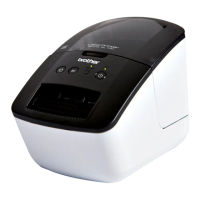
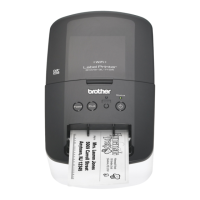
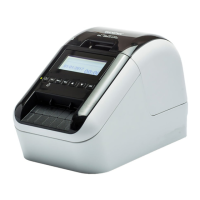
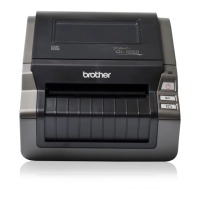
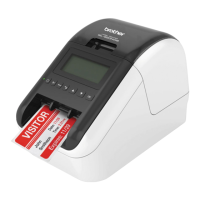
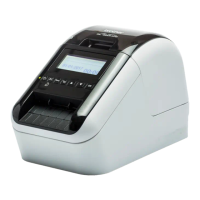
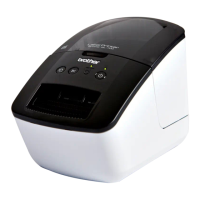
The Brother QL-700 is a label printer designed for efficient and reliable label creation. This user guide provides comprehensive information on its operation, maintenance, and troubleshooting, ensuring users can maximize the device's potential.
Function Description
The Brother QL-700 is a direct thermal label printer, meaning it uses heat to produce images on thermal paper, eliminating the need for ink or toner. It is capable of printing labels at a high speed of up to 150 mm per second, or approximately 93 standard address labels per minute, when connected to a PC and utilizing the P-touch Editor software. The printer supports a maximum print width of 59 mm and a maximum print length of 1 meter, with a minimum print length of 12.7 mm, offering flexibility for various labeling needs. The print head boasts a resolution of 300 dpi/720 dot, ensuring clear and sharp label output.
The QL-700 features a durable automatic cutter, which precisely cuts labels after printing, enhancing efficiency and providing a professional finish. It is equipped with several control buttons: an ON/OFF button for power management, an Editor Lite button for quick access to basic editing functions, a FEED button for advancing labels, and a CUT button for manual cutting. The device also includes indicator lamps: an Editor Lite lamp (green) and a STATUS lamp (green, orange, red), which provide visual feedback on the printer's status and any potential issues. Connectivity is established via a USB interface, making it compatible with a wide range of computers. The printer operates on a 220-240 V AC 50/60Hz power supply.
The QL-700 is designed to be user-friendly, supporting both Windows (XP, Vista, 7) and Mac OS X (10.4.11 - 10.7) operating systems. It integrates seamlessly with P-touch Editor software, which provides advanced label design capabilities. The device also supports an Add-In feature for Microsoft Word, allowing users to print labels directly from their documents.
Usage Features
To begin using the QL-700, users should first ensure the power cord is securely inserted and the device is turned on. The printer utilizes DK Rolls, which are thermal recording paper types. Proper installation of the DK Roll is crucial for optimal performance. The machine's design incorporates an automatic print head cleaning mechanism, as the DK Roll itself cleans the print head during printing and label feeding.
For basic label creation, the Editor Lite feature allows for quick and straightforward label printing without extensive software interaction. For more complex designs and functionalities, connecting the printer to a computer and using the P-touch Editor software is recommended. This software provides a comprehensive suite of tools for designing and customizing labels.
When printing, users should be aware of the STATUS lamp indicators, which communicate the printer's current state. For instance, a flashing orange STATUS lamp indicates that the printer is in cooling mode, and printing should be paused until the lamp stops flashing.
The P-touch Add-In for Microsoft Word enhances productivity by enabling direct label printing from Word documents. Users should ensure that the Add-In is activated and that Microsoft Word is not started from Microsoft Outlook or chosen as the default editor for Outlook, as these configurations may prevent the Add-In from functioning correctly. If the Add-In layout style does not update after replacing a roll, closing and reactivating the Add-In is the recommended solution.
In case of a cutter error, the DK roll compartment cover should be closed, and the ON/OFF button pressed. The cutter will return to its normal position, and the machine will turn off automatically. Users should then inspect the label outlet for any paper jams.
Maintenance Features
Regular maintenance is essential to ensure the longevity and optimal performance of the Brother QL-700. While the DK Roll provides automatic print head cleaning, additional maintenance steps are recommended, especially in dusty environments.
Print Head Maintenance: The DK Roll is specifically designed to clean the print head as it passes during printing and label feeding. This inherent feature helps maintain print quality without requiring manual intervention for the print head itself.
Roller Maintenance: The roller, however, requires periodic cleaning. To clean the roller, an optional Brother cleaning sheet must be used. Using non-Brother cleaning sheets can scratch the roller surface and lead to malfunctions. The cleaning process involves:
- Turning off the QL-700 by pressing and holding the ON/OFF button.
- Opening the DK Roll compartment cover by firmly lifting it from the front of the machine.
- Removing the DK Roll.
- Removing the backing paper from the cleaning sheet and feeding its edge into the printing unit until it reaches the indicated area in the diagram. It's crucial to ensure the printing surface of the cleaning sheet faces upwards and that the sheet is inserted without removing the first part.
- Closing the DK Roll compartment cover and turning the QL-700 back on by pressing the ON/OFF button.
- Pressing the Feed button for more than one second. This action causes the roller to spin by 10 cm, allowing the adhesive face of the cleaning sheet to remove stains or dust. If the Feed button is pressed for less than one second, the roller will only spin by 8 mm. After cleaning, the cleaning sheet should be disposed of.
Label Outlet Maintenance: If labels jam due to glue residue in the label outlet, the power cord should be removed, and the label outlet cleaned with a cloth dipped in ethanol or isopropyl alcohol. This helps prevent future jams and ensures smooth label ejection.
Troubleshooting: The user guide provides solutions for common problems such as the printer not printing, printing errors, the STATUS lamp not lighting, poor print quality, data transmission errors, label jams, and issues with the P-touch Add-In. For instance, if print quality is poor, checking for dirt or lint on the roller and cleaning it with the cleaning sheet is advised. If the printed barcode cannot be read, users can adjust print quality options in their computer's printer settings or try a different scanner. In cases of persistent issues, contacting a Brother dealer is recommended.
Resetting the Printer: To reset the printer to factory settings, users should turn off the machine, then press and hold the CUT button while simultaneously holding down the ON/OFF button. Once the Editor Lite lamp starts flashing and the STATUS lamp lights orange, the CUT button should be pressed six times while continuing to hold down the ON/OFF button. This action will reset the machine to its default factory settings.
By following these guidelines for usage and maintenance, users can ensure their Brother QL-700 label printer operates efficiently and produces high-quality labels consistently.


 To Next Page
 General