Operational Description
POWERplus User Guide 1.1.0 10 350-00104-4
OPERATIONS
This section provides information about how to use your POWERplus.
Display Navigation
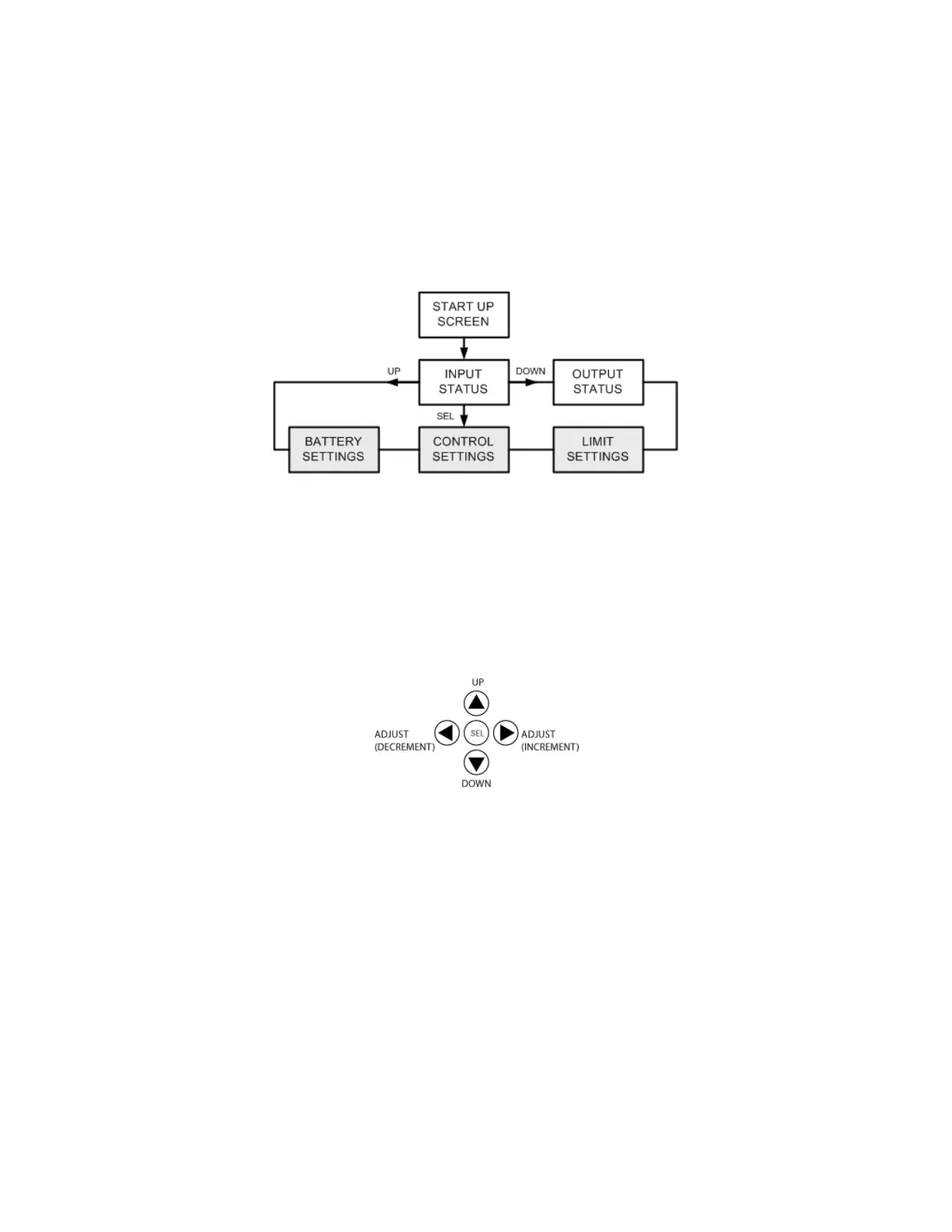
The POWERplus display has several pages of information and settings accessed sequentially as shown in
Figure 4 below.
Figure 4 POWERplus display screens
The shaded boxes in Figure 4 indicate the screens that have user settings that can be edited to suit your
needs.
When POWERplus is first powered on the Startup screen is displayed briefly. The Input status screen is
then automatically displayed.
• Use the UP/DOWN buttons on the front panel (FIGURE 5) to navigate either forwards or backwards
through the series of screens. For example, press the DOWN button from the INPUT status page to go
to the OUTPUT status page.
Figure 5 Menu Navigation Buttons
• Use the SEL button to enter the edit mode.
Exit the edit mode by using the UP button to scroll off the top of the parameter list. Changes to your
settings are automatically saved when you exit the page.
• Briefly press the SEL button from INPUT status or OUTPUT status pages to go directly to the CONTROL
settings page.
• Use the ADJUST buttons to make changes to user settings in the settings pages.


 To Next Page