14
operating manual
operating manual Product appearance and specications are subject to change without notice
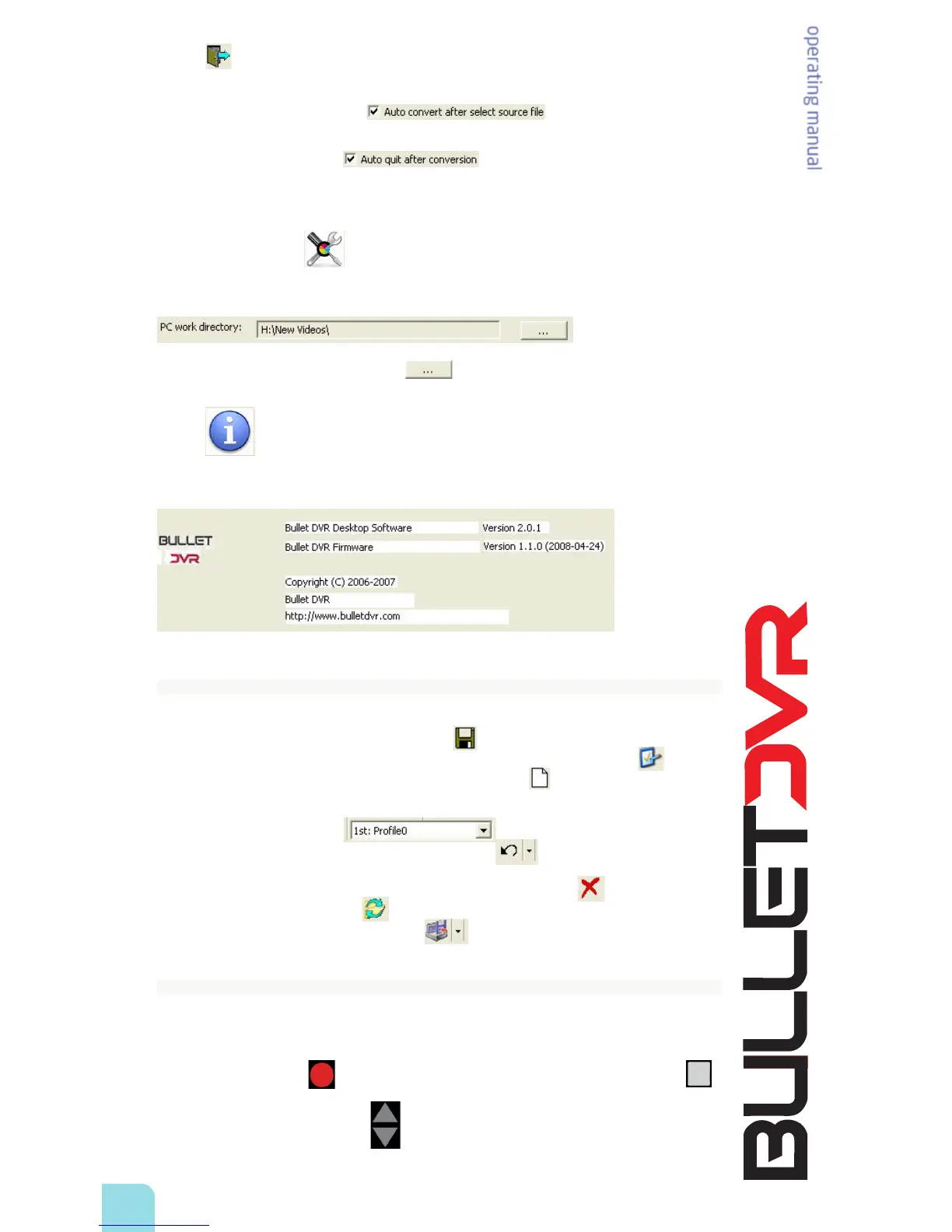
Click the icon to convert the le you just selected. The new converted le will be saved in your work
folder, under the same name but with a new .MPG le extension.
If you check the Auto Convert option the conversion process will
begin automatically, after you select the source le.
If the Auto Quit option is enabled the Bullet DVR application will be
terminated, after the conversion process is completed.
For better performance, it is recommended that the source le remains on the CF memory card, and
the target le of your work folder is located on the local hard drive of your computer.
Advanced Conguration: Allows you to change the path of the work folder. This folder contains
all your converted mpeg-2 les, as well as any mpeg-4 les you might have copied using the synchronize
feature of the program. In the example below, the current location of the work folder is H:\New Videos\.
To change the destination path, click on the button and select the new work folder from
your computer’s hard drive.
About: Displays information about the current software and rmware versions. This is useful
when you need technical assistance, so you can relay the exact product version you are using. The
information appears as in the example below:
Saving your profile:
After you make any changes to the conguration le, you must save the new parameters in order to
make them eective. Click on the Save All Prole icon to do so. By default, the rst prole name
is Prole0 and you can change its name by clicking on the Rename Current Prole icon . You
may add a new prole by clicking on the Add New Prole Item icon . This is useful if you want to
keep more than one set of pre-congured proles to use for dierent applications, without having to
recongure the unit every time. You can quickly change from one prole to another, by selecting it from
the pull-down menu on the right . If you want to reset a prole back to its
default settings, load up the prole and click on the Reset icon
If you need to delete a prole from this list, click on the Delete Current Prole icon . If you click on the
Reload Last Saved Conguration icon , the program will load up the latest saved conguration le
device.ini. If you click the Backup and Restore icon , you can import or export a conguration le.
Using the Control Panel buttons:
It is also possible to change the conguration of the Bullet DVR unit, using the buttons located on the
control panel, and with the LCD screen located at the front of the device.
Pressing the Record button will return to the previous menu, while pressing the Stop Button
will select the current menu item, or save the new conguration. You can navigate up or down within
each menu, by pressing the arrow keys .
To enter the conguration menu, press and hold the Stop button for at least 3 seconds. Once you enter
the menu, if you don’t press any buttons within 10 seconds, the system will exit the conguration menu
automatically.


 To Next Page