10
operating manual
operating manual Product appearance and specications are subject to change without notice
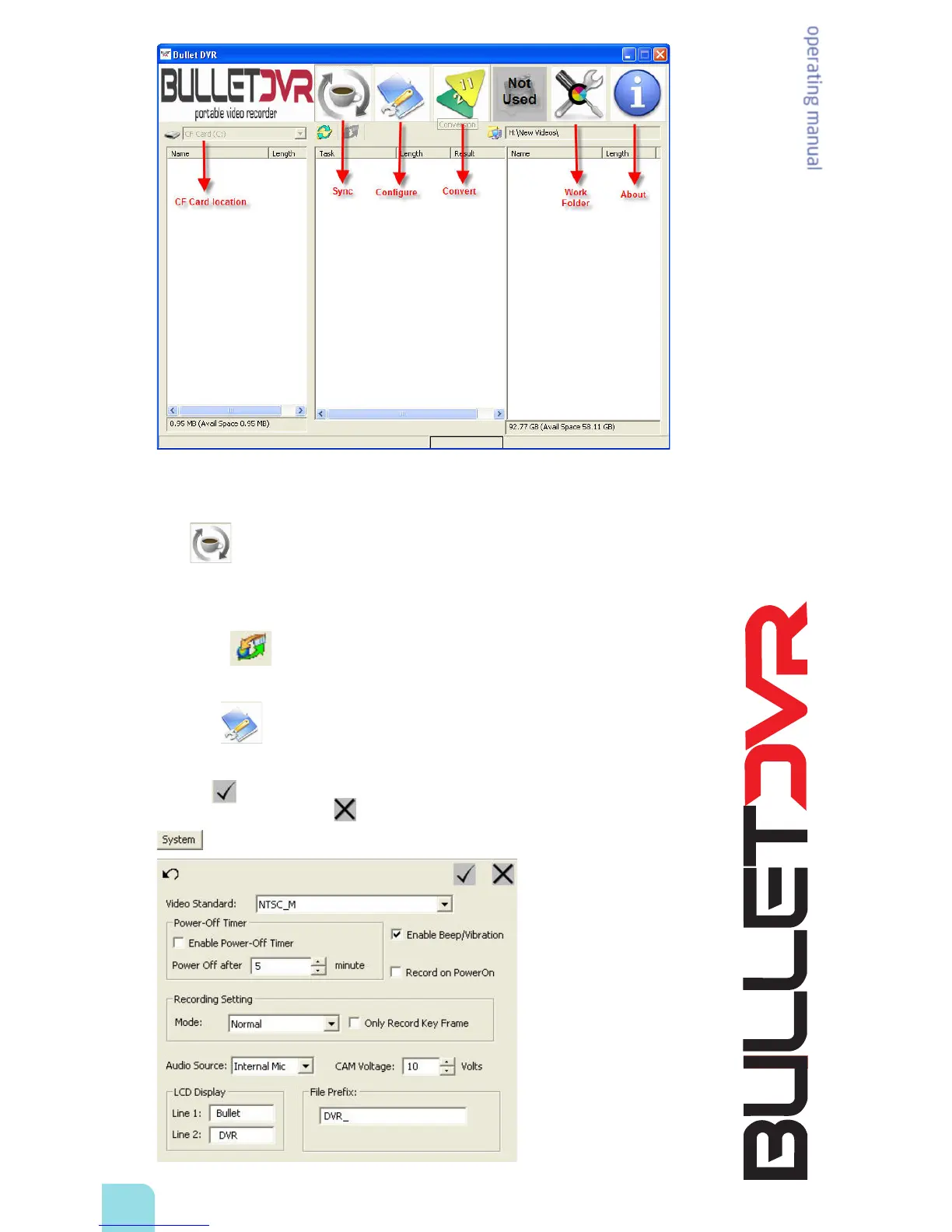
CF Card Location: Displays the source path and all the video les contained on the current CF memory
card. In this example, the source les are located on the C: drive of the computer.
Sync: Click on this tab to synchronize the contents of your CF card with the contents of your PC’s
hard drive. This is useful when you have many les recorded on the same memory card, as it will only
transfer the ones which aren’t already stored on your computer.
To synchronize the les, check the box next to each le you wish to upload, then click on the
synchronize button to start the process. Any selected le which is not already present in your
work directory, will be copied to this location.
Congure: This tab will take you to the various conguration settings available and allow you to
change the many parameters of the DVR. When you open the congure section, you will be presented
with 6 more sub-categories, all of which let you further dene the settings. Make sure to click on the
checkbox after you are done making changes, to register your new settings and close the opened
window. Click on the Cancel box to close without saving.


 To Next Page