GB-16
PLAYING A DISC
Subtitle Selection
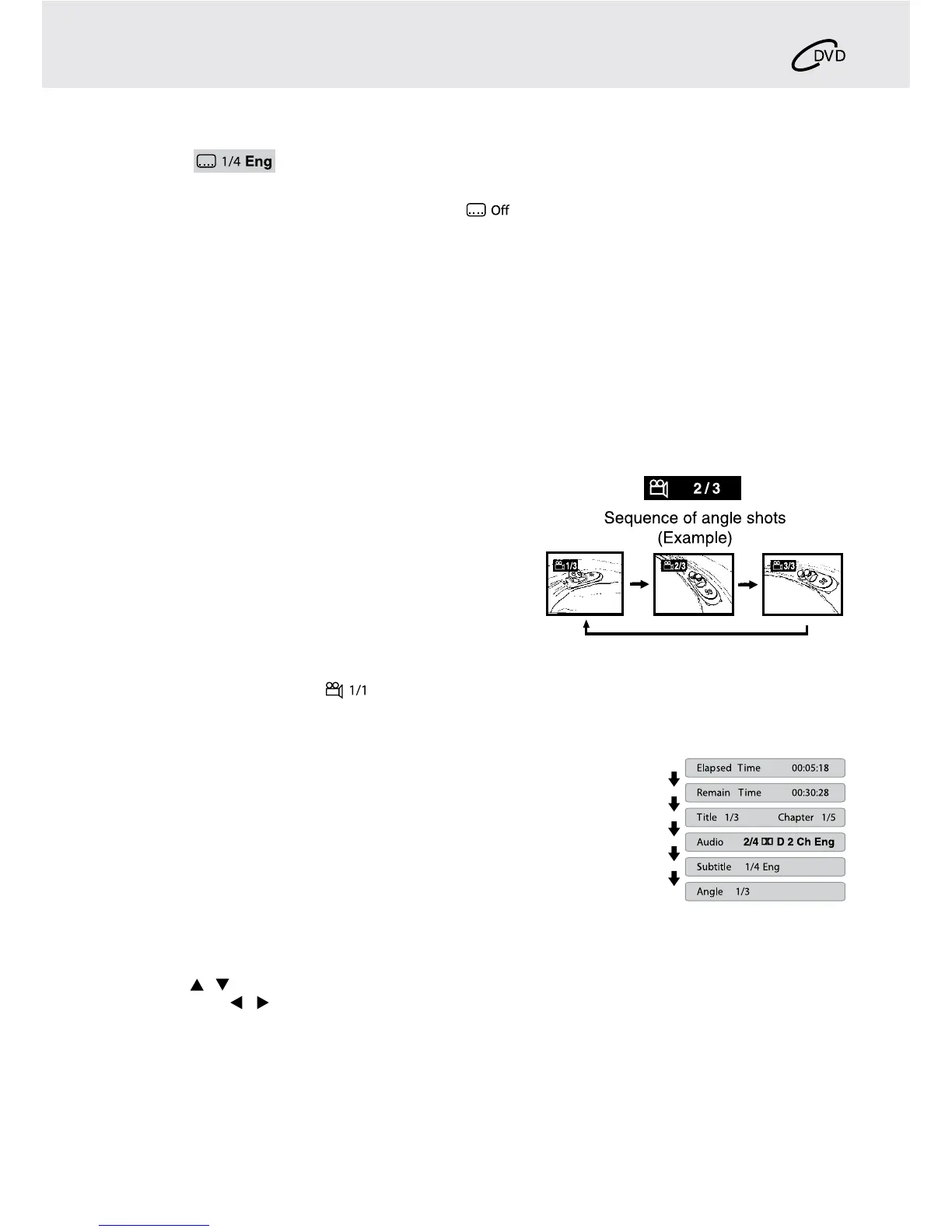
1. WhileaDVDisplaying,presstheSUBTITLE button to display the current language setting, as shown in the
example.
2. Pressthe SUBTITLE buttonrepeatedly to select thedesiredsubtitlelanguage.Youcanturn subtitles offby
pressing the SUBTITLEbuttonrepeatedlyuntilthe“ ”isdisplayed.
Note:
• SomeDVDsaresettodisplaysubtitlesautomatically,andyoucannotturnthemoffevenifyousetthesubtitle
function to off.
• Duringsomescenes,thesubtitlesmaynotappearimmediatelyafteryouselectyourdesiredscene.
• Thenumberofsubtitlelanguagesrecordeddiffersdependingonthedisc.Ifonlyonelanguageisrecorded,the
language does not change.
• Thisfunctioncanonlybeusedfordiscsonwhichsubtitleshavebeenrecordedinmultiplelanguages.
• SomeDVDsallowyoutochangesubtitlesusingthediscmenuonly.Ifthisisthecase,presstheMENU button
and choose the appropriate subtitle on the disc menu.
Angle Selection
SomeDVDscontainsceneswhichhavebeenshotfromanumberofdifferentangles.Forthesediscs,thesame
scene can be viewed from each of these different angles.
1. Whileyouareplayinga DVDwith different anglesrecorded,
press the ANGLE button to view the number of current angles
available.
2. PresstheANGLE button repeatedly to change the scene to
thenextrecordedangle.
• Afterapproximatelytwoseconds,playbackwillcontinuefrom
the new angle you selected.
• Ifnobuttonispressedwithin10seconds,playbackcontinues
without changing the current angle.
Note:
• Thisfunctioncanonlybeusedfordiscsonwhichscenesshotfrommultipleangleshavebeenrecorded.
• Ifonlyoneangleisrecorded,“
”isdisplayed.
Display Function
Whilethediscisplaying,presstheDISPLAY button repeatedly to display information
on operation status.
Elapsed Time: Elapsedtimefromthebeginningofthetitlewhichis
currently playing.
Remain Time: Remainingtimeofthetitlewhichiscurrentlyplaying.
Adjust the LCD Screen
YoucanadjustBrightness,Contrast,ColourorViewModeoftheLCDscreen.
1. PresstheVIDEO MODE button.
2. Pressthe / buttontoselectBrightness,ContrastorColour.
3. Thenpressthe / buttontochangethesetting.(ForViewMode,presstheENTERbuttontochangethe
setting).
4. Pressthe VIDEO MODEbuttontoexitthemenu.
Note:
Forthemonitor,youcanadjusttheLCDscreenbytheBRIGHTNESScontrol,COLOURcontrolandScreen(WIDE
/NORMAL)switchonthemonitor.
Basic playback
e.g.


 To Next Page