Page 9
User instructions
Picture disc / JPG image viewer (cont)
3: If you wish to view a specific image then press the
STOP button to return to a thumbnail list of the
available images.
4: Use the navigation buttons to select the image or
folder you wish to view. Select the PREV or NEXT
options and press OK to view the next set of images.
If the image is within a folder, press OK to open the
folder. Press OK again to view the image.
5: To start a slide show navigate to the SLIDE SHOW
option on the bottom of the display and press the OK
button.
NOTE: You can navigate to the MENU option on the
bottom of the screen and press OK to display a
‘REMOTE KEY FUNCTION’ list to remind you of the
button functions.
6: Alternatively you can press the MENU button at any
time to display a detailed list of images and folders
available on the disc. Use the navigation buttons to
scroll through the images & folders.
7: As you peruse the images you will notice a thumbnail
on the right of the screen and information along the
bottom showing image resolution & source.
1. PLAY MODES
Press the REPEAT button repeatedly to cycle through
the available play modes. Press STOP to resume preview
mode.
2. PICTURE ROTATION
Press the
/ navigation buttons to rotate the image
Anti-Clockwise or Clockwise.
3. PICTURE FLIP
Press the
/ navigation buttons to flip the image.
4. SLIDE SHOW TRANSITIONS
During the slide show, pressing the PROGRAM button
will cycle through all the available transition presets.
Input mode switching
1: Insert the memory device into the required slot. SD/
MMC goes into (18) and USB goes into (17).
2: Press the DVD/USB/CARD button on the remote
control or main unit to switch between DVD, USB &
SD inputs.
NOTE: The below memory types are compatible
with this unit. SD, SDHC (up to 16GB), MMC & USB
Earphone usage
1: Connect earphones (supplied) to the 3.5mm output
on the side of the main unit (16).
2: Adjust the volume in the normal manner (see Setting
the volume level Page 7).
• Listen at moderate volumes to avoid hearing damage.
• If you hear no sound during playing, do not turn up
volume up as the music may suddenly begin at a high
volume.
• Excessive sound pressure from earphones and
headphones can cause hearing loss.
• To avoid damaging your ears, adjust the volume to the
lowest safe level before playing, and turn up to the
desired level when playback has started.
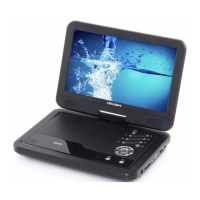
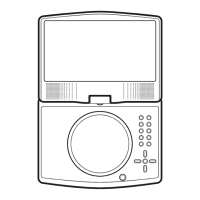
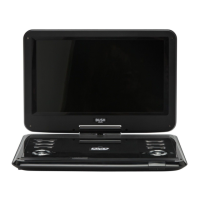
Adjusting the swivel display
The display can be rotated a total of 270 degrees.
1: The display can be rotated 90 degrees Anti-clockwise
from the facing front position.
2: The display can be rotated 180 degrees Clockwise
from the facing front position.
NOTE: Take care not to rotate any further than
the specified angles, as internal wiring can be
damaged.


 To Next Page