11
2. Flight
Attach the Battle Item
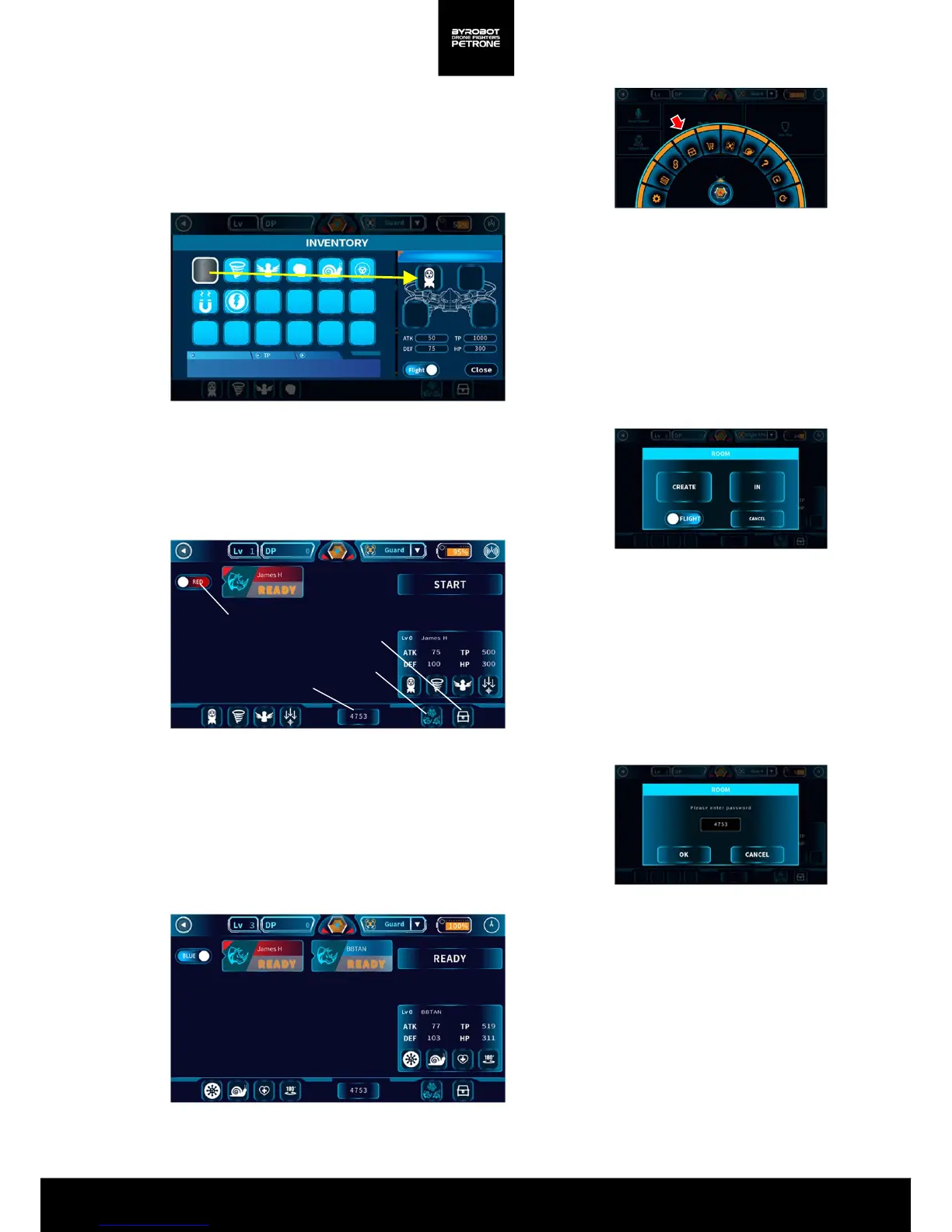
Press the ‘Inventory’ button on the Quick Menu Bar.
Move the items you want to use in the Battle Play of the items
purchased at the store to the item slot on the right
<Picture 2-6G. Inventory Button on Quick Menu Bar>
<Picture 2-6H. Screen for the Inventory>
Press and Drag
<Picture 2-6I. Create/In>
Create a Room
Choose ‘Online’ at Battle Play.
At the Screen for Create/In, choose ‘Create’.
<Picture 2-6J. Screen for Waiting Room (Host)>
Room
Number
Character
selection
Inventory
Team selection
In
Choose ‘Online’ at Battle Play.
At the Screen for Create/In a Room, choose ‘In’.
Enter the Room Number then In.
Press the ‘Ready’ button if you finish choosing team, character and
items.
<Picture 2-6K. Screen for Enter a Room Number>
<Picture 2-6L. Screen for Waiting Room (Guest)>


 To Next Page