D 30.0 M H 10.0 M H.S 10.0 M/S VS 2.0 M/S
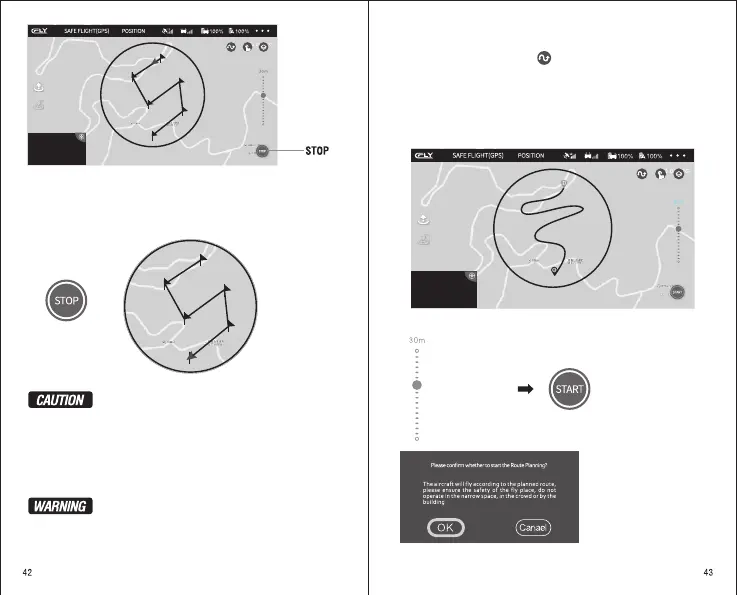
Click to exit WayPoint
When the drone arrive
to the last point, it will
stop in the current
position.
D 30.0 M H 10.0 M H.S 10.0 M/S VS 2.0 M/S
When using a Waypoint Function, click “ STOP ” to exit the WAYPOINT. When
the drone reaches to the last point , it will hover over the current position.
Please just draw out the airline in the red circle (Radius 500 meters),
but not draw our beyond the circle.
Drop out the WayPoint flight, the drone will be stop on the current
position. You can choose the new airline again.
When you click “Return To Home” or “Automatic Landing”, the
drone will be drop out the function of WayPoint. And change to
return or Landing.
In order for your safe, when you flight with WayPoint flight, please
flight in an empty outdoor place and keep people away.
Please observe the current flight environment carefully and set safe
flying altitude.
The Drone will fly
according to the
planned route
WayPoint flight accepted 25 waypoint.
Start Route Planing
Please ensure that the drone and mobile phone are fully charged, and the flight
mode is a Route Plan mode. Click , and read APP pop-up notes.
After setting , click “ START ” to start the Route flight and read the notice of the
APP pop-up. After confirming, the aircraft will automatically fly according to the
Route Planing.
In an appropriate position line on the current map, setting the appropriate Route
as the flight line of the drone. And set flight height on the right of the screen (the
default height is 30 meters).
Draw out the airline in the circle
Adjust the height
(default 30 meters)
Click START
Read the notes and then OK


 To Next Page