9
Using the Thunderbolt™ Station Utility
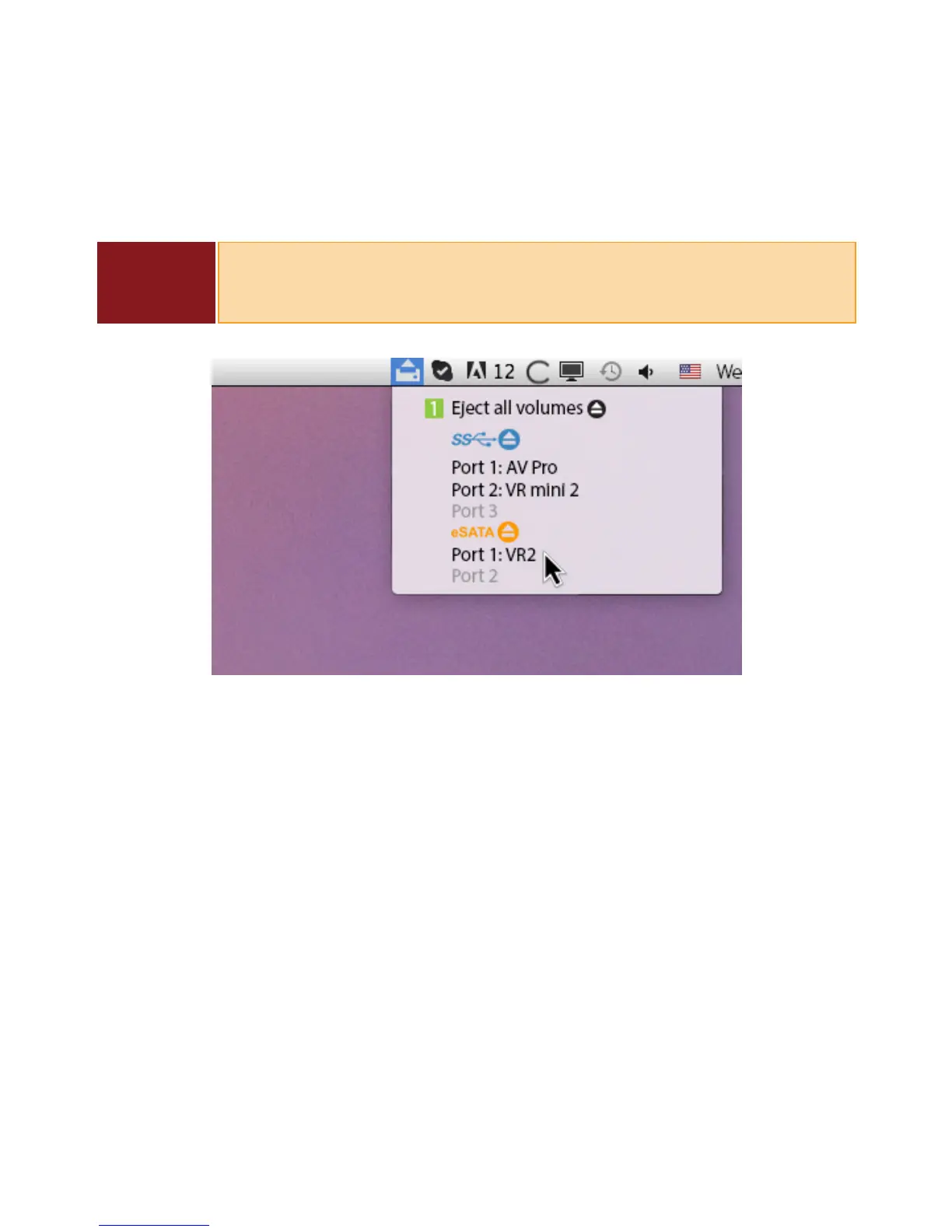
The Thunderbolt™ Station Utility software makes it incredibly easy to disconnect all your devices
from the Thunderbolt™ Station 2 without the need to manually disconnect each device.
Disconnecting all the USB & eSATA devices
1. Open the Thunderbolt™ Station Utility software on the top menu bar.
2. Click the “Eject all volumes” button.
Disconnecting all USB devices
1. Open the Thunderbolt™ Station Utility software on the top menu bar.
2. Click the eject button next to the “SuperSpeed USB” logo.
Disconnecting all eSATA devices
1. Open the Thunderbolt™ Station Utility software on the top menu bar.
2. Click the eject button next to “eSATA”.
Disconnecting individual USB or eSATA devices.
1. Open the Thunderbolt™ Station Utility software on the top menu bar.
2. Click on the specic USB or eSATA device you would like to eject. Only that device will be ejected.
NOTE
The Thunderbolt™ Station Utility Installer le needs to be downloaded and
installed on your Mac from the CalDigit website. Please go to www.caldigit.
com/support.asp to download the Installer package.


 To Next Page