30
Device setup
Playback Setup
Video Setup
Audio Format Setup
Audio Processing
Device Setup
Network Setup
Exit
Firmware Information
Firmware Upgrade
Firmware Notification
HDMI CEC
Persistent Storage
Front Panel Brightness
On
CXU-XX-XXXX
Off
Standard
Standby Mode
Energy Efficient
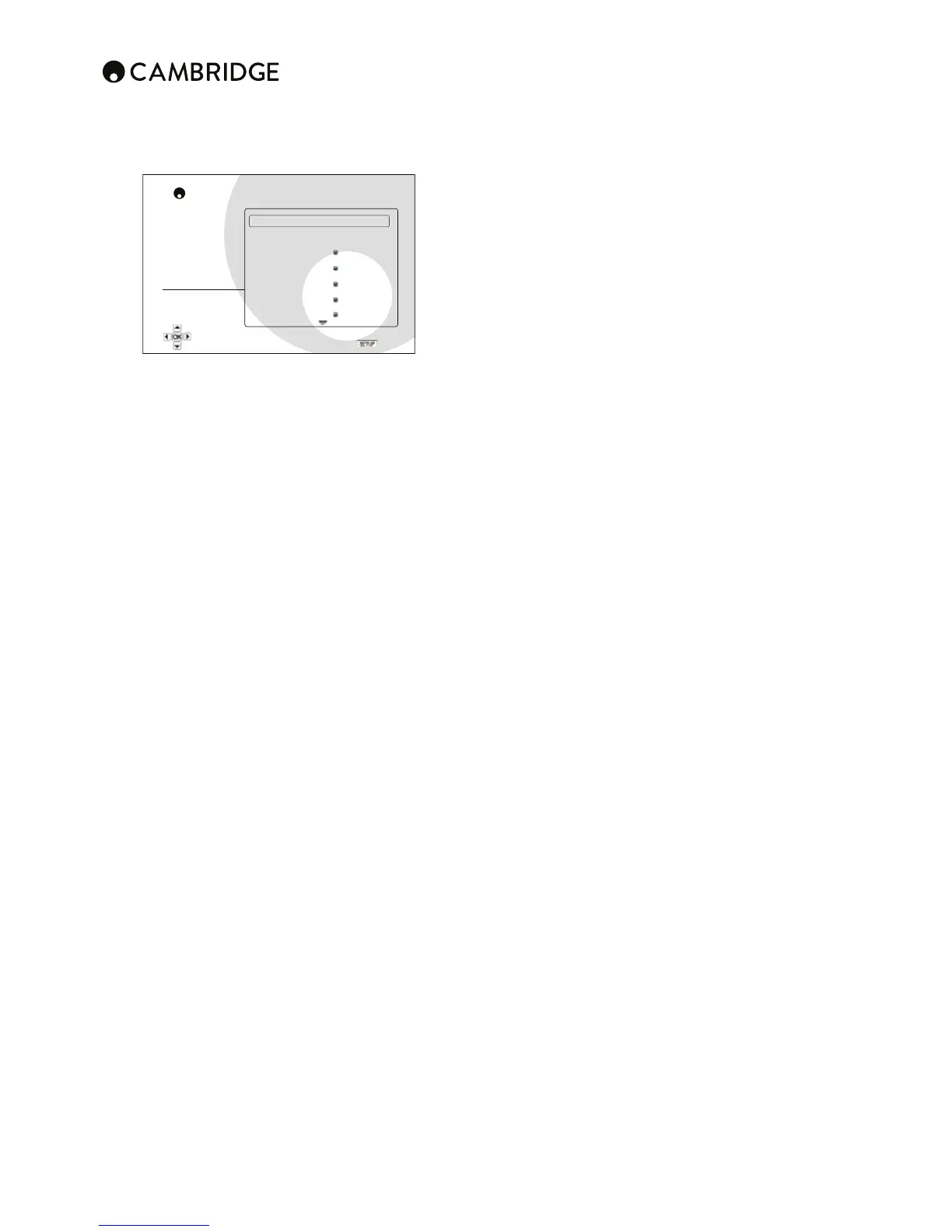
CXU Setup Menu
Exit
View current firmware version and system information
;OL+L]PJL:L[\WZLJ[PVUVM[OL:L[\W4LU\Z`Z[LTHSSV^Z`V\[VJVUÄN\YL
additional player options related to the hardware and control functions. The
menu items in this section are:
1. Firmware information
+PZWSH`Z[OLJ\YYLU[ÄYT^HYL]LYZPVU
2. Firmware upgrade
<WNYHKLZ [OL WSH`LYZ ÄYT^HYL ;OPZ VWLYH[PVU PZ VUS` H]HPSHISL ^OLU [OL
playback is completely stopped or when there is no disc loaded.
;OLÄYT^HYLPZ[OLZ`Z[LTZVM[^HYL[OH[JVU[YVSZ[OLMLH[\YLZHUKM\UJ[PVUZ
VM[OLWSH`LY:PUJL[OL)S\YH`KPZJZWLJPÄJH[PVUZHYLUL^HUKL]VS]PUNP[PZ
possible that a Blu-ray disc manufactured after the player was manufactured
\ZL JLY[HPU UL^ MLH[\YLZ VM [OL )S\YH` KPZJ ZWLJPÄJH[PVUZ >L TH` HSZV
introduce new features from time to time. The options to upgrade the player's
ÄYT^HYLHYL!
Via USB ¶ @V\ TH` KV^USVHK [OL ÄYT^HYL ÄSLZ MYVT *HTIYPKNL (\KPVZ
web site to a USB drive and then use the USB drive to upgrade the player.
Via Network – If the player has a working Internet connection, you may
upgrade the player directly over the Internet. Please follow the instructions
on your TV screen.
)LUPZDUHQRWLðFDWLRQ
:L[Z^OL[OLY[OLWSH`LYZOV\SKH\[VTH[PJHSS`JOLJRPMUL^ÄYT^HYL]LYZPVUZ
HYLH]HPSHISL]PH[OL0U[LYUL[ZLY]LYHUKUV[PM`[OL\ZLYHIV\[UL^ÄYT^HYL
On KLMH\S[¶ *OLJRMVY UL^ÄYT^HYL ]LYZPVU H\[VTH[PJHSS` HUK UV[PM` [OL
\ZLYHIV\[UL^ÄYT^HYL9LX\PYLZ^VYRPUNUL[^VYRJVUULJ[PVU
2σ¶+VUV[JOLJRMVYUL^ÄYT^HYL]LYZPVUH\[VTH[PJHSS`
4. HDMI CEC
CEC (Consumer Electronics Control) is an optional HDMI feature that
can enable convenient remote control and automatic setup of consumer
electronics over the HDMI connection. The remote control function allows
you to use a single remote handset to operate multiple devices connected
via HDMI. For example, you may use the TV remote to control playback of
the Blu-ray disc player. The automatic setup function can automatically turn
on the TV and change to the correct input when you start playing a disc in
[OL)S\YH`+PZJWSH`LY0[JHUHSZV[\YUVɈ[OLWSH`LYH\[VTH[PJHSS`^OLU`V\
[\YUVɈ[OL;=;OLPTWSLTLU[H[PVUHUKJVTWH[PIPSP[`VM[OPZMLH[\YL]HYPLZI`
device manufacturer. Each may only implement part of the features or add
[OLPYV^UWYVWYPL[HY`M\UJ[PVUZ;OLTHU\MHJ[\YLYZWLJPÄJPTWSLTLU[H[PVUVM
the HDMI CEC function is often given a proprietary name of "…Link" or "…
Sync". The CXU provides three modes for the HDMI CEC function:
HDMI 1 – HDMI CEC is enabled on HDMI 1 output. Use this mode if your
other devices are compatible with the player.
HDMI 1 (Limited) – HDMI CEC is enabled on HDMI 1 output, but the CXU
will only respond to playback control commands. It will not respond or issue
WV^LY VUVɈ HUKPUW\[ ZLSLJ[PVU JVTTHUKZ <ZL [OPZ TVKL PM `V\ KV UV[
^HU[[OLH\[VTH[PJZL[\WM\UJ[PVU[V[\YUVUVɈ`V\YKL]PJLZ
HDMI 2 – HDMI CEC is enabled on HDMI 2 output. Similar to HDMI 1.
HDMI 2 (Limited) – HDMI CEC is enabled on HDMI 2 output, but the CXU will
only respond to playback control commands. Similar to HDMI 1 (Limited).
2σKLMH\S[¶/+40*,*MLH[\YLPZ[\YULKVɈVUIV[O/+40V\[W\[[LYTPUHSZ
The player will not respond to HDMI CEC commands from other devices, nor
will it setup other devices automatically.
5. Standby mode
(SSV^Z`V\[VJOVVZL[OL\UP[ZZ[HUKI`TVKLIL[^LLU,ULYN`,ɉJPLU[HUK
Quick Start Mode.
(QHUJ\ (τFLHQW (default) – Player starts slower, but uses only 0.5W in
standby.
Quick Start ¶ 7SH`LY Z[HY[Z ZPNUPÄJHU[S` MHZ[LY I\[ \ZLZ TVYL WV^LY VU
standby.
6. Front panel brightness
To control the display intensity of the front panel Vacuum Fluorescent Display
=-+PUMVYTH[PVU^PUKV^;OPZVW[PVUHSSV^Z`V\[VKPTP[VY[\YUP[VɈ
Standard (default) - The VFD window is at full brightness.
Dim - The VFD window is at reduced brightness.
2σ ¶ ;OL =-+ ^PUKV^ PZ [\YULK VɈ 0U [OPZ TVKL [OL KPZWSH` YLZ\TLZ
momentarily when there is any user operation.
7. Persistent storage
Persistent storage is a data storage area that holds additional contents for
)VU\Z=PL^HUK)+3P]LMLH[\YLZ;OLKH[H^PSSILRLW[L]LUPM`V\[\YUVɈ[OL
player. The following persistent storage management options are available:
Storage Device – To select which storage device should be used as the
WLYZPZ[LU[Z[VYHNL;OL*?<PZLX\PWWLK^P[O.)VMPU[LYUHSÅHZOTLTVY`
There are also two USB 2.0 ports on the player that can accept a USB drive
to be used as the persistent storage. The choices are:
Internal Flash¶<ZL[OLPU[LYUHSÅHZOTLTVY`MVYWLYZPZ[LU[Z[VYHNL
USB Drive – Use a USB drive for persistent storage. To meet the
ZWLJPÄJH[PVUMVY)+3P]LH<:)ÅHZOKYP]LVM.)VYSHYNLYPZYLX\PYLK
A USB hard disk is not recommended.
Note:;OLUL^Z[VYHNLKL]PJLJOVPJLILJVTLZLɈLJ[P]LVUS`HM[LY[OLWSH`LY
PZ YLZ[HY[LK7SLHZL THRLZ\YL [OH[`V\ [\YUVɈ [OLWSH`LY HUK [OLU [\YU P[
back on after changing the "Storage Device" option.
Space Used – Displays the used space of the persistent storage. If too much
space is used and the available space becomes too low, some Blu-ray Discs
may not play properly.
Erase Persistent Storage – To erase the data from the persistent storage.
$XWRSRZHURσ
Allows the player to auto-shutdown after 30 minutes of inactivity. This can
help to reduce power consumption and increase player life.
OnKLMH\S[¶,UHISL[OL(\[V7V^LY6Ɉ
2σ¶+PZHISL[OL(\[V7V^LY6Ɉ
9. Reset factory defaults
Resets all settings to the factory default value.
Erase accounts and settings (default) – Resets all settings to the factory
default value and remove all application activations and account information,
such as your YouTube accounts.
Erase settings – Resets all settings to the factory default value, but keeps the
application activations and account information.


 To Next Page