263
Viewing the Images on TV
5
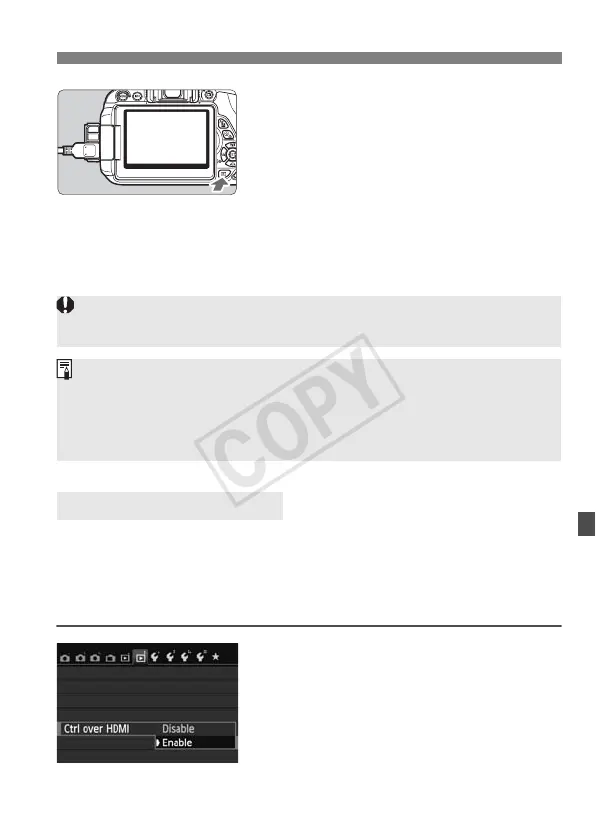
Press the <x> button.
X The image will appear on the TV
screen. (Nothing will be displayed on
the camera’s LCD monitor.)
The images will automatically be
displayed at the TV’s optimum
resolution.
By pressing the <B> button, you
can change the display format.
To play back movies, see page 254.
If the TV set connected to the camera with an HDMI cable is compatible
with HDMI CEC*, you can use the TV set’s remote control for playback
operations.
* An HDMI-standard function enabling HDMI devices to control each other so that
you can control them with one remote control unit.
1
Set [Ctrl over HDMI] to [Enable].
Under the [x2] tab, select [Ctrl over
HDMI], then press <0>.
Select [Enable], then press <0>.
Using HDMI CEC TV Sets
The images cannot be output at the same time from both the <D>
and <q > terminals.
Do not connect any other device’s output to the camera’s <D>
terminal. Doing so may cause a malfunction.
Certain TVs may not be able to play back the captured images. In such a
case, use the stereo AV cable AVC-DC400ST (sold separately) to
connect to the TV.


 To Next Page