285
wPrinting
5
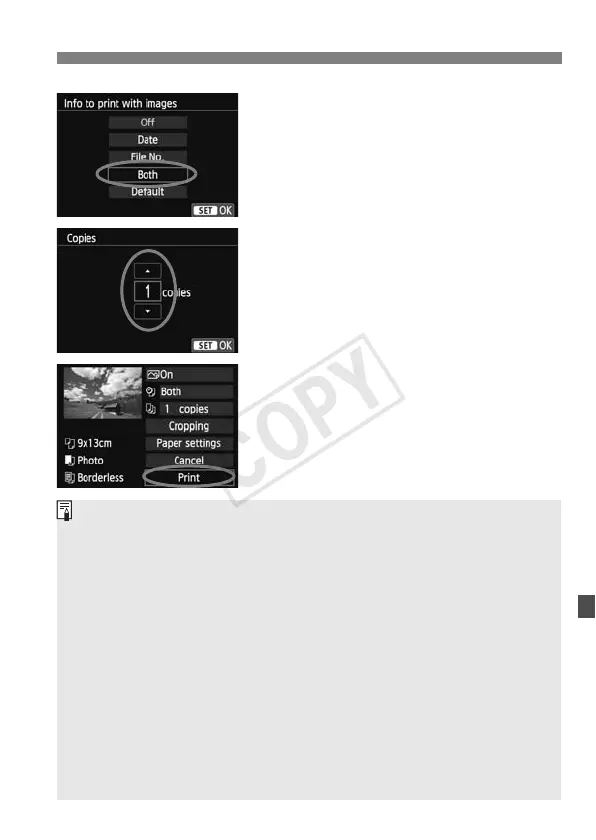
Set the date and file number
imprinting.
Set them if necessary.
Select <
I>, then press <0>.
Set as desired, then press <0>.
6
Set the number of copies.
Set it if necessary.
Select <
R>, then press <0>.
Set the number of copies, then press
<0>.
7
Start printing.
Select [Print], then press <0>.
With Easy printing, you can print another image using the same settings.
Just select the image and press the <
l> button. With Easy printing, the
number of copies will always be 1. (You cannot set the number of
copies.) Also, any cropping (p.287) will not be applied.
The [Default] setting for printing effects and other options are the
printer’s own default settings as set by the printer’s manufacturer. Refer
to the printer’s instruction manual to find out what the [Default] settings
are.
Depending on the image’s file size and image-recording quality, it may
take some time for the printing to start after you select [Print].
If image tilt correction (p.287) is applied, it may take longer to print the
image.
To stop the printing, press <
0> while [Stop] is displayed, then select
[OK].
If you execute [Clear all camera settings] (p.214), all the settings will
revert to their defaults.


 To Next Page