293
When you select images (up to 998 images) to be used for a photobook
and transfer them from the camera to a computer using EOS Utility
(provided software), the images will be copied to a dedicated folder.
This function is convenient when you order a photobook from the
Internet.
1
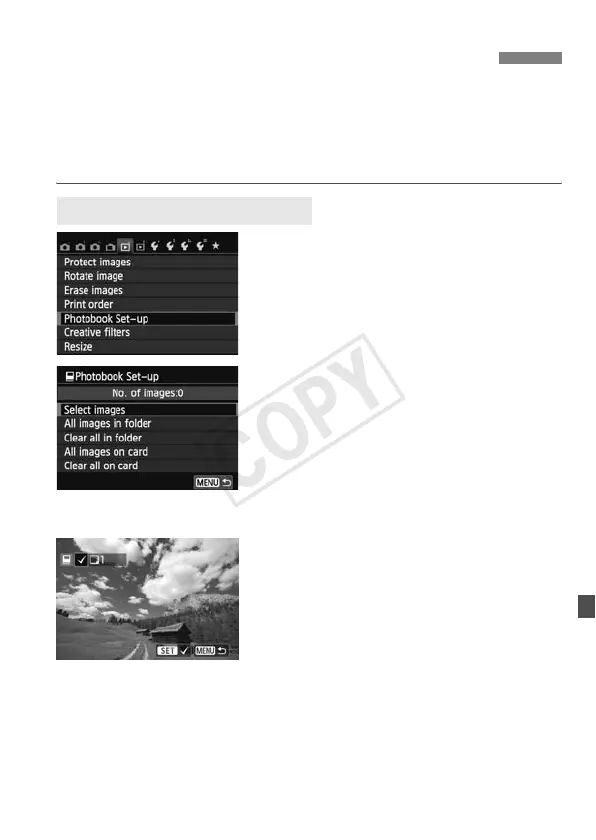
Select [Photobook Set-up].
Under the [x1] tab, select
[Photobook Set-up], then press
<0>.
2
Select [Select images].
Select [Select images], then press
<0>.
X The images will be displayed.
To display the three-image display,
press the <Hy> button. To return to
the single-image display, press the
<u> button.
3
Select the image to be specified.
Press the <U> key to select the
image to be specified, then press
<0>.
Repeat this step to select another
image. The number of images which
have been specified will be displayed
on the screen’s upper left.
To cancel the specified image, press
<0> again.
To return to the menu, press the
<M> button.
p Specifying Images for a Photobook
Specify One Image at a Time


 To Next Page