• You can change on what day to start the
week for the calendar display ( 78).
• You can press to return to the
index screen at any time.
Selecting the Playback Starting Point
from the Movie Timeline
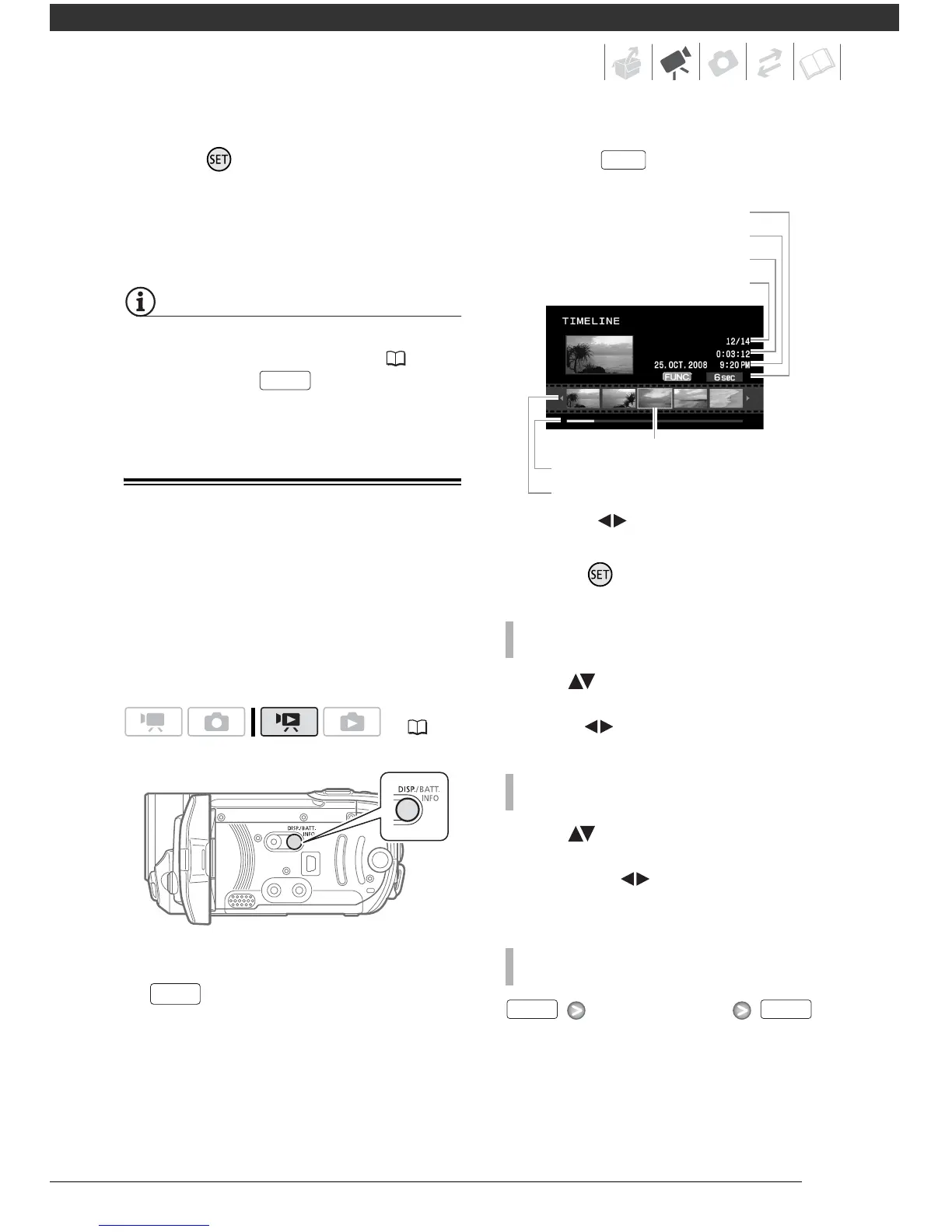
You can display a timeline of the scene
and select where to begin the playback.
This is very convenient when you want
to play back a long scene from a
specific point.
1 In the index screen select the
scene you want to view and press
.
• The timeline screen appears. The
large thumbnail will show the first
frame of the scene. Below it, the
timeline ruler shows frames taken
from the scene at fixed intervals.
• Press again to return to the
index screen.
2 Select ( ) the playback starting
point from the timeline ruler.
3 Press to begin the playback.
Move ( ) the orange selection
frame to the large thumbnail and
change ( ) the scene.
Move ( ) the orange selection
frame to the slidebar below the ruler
and display ( ) the previous/next 5
frames in the scene.
Desired interval
( 21)
FUNC.



 To Next Page