65
Connect the camcorder to a TV to enjoy
your recordings with family and friends.
1 Turn off the camcorder and the TV.
2 Connect the camcorder to the TV.
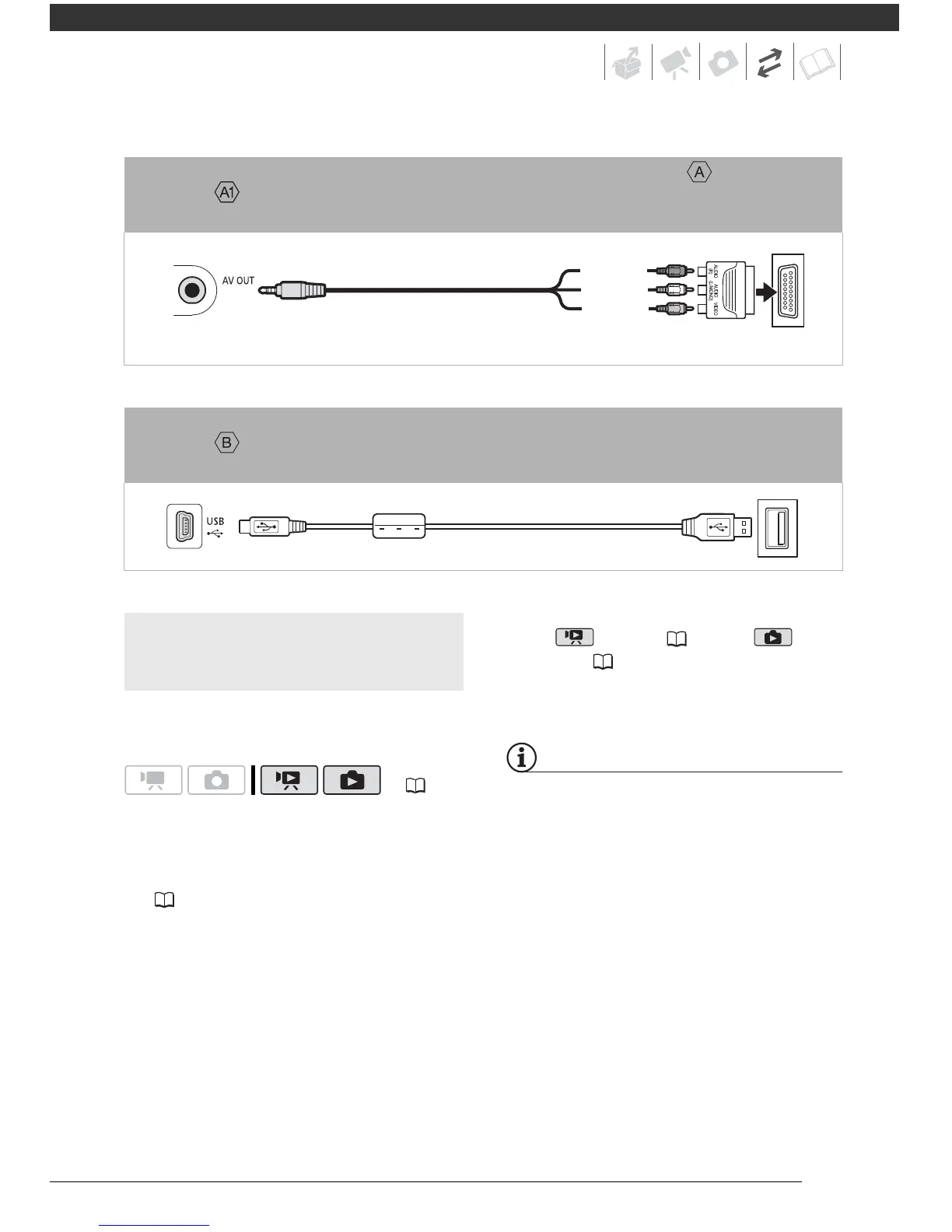
Refer to Connection Diagrams
( 64) and select the most
appropriate connection for your TV.
3 Turn on the connected TV.
On the TV, select as the video input
the same terminal to which you
connected the camcorder. Refer to
the instruction manual of the
connected TV.
4 Turn on the camcorder and set it
to mode ( 33) or
mode ( 53).
Start the playback of movies or still
images.
• We recommend powering the
camcorder using the compact power
adapter.
• Sound from the built-in speaker will be
muted while the STV-250N Stereo Video
Cable is connected to the camcorder.
• Adjust the volume using the TV.
• When you play back your 16:9 movies
on standard TV sets with a 4:3 aspect
ratio, the TV set will switch automatically
to widescreen mode if it is compatible
with the WSS system. Otherwise,
change the aspect ratio of the TV
manually.
Connection
In all respects, exactly the same connection as connection above.
Connect to a standard TV or VCR with SCART input terminal. Requires a SCART adapter
(commercially available).
Connection
Type: Digital data connection
Connect to a computer to transfer and back up your recordings, to the optional
DW-100 DVD Burner to create DVD discs from them, or to a printer to print out photos.


 To Next Page