71
Manual Transfer Options
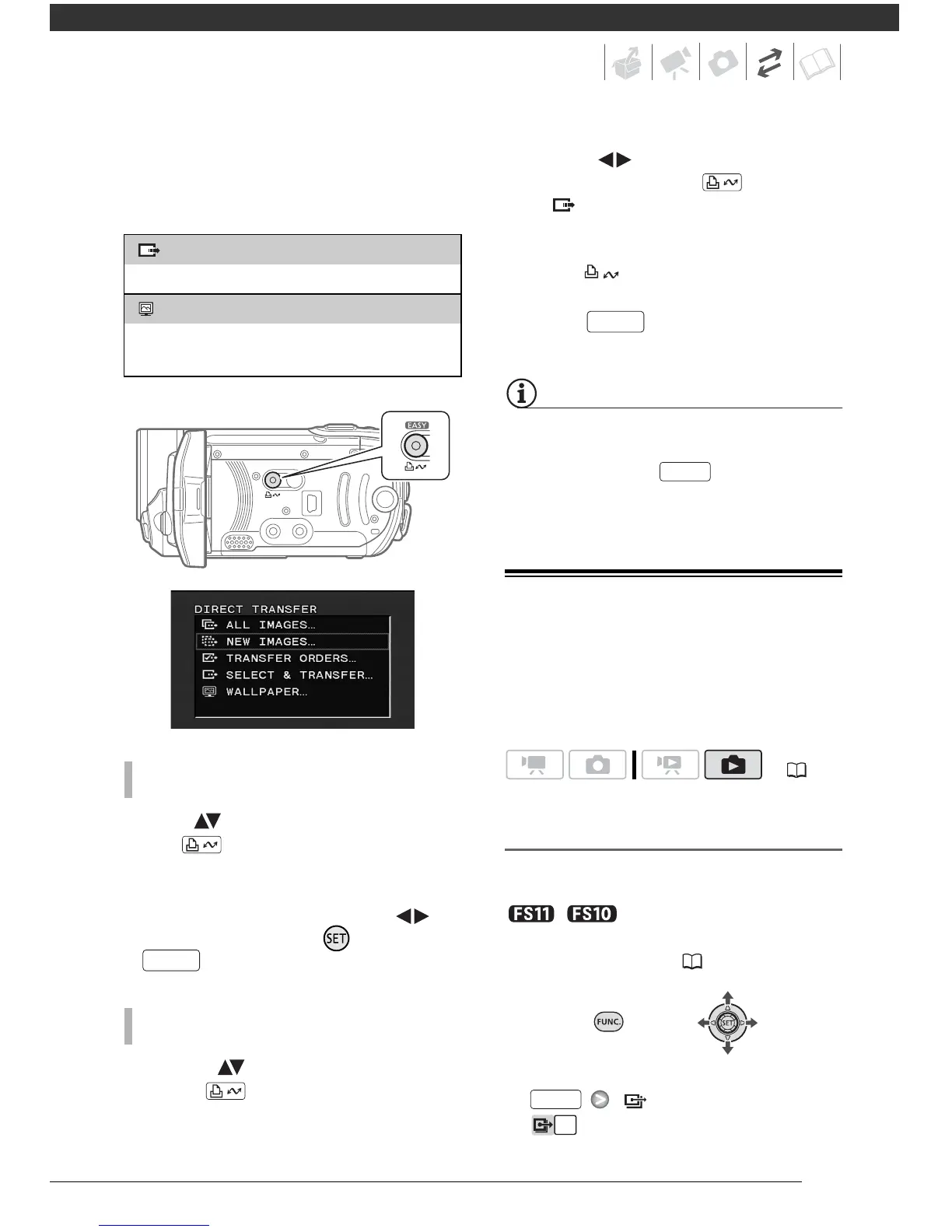
You can select the still image(s) to
transfer.
Select ( ) a transfer option and
press .
•The camcorder returns to the transfer
menu once the transfer is completed.
• To cancel the transfer, select ( )
[CANCEL] and press , or press
.
1 Select ( ) a transfer option and
press .
2 Select ( ) the image you wish to
transfer and press .
• [ SELECT & TRANSFER]:
Repeat this step to select other still
images to transfer.
• The button will flash while the
images are being transferred.
3 Press to return to the
transfer menu.
When the camcorder is connected to the
computer and the image selection screen
is displayed, press to return to the
transfer menu.
Transfer Orders
You can mark in advance the still images
you want to transfer to the computer as
transfer orders. You can set transfer
orders for up to 998 still images.
Selecting Still Images to Transfer
(Transfer Order)
Set the transfer orders before connecting
the camcorder to the computer.
/ Select in advance the
memory from which you want to
transfer still images ( 54).
1 Open the image selection screen.
[ TRANSFER ORDER]
appears on the screen.
[ SELECT & TRANSFER]
Select the still image(s) to transfer.
[ WALLPAPER]
Select a still image and set it as your computer’s
desktop background.
AUTOMATIC TRANSFER OPTIONS
MANUAL TRANSFER OPTIONS


 To Next Page