4
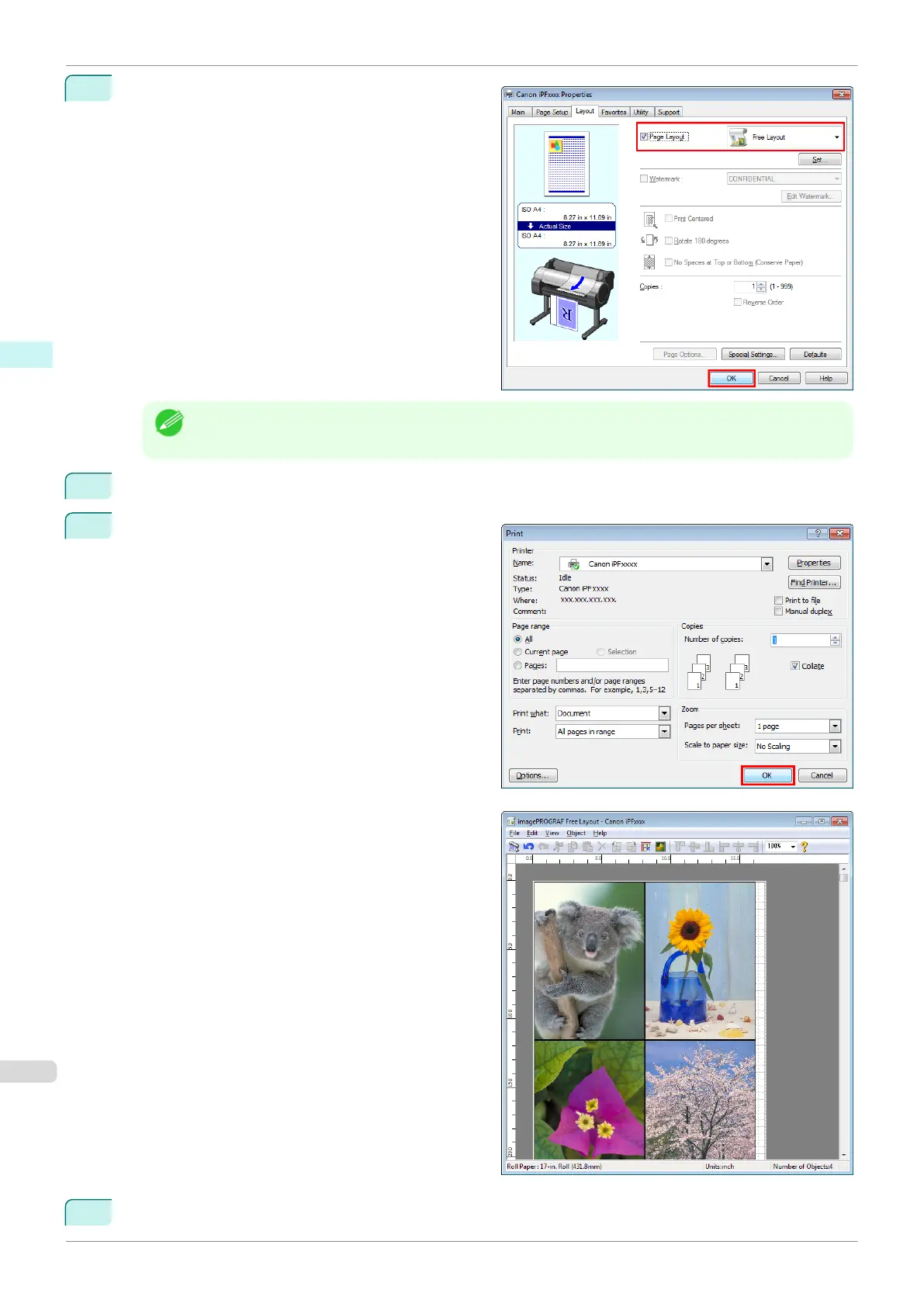
In the Layout sheet, click on the Page Layout check
box and select Free Layout from the list.
Note
•
Your printer is depicted in the lower-left area of this screen.
•
When you select Free Layout, all other setting items will be disabled.
5
Click the OK button to save the settings.
6
In the Print dialog box, select the pages to print and
the number of copies, and click the OK button.
Free Layout starts, laying out the document created
with application software in the layout area as an ob-
ject.
7
Leaving Free Layout running, open other files with other application software and repeat the above steps.
Laying out a Document Created with Multiple Application Programs on One Page
iPF840
User's Guide
Windows Software Free Layout
210















 To Next Page