Print Using Registered Settings(PowerPoint)
Print Using Registered Settings(PowerPoint)
Prints using the registered settings.
1
Start Microsoft PowerPoint.
2
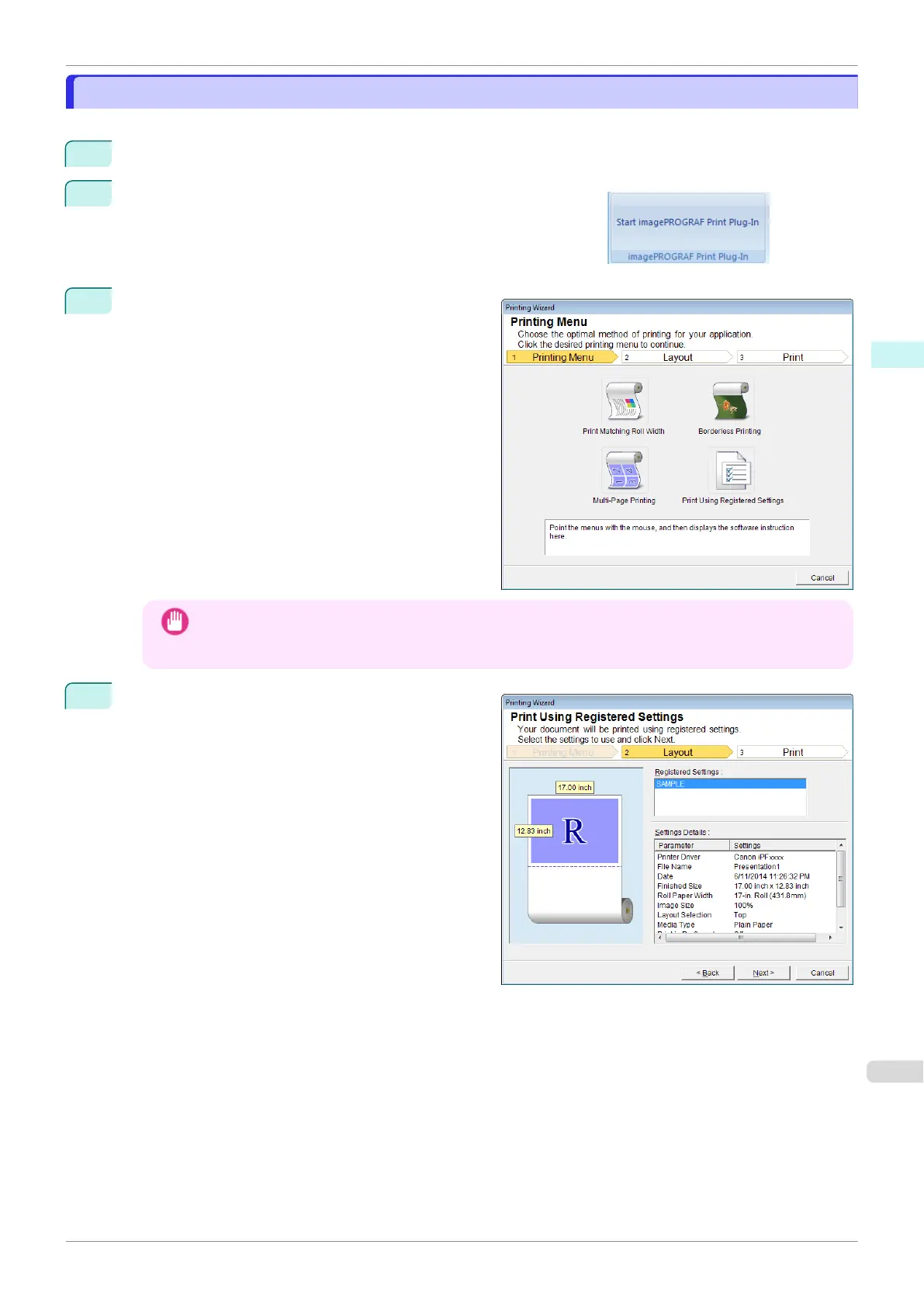
If Start imagePROGRAF Print Plug-In is displayed, click it.
3
Click Print from the imagePROGRAF Print Plug-In
toolbar/ribbon.
The Printing Wizard dialog box is displayed.
Important
•
If you want to change the display to another file or application while the Printing Wizard is open, close
the Printing Wizard dialog box. Otherwise, you may not be able to change displays or operate the tool-
bar/ribbon.
4
Click Print Using Registered Settings.
iPF840
Print Using Registered Settings(PowerPoint)
User's Guide
Windows Software Print Plug-In for Office
255















 To Next Page