Note
•
For better printing results when enlarging photos from a digital camera in TIFF or JPEG format, use an im-
age-editing application software such as Adobe Photoshop to specify an image resolution of 150 dpi or more
at actual size.
Resizing Originals by Entering a Scaling Value (Windows)
Resizing Originals by Entering a Scaling Value (Windows)
This topic describes how to enlarge originals before printing by entering a scaling value, based on the following
example.
•
Document: Any Type
•
Page size: A4 (210.0 × 297.0 mm [8.3 × 11.7 in])
•
Paper: Roll paper
•
Paper type: Plain Paper
•
Roll paper width: A2/A3 roll (420.0 mm [16.5 in])
Important
•
In borderless printing, you cannot resize originals by entering a scaling value.
1
Choose Print in the application menu.
2
Select the printer in the dialog box, and then display the printer driver dialog box. (See "Accessing the
Printer Driver Dialog Box from Applications .") ➔P.164
3
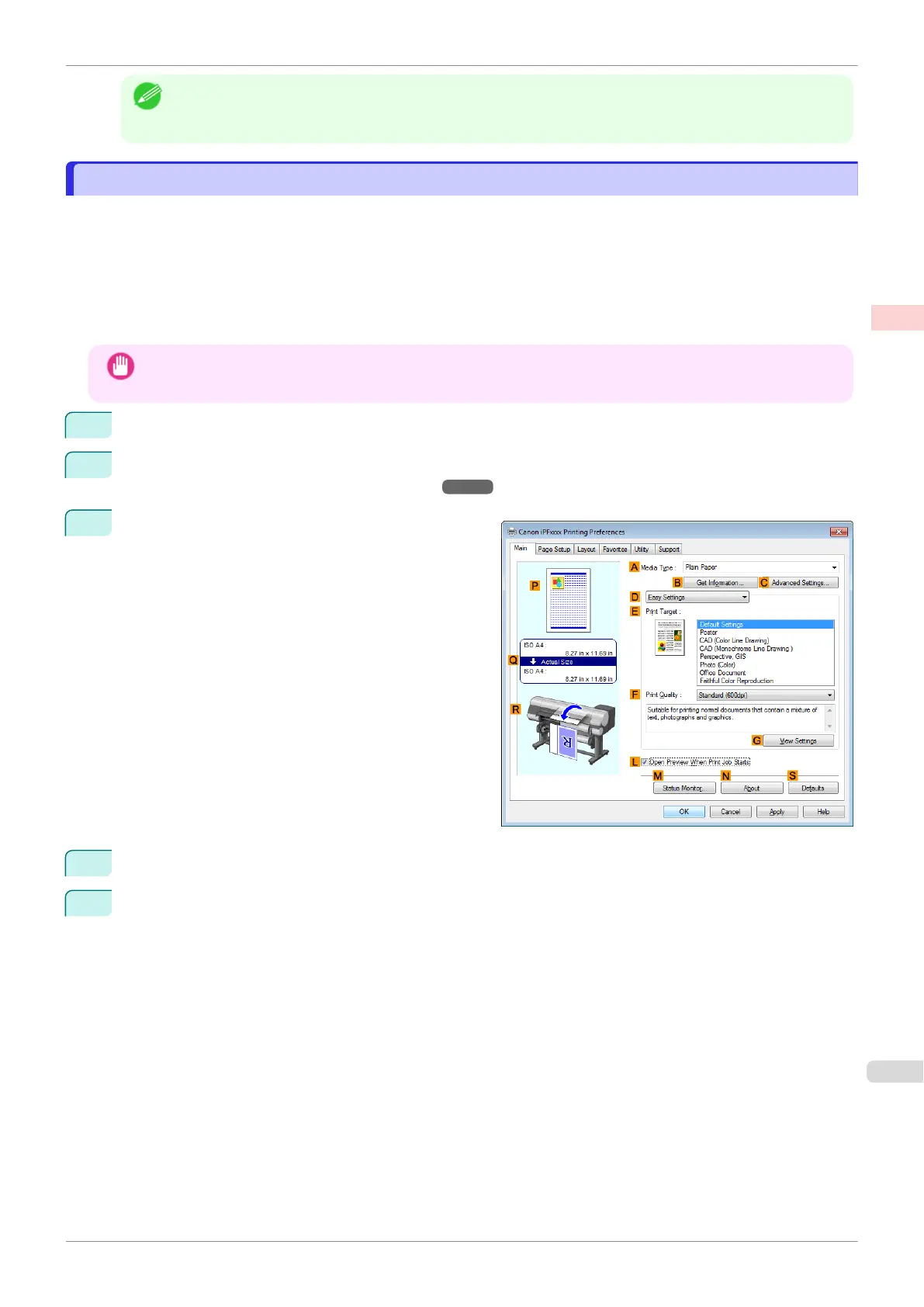
Make sure the Main sheet is displayed.
4
In the A Media Type list, select the type of paper that is loaded. In this case, click Plain Paper.
5
Select the printing application in the E Print Target list.
iPF840
Resizing Originals by Entering a Scaling Value (Windows)
User's Guide
Enhanced Printing Options Printing enlargements or reductions
79















 To Next Page