3
Select the printer in the B Format for list.
4
In the C Paper Size list, click the size of the original as specified in the application.
5
Click F OK to close the dialog box.
6
Choose Print in the application menu.
7
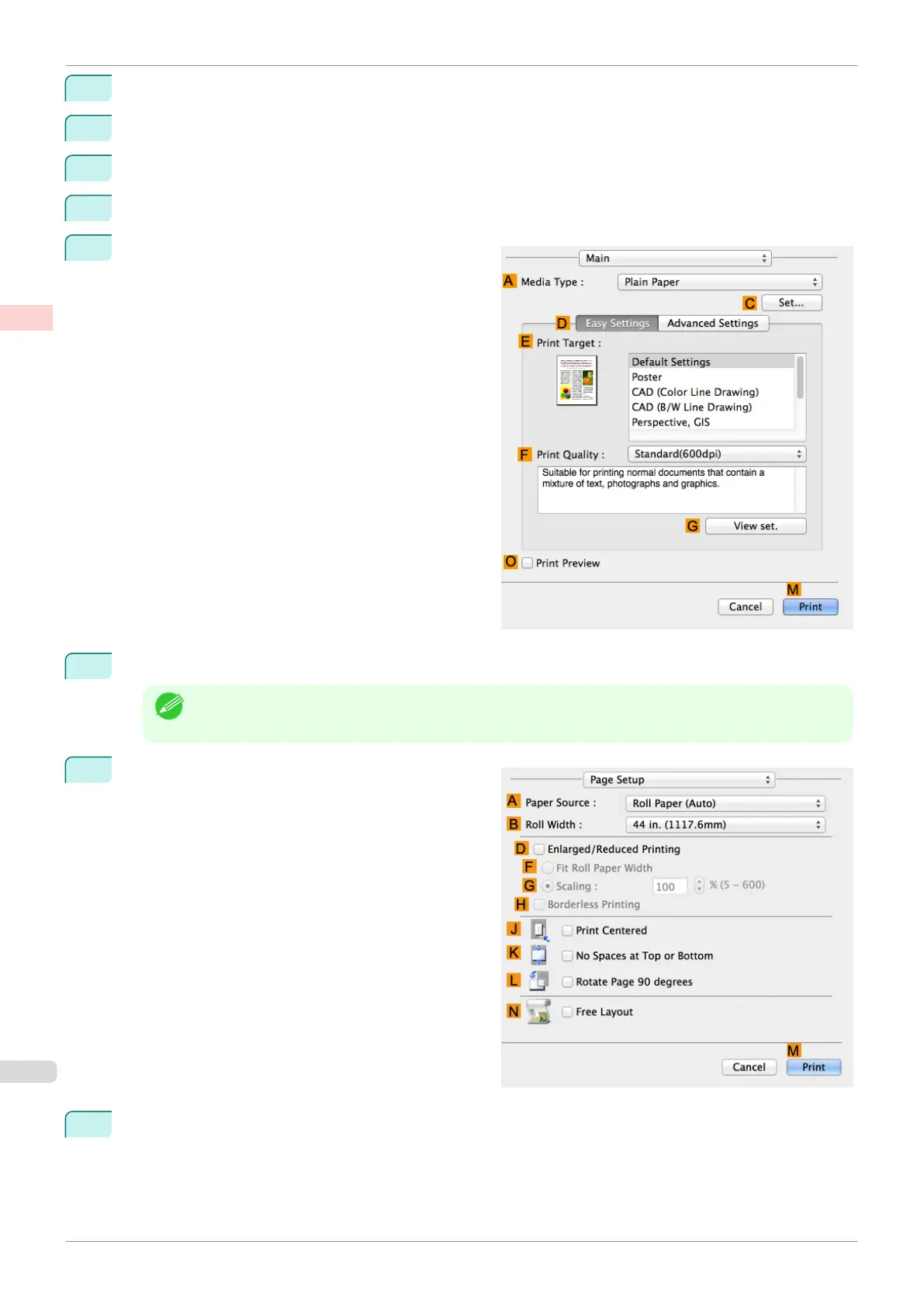
Access the Main pane.
8
Select the type of media to use for printing from the A Media Type list.
Note
•
Always specify the media type of the roll paper that is loaded in the printer.
9
Access the Page Setup pane.
10
Click to select Roll Paper (Auto) from the A Paper Source list.
Printing by Automatically Switching Between Upper and Lower Roll Paper (Mac OS)
iPF840
User's Guide
Enhanced Printing Options Using double-roll printing
38















 To Next Page