1
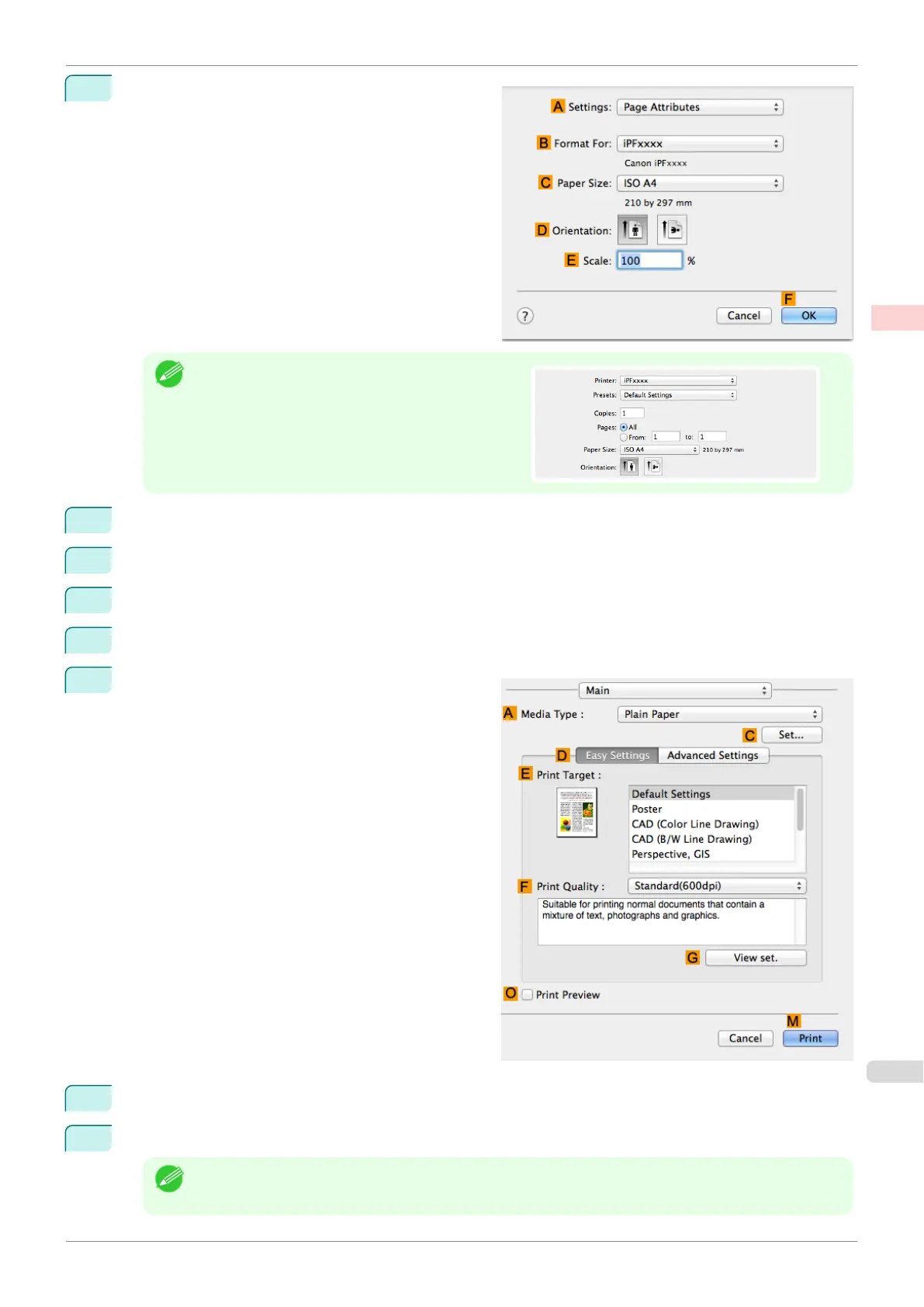
Choose Page Setup from the application menu to
display the Page Attributes dialog box.
Note
•
Page Setup might not be displayed in the menu de-
pending on the OS you are using and the applica-
tion software.
In this case, select Print from the menu in the appli-
cation software, and configure the settings in the up-
per part of the printer driver screen that is displayed.
2
Select the printer in the B Format for list.
3
In the C Paper Size list, click the size of the original. In this case, click ISO A4 - Cut Sheet.
4
Click F OK to close the dialog box.
5
Choose Print in the application menu.
6
Access the Main pane.
7
In the A Media Type list, select the type of paper that is loaded. In this case, click Plain Paper.
8
After confirming that D Easy Settings is selected, click Office Document in the E Print Target list.
Note
•
You can check the settings values selected in the E Print Target list by clicking G View set..
iPF840
Printing Office Documents (Mac OS)
User's Guide
Enhanced Printing Options Printing Photos and Office Documents
49















 To Next Page