Quiet setting
Enables this function on the printer if you want to reduce the operating noise, such as when printing at night.
Follow the procedure below to perform setting.
1. Make sure printer is turned on.
2.
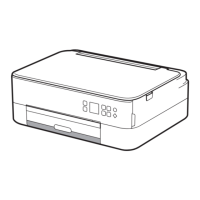
Select Setup on the HOME screen.
LCD and Operation Panel
3.
Select Settings.
4.
Select Quiet setting.
5.
Select Use quiet mode.
The confirmation screen is displayed and the icon appears as the Quiet setting menu icon.
Activate this setting to reduce the operating noise while printing is in progress.
Important
• Operating speed is reduced compared to when Do not use quiet mode is selected.
• This function may not be so effective depending on the printer's setting. Furthermore, certain noise,
such as when the printer is preparing for printing, is not reduced.
Note
• You can set the quiet mode from the operation panel of the printer or the printer driver. No matter how
you set the quiet mode, the mode is applied when you perform operations from the operation panel of
the printer or printing and scanning from the computer.
• For Windows, you can set the quiet mode from ScanGear (scanner driver).
173





 To Next Page