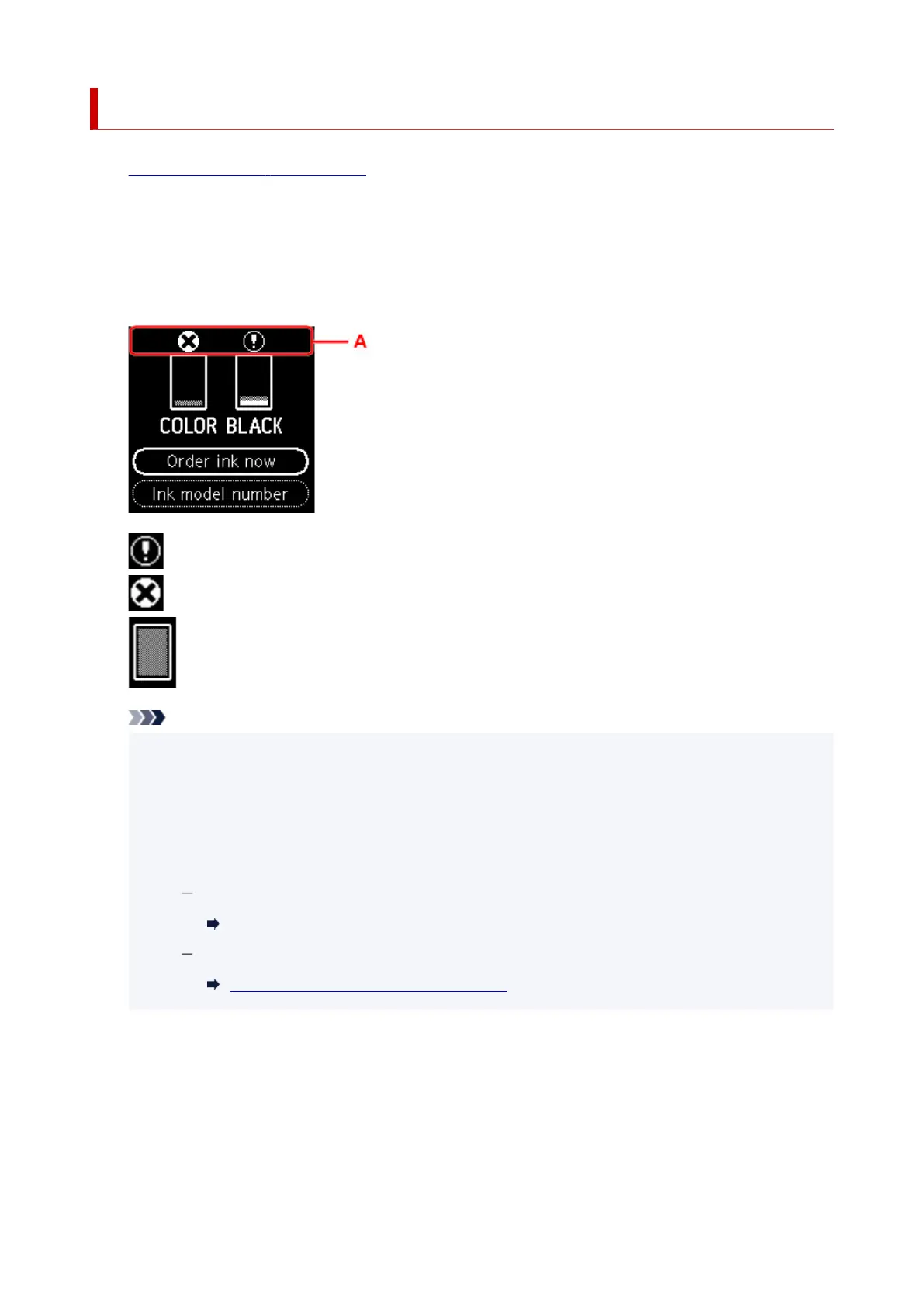
Checking Ink Status on the LCD
1. Check that printer is turned on.
2. Press the OK button.
3.
Select Estimated ink levels.
A symbol appears in the area A if there is any information about the remaining ink level.
The ink is running low. Prepare a new FINE cartridge.
Ink has run out. Replace the FINE cartridge with a new FINE cartridge.
This appears when remaining ink level is not known.
Note
• The above screen shows estimated ink levels.
• Select Order ink now and press the QR button to display the QR code and access the ink
purchasing site. Cost of connecting to Internet is to be born by the customer.
• You can check the ink numbers by selecting Ink model number.
• You can also check the ink status on the computer screen.
For Windows:
Checking Ink Status from Your Computer
For macOS:
Checking Ink Status from Your Computer
86





 To Next Page