122
[Save Playback Frame As]
Video frames that are being displayed can be saved as a
separate file.
Clear the [Enable H.264 playback] checkbox to play
H.264 video in an external player.
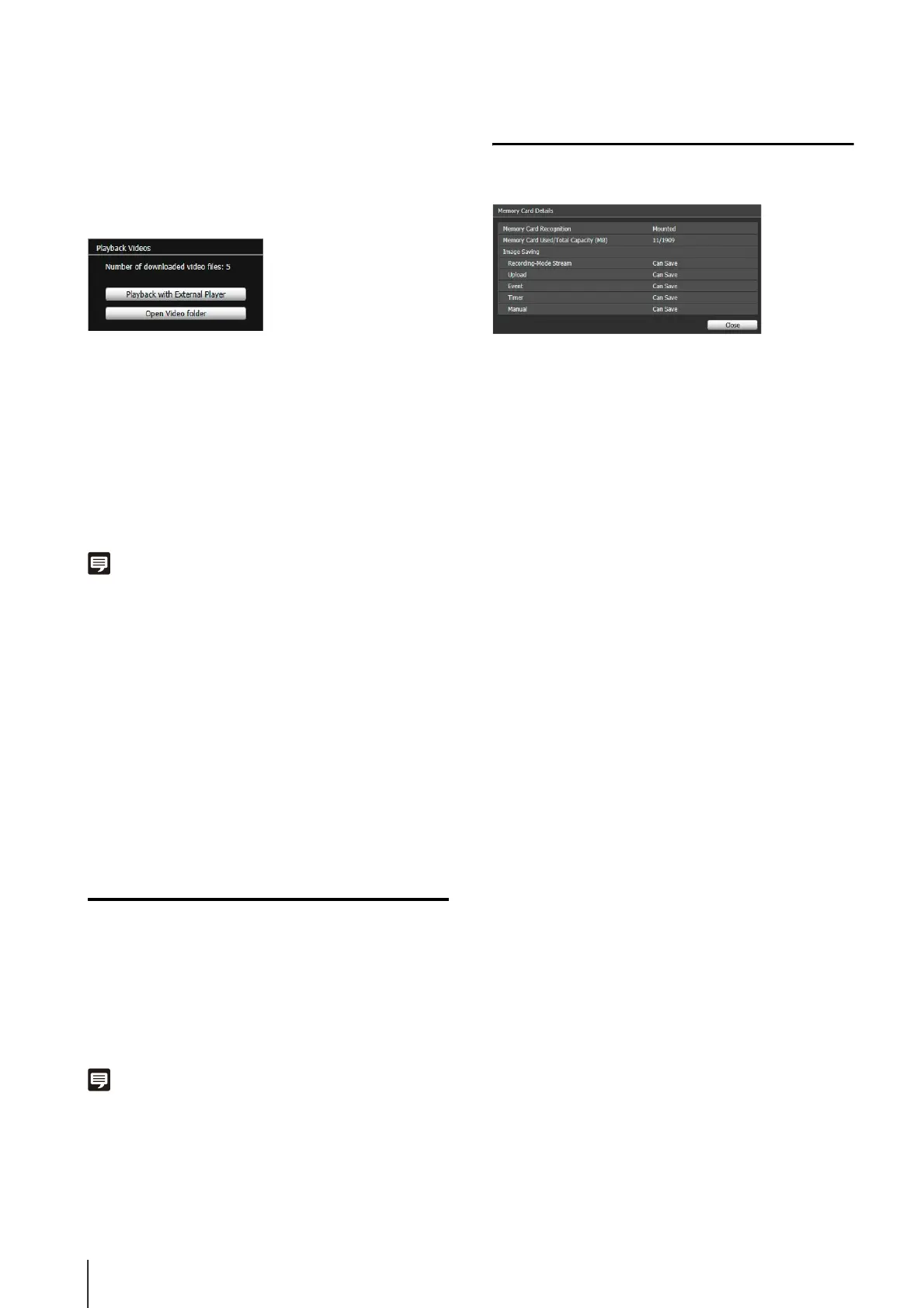
[Number of downloaded video files]
The number of downloaded files the video consist of is
displayed.
[Playback with External Player]
Start up the external player (Windows Media Player, etc.)
and the selected video is played back.
[Open Video folder]
Open the folder storing the selected video. Double click
the video file in the folder to play it back.
Note
• To play back H.264 videos in an external player, the videos
must be downloaded to a computer (p. 120).
• The downloaded H.264 video file will have the “.mov”
extension.
• When the data size for mov type files is 1 MB or greater, they
are split into several files.
• If mov files are split into several files, only the initial few
seconds of the first file can be played back. To play back the
files in succession, use [Export to mov format] (p. 120).
• The downloaded video files can be played back using
QuickTime 7.7 and Windows Media Player 11/12. For the
Windows Vista operating system or earlier, use QuickTime.
Use of these applications does not guarantee playback.
Deleting Videos
You can delete videos from a memory card.
The video is deleted from the camera.
Note
If the selected videos contain [Not Downloaded] videos, a
message prompting you to confirm deletion appears. Click [OK]
to delete the video.
Displaying Memory Card Information
Click [Memory Card Details] to display information on the
memory card inserted in the camera.
1
Select a video to delete in the video list.
2
Click [Delete from Camera].



 To Next Page