77
Configuring Smartphone Connection Settings
3
Connect to the camera.
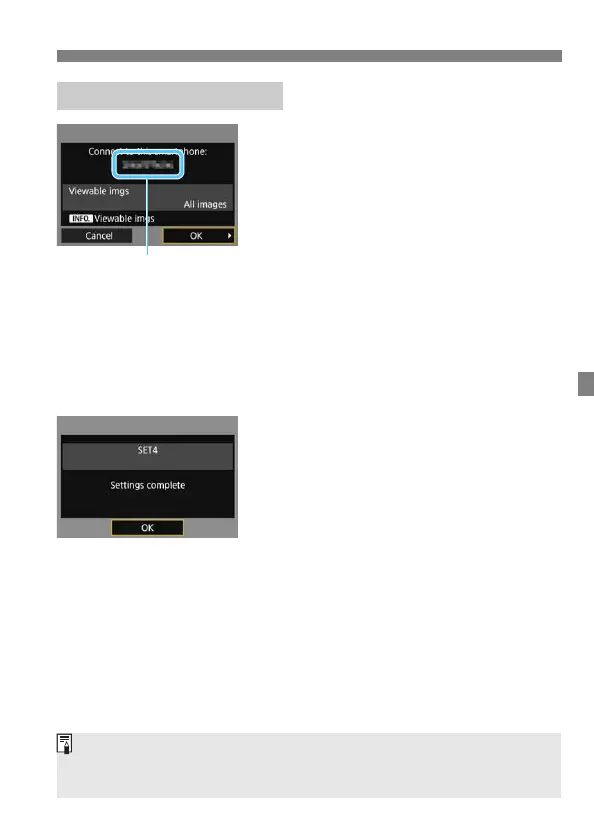
When a connection is established,
the screen on the left will appear on
the camera’s LCD monitor.
To specify viewable images, press the
<B> button. See step 7 on page
81 to set them.
Select [OK] and press <0>. A
connection completion screen will
appear.
The main window of Camera Connect
will be displayed on the smartphone.
The <Y> lamp on the camera will
light up in green.
4
Select [OK].
Press <0> to return to the [Network
settings] screen.
Settings information is stored in the
camera. It is not stored in the
transmitter.
The settings for connecting to a smartphone are now complete.
Operation on the Camera
The device name set on
Camera Connect
You can check or change the device name on the setting screen of
Camera Connect.
While connected, the camera’s auto power off does not function.


 To Next Page