EasyManua.ls Logo

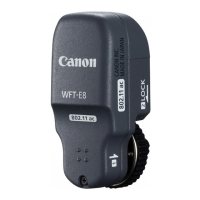
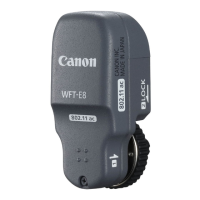
Canon WFT-E8A - User Manual

Canon WFT-E8A
152 pages
Print Icon
To Next Page IconTo Next Page
Loading...
This manual is for the EOS-1D X Mark II installed with firmware version
1.1.0 or later.
INSTRUCTION MANUAL
E
Wireless File Transmitter
WFT-E8
This product also supports certain CINEMA EOS cameras. For compatible
products, contact the nearest Canon Service Center. When using the
transmitter, refer to “Guide for Canon Camcorders”.

Table of Contents

Question and Answer IconNeed help?

Do you have a question about the Canon WFT-E8A and is the answer not in the manual?

Summary

Introduction and Manual Conventions

What You Can Do with the Transmitter

Overview of the transmitter's wireless functions and capabilities.

Conventions Used in this Manual

Explains icons, symbols, and general reading guidelines for the manual.

Basic Assumptions

Outlines prerequisites and conditions assumed for manual instructions.

Safety and Handling Precautions

Safety Warnings and Cautions

Critical warnings about hazards and cautions for physical injury or property damage.

Handling Precautions

Guidelines for proper handling, maintenance, and storage of the transmitter.

Nomenclature and Camera Attachment

Transmitter Components

Identification of the transmitter's physical parts and accessories.

Attaching and Removing the Transmitter

Instructions for securely attaching and detaching the transmitter from the camera.

Basic Network and Connection Setup

Basic Network Settings

Introduction to configuring fundamental network parameters.

Connecting Using an Access Point

Instructions for establishing a connection via a wireless access point.

Connecting with Easy Connection

Steps for establishing a direct wireless connection using Easy Connection.

Connecting via WPS (PBC;PIN Mode)

Instructions for connecting using WPS Pushbutton and PIN code modes.

Connecting to a Detected Network Manually

Steps to manually connect to a network by selecting SSID and settings.

Communication Function Settings

Basic Communication Function Settings

Steps to enable the communication function on the camera.

Registering a Nickname

Procedure for assigning a unique name for camera identification on the network.

Setting the IP Address

Instructions for configuring IP address settings, either automatically or manually.

FTP Transfer Operations

Transferring Images to an FTP Server

Introduction to transferring images to an FTP server.

Configuring FTP Server Connection Settings

Initial steps for configuring FTP server connection settings.

Transferring Images Individually

How to set up automatic image transfer immediately after shooting.

Batch Transfer

Process for selecting multiple images for simultaneous transfer.

Viewing Transferred Images

Information on where transferred images are stored on the FTP server.

Remote Operation with EOS Utility

Operating Remotely Using EOS Utility

Introduction to remote camera operation via EOS Utility.

Configuring EOS Utility Connection Settings

Steps to set up connection between camera and computer using EOS Utility.

Using EOS Utility

Details on using EOS Utility for remote shooting and camera operations.

Remote Operation with WFT Server

Operating Remotely Using WFT Server

Introduction to remote camera operation via WFT Server using a web browser.

Configuring WFT Server Connection Settings

Steps to set up WFT Server user accounts and passwords.

Displaying WFT Server

Instructions to access the WFT Server interface via a web browser.

Viewing Images

How to browse and view images stored on the camera's card via WFT Server.

Remote Shooting Modes

Shooting Remotely [Camera control]

Accessing the advanced remote shooting interface.

Shooting Movies

Instructions for shooting movies remotely using WFT Server.

Shooting Remotely [Simple control]

Accessing the simplified remote shooting interface.

Remote Operation with Smartphone

Operating Remotely Using a Smartphone

Introduction to remote camera operation using a smartphone.

Configuring Smartphone Connection Settings

Steps to start and select the camera within the smartphone app.

Operating the Camera Using a Smartphone

Overview of the Camera Connect app's main functions and features.

Specifying Viewable Images

How to configure which images are viewable on the smartphone.

Linked Shooting

Basic Linked Shooting

Steps to configure slave cameras for linked shooting.

Positioning the Cameras

Guidelines for physically positioning master and slave cameras for optimal linked shooting.

Connecting the Master and Slave Cameras

Detailed steps for manually connecting master and slave cameras.

Camera Time Synchronization

Synchronizing the Camera Time Wirelessly

Introduction to synchronizing camera time across multiple devices.

Synchronizing the Time

Steps to configure master and slave cameras for time synchronization.

Connection Management

Terminating the Connection

Steps to properly disconnect from a network.

Reconnecting

Steps to re-establish a previously saved network connection.

Managing Connection Settings

Displaying the Connection Settings Screen

Accessing the screen to view saved network connection configurations.

Changing Settings

Procedure for modifying existing network connection settings.

Saving and Loading Settings

How to save and load connection settings to/from a memory card.

Function Settings

Function Settings Screen

Accessing the screen to configure FTP, WFT Server, power saving, and MAC address.

FTP Transfer Settings

Settings related to FTP transfer configuration.

WFT Server Settings

Settings for WFT Server configuration.

Power Saving Settings

Settings for power saving modes.

Troubleshooting Guide

Responding to Error Messages

Explains how to interpret and resolve various error codes.

Common Troubleshooting Scenarios

General tips for common problems like transfer failures, linked shooting issues, and overheating.

Communication Notes and Network Settings

Communication Function Setting Notes

Notes on installation location and device interference.

Checking Network Settings

How to check network settings (IP, subnet, gateway, DNS) on Windows and Mac OS.

Reference and Specifications

Creating and Registering Captions

Steps to create and register custom captions using EOS Utility.

Setting Network Manually

Manually configuring network settings like SSID and channel.

Setting IP Address Manually

Manually configuring IP address, subnet mask, gateway, and DNS settings.

Specifications

Technical specifications for the transmitter's wireless capabilities.

Summary

Introduction and Manual Conventions

What You Can Do with the Transmitter

Overview of the transmitter's wireless functions and capabilities.

Conventions Used in this Manual

Explains icons, symbols, and general reading guidelines for the manual.

Basic Assumptions

Outlines prerequisites and conditions assumed for manual instructions.

Safety and Handling Precautions

Safety Warnings and Cautions

Critical warnings about hazards and cautions for physical injury or property damage.

Handling Precautions

Guidelines for proper handling, maintenance, and storage of the transmitter.

Nomenclature and Camera Attachment

Transmitter Components

Identification of the transmitter's physical parts and accessories.

Attaching and Removing the Transmitter

Instructions for securely attaching and detaching the transmitter from the camera.

Basic Network and Connection Setup

Basic Network Settings

Introduction to configuring fundamental network parameters.

Connecting Using an Access Point

Instructions for establishing a connection via a wireless access point.

Connecting with Easy Connection

Steps for establishing a direct wireless connection using Easy Connection.

Connecting via WPS (PBC;PIN Mode)

Instructions for connecting using WPS Pushbutton and PIN code modes.

Connecting to a Detected Network Manually

Steps to manually connect to a network by selecting SSID and settings.

Communication Function Settings

Basic Communication Function Settings

Steps to enable the communication function on the camera.

Registering a Nickname

Procedure for assigning a unique name for camera identification on the network.

Setting the IP Address

Instructions for configuring IP address settings, either automatically or manually.

FTP Transfer Operations

Transferring Images to an FTP Server

Introduction to transferring images to an FTP server.

Configuring FTP Server Connection Settings

Initial steps for configuring FTP server connection settings.

Transferring Images Individually

How to set up automatic image transfer immediately after shooting.

Batch Transfer

Process for selecting multiple images for simultaneous transfer.

Viewing Transferred Images

Information on where transferred images are stored on the FTP server.

Remote Operation with EOS Utility

Operating Remotely Using EOS Utility

Introduction to remote camera operation via EOS Utility.

Configuring EOS Utility Connection Settings

Steps to set up connection between camera and computer using EOS Utility.

Using EOS Utility

Details on using EOS Utility for remote shooting and camera operations.

Remote Operation with WFT Server

Operating Remotely Using WFT Server

Introduction to remote camera operation via WFT Server using a web browser.

Configuring WFT Server Connection Settings

Steps to set up WFT Server user accounts and passwords.

Displaying WFT Server

Instructions to access the WFT Server interface via a web browser.

Viewing Images

How to browse and view images stored on the camera's card via WFT Server.

Remote Shooting Modes

Shooting Remotely [Camera control]

Accessing the advanced remote shooting interface.

Shooting Movies

Instructions for shooting movies remotely using WFT Server.

Shooting Remotely [Simple control]

Accessing the simplified remote shooting interface.

Remote Operation with Smartphone

Operating Remotely Using a Smartphone

Introduction to remote camera operation using a smartphone.

Configuring Smartphone Connection Settings

Steps to start and select the camera within the smartphone app.

Operating the Camera Using a Smartphone

Overview of the Camera Connect app's main functions and features.

Specifying Viewable Images

How to configure which images are viewable on the smartphone.

Linked Shooting

Basic Linked Shooting

Steps to configure slave cameras for linked shooting.

Positioning the Cameras

Guidelines for physically positioning master and slave cameras for optimal linked shooting.

Connecting the Master and Slave Cameras

Detailed steps for manually connecting master and slave cameras.

Camera Time Synchronization

Synchronizing the Camera Time Wirelessly

Introduction to synchronizing camera time across multiple devices.

Synchronizing the Time

Steps to configure master and slave cameras for time synchronization.

Connection Management

Terminating the Connection

Steps to properly disconnect from a network.

Reconnecting

Steps to re-establish a previously saved network connection.

Managing Connection Settings

Displaying the Connection Settings Screen

Accessing the screen to view saved network connection configurations.

Changing Settings

Procedure for modifying existing network connection settings.

Saving and Loading Settings

How to save and load connection settings to/from a memory card.

Function Settings

Function Settings Screen

Accessing the screen to configure FTP, WFT Server, power saving, and MAC address.

FTP Transfer Settings

Settings related to FTP transfer configuration.

WFT Server Settings

Settings for WFT Server configuration.

Power Saving Settings

Settings for power saving modes.

Troubleshooting Guide

Responding to Error Messages

Explains how to interpret and resolve various error codes.

Common Troubleshooting Scenarios

General tips for common problems like transfer failures, linked shooting issues, and overheating.

Communication Notes and Network Settings

Communication Function Setting Notes

Notes on installation location and device interference.

Checking Network Settings

How to check network settings (IP, subnet, gateway, DNS) on Windows and Mac OS.

Reference and Specifications

Creating and Registering Captions

Steps to create and register custom captions using EOS Utility.

Setting Network Manually

Manually configuring network settings like SSID and channel.

Setting IP Address Manually

Manually configuring IP address, subnet mask, gateway, and DNS settings.

Specifications

Technical specifications for the transmitter's wireless capabilities.

Canon WFT-E8A Specifications

General IconGeneral
BrandCanon
ModelWFT-E8A
CategoryTransmitter
LanguageEnglish

Related product manuals