36
English
DISPLAY INDICATIONS
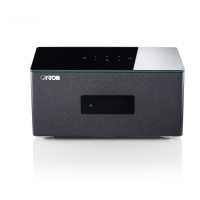
The Connect 5.1 has an On-Screen Display (menu visible on the TV), a LED sta-
tus indicator (green or red) and a LED display (in the front of the Connect 5.1).
On-Screen Display
All settings and the confi guration of the Smart Connect 5.1 can be conveniently
performed via the On-Screen Display on your TV screen. To do this, the Connect
5.1 must be connected to your TV via a HDMI
®
cable. The menu is simple and
structured and all changes you make on the Connect 5.1 are displayed on your
TV.
By holding the input button „ “ on top of the Connect 5.1 for 3 seconds,
you can access the main menu.
Practical tip:
• To change the language of the On-Screen Display from German to English,
please go to the main menu by holding the input button „
“. Under
„Systemeinstellung“ [SYS] select the menu item „Displayeinstellungen“
[UIS] and change the language under the menu item „Sprache“ [LAN].
LED status indicator
When you switch on the Connect 5.1, the Status LED lights up green. In stand-
by mode, the Status LED lights up red.
LED display
The LED display is located in the front of the Connect 5.1 and lights up for fi ve
seconds when a command is sent. It indicates the selected function as
abbreviation or scroll text. The most important display indications and their
meanings are listed here:


 To Next Page
 Loading...