4. Press (C).
This causes the seconds digits to flash.
5. Use (B) and (D) to change the seconds
setting.
6. Press (A) to complete the setting
operation.
Note
●
While the setting is being configured,
the watch will exit the setting operation
automatically after about two or three
minutes of non-operation.
●
Setting a start time of 00’00” performs
a countdown of 60 minutes.
Using the Timer
1. Enter the Timer Mode.
l
Navigating Between Modes
2. Use the operations below to perform a
timer operation.
D
D
D
(Time up)
Resume
Pause
(Countdown starts)
Start
●
A beeper will sound for 10 seconds to
let you know when the end of a
countdown is reached.
●
You can reset a paused countdown to
its start time, by pressing (A).
3. Press any button to stop the tone.
Step Count
You can use your watch to keep track of your
step count while walking, engaging in your
normal daily activities, etc.
●
Step Reminder
Studies suggest that sitting too much is bad
for the health.
Step Reminder displays an indicator and
sounds an alert when it determines you have
not walked enough during a specific period.
This is valuable feedback that helps achieve
your exercise goals.
If the watch performs a Step Reminder alert
operation, get up and walk for about five
minutes.
Counting Steps
If you are wearing the watch correctly, the
watch will count your steps as you walk or
engage in your normal daily activities.
Important!
●
Since this watch is a wrist-worn device,
it may detect non-step movements and
count them as steps. Also, abnormal
arm movements while walking may
cause a miss count of steps.
●
Getting Ready
To enable the most accurate step count, wear
the watch with the face on the outside of your
wrist and tighten the band securely. A loose
band may make it impossible to obtain correct
measurement.
●
Counting Steps
The pedometer will start counting your steps
when you start walking.
●
To check the step count
l
Displaying the Step Count
Displaying the Step Count
1. Enter the Timekeeping Mode.
l
Navigating Between Modes
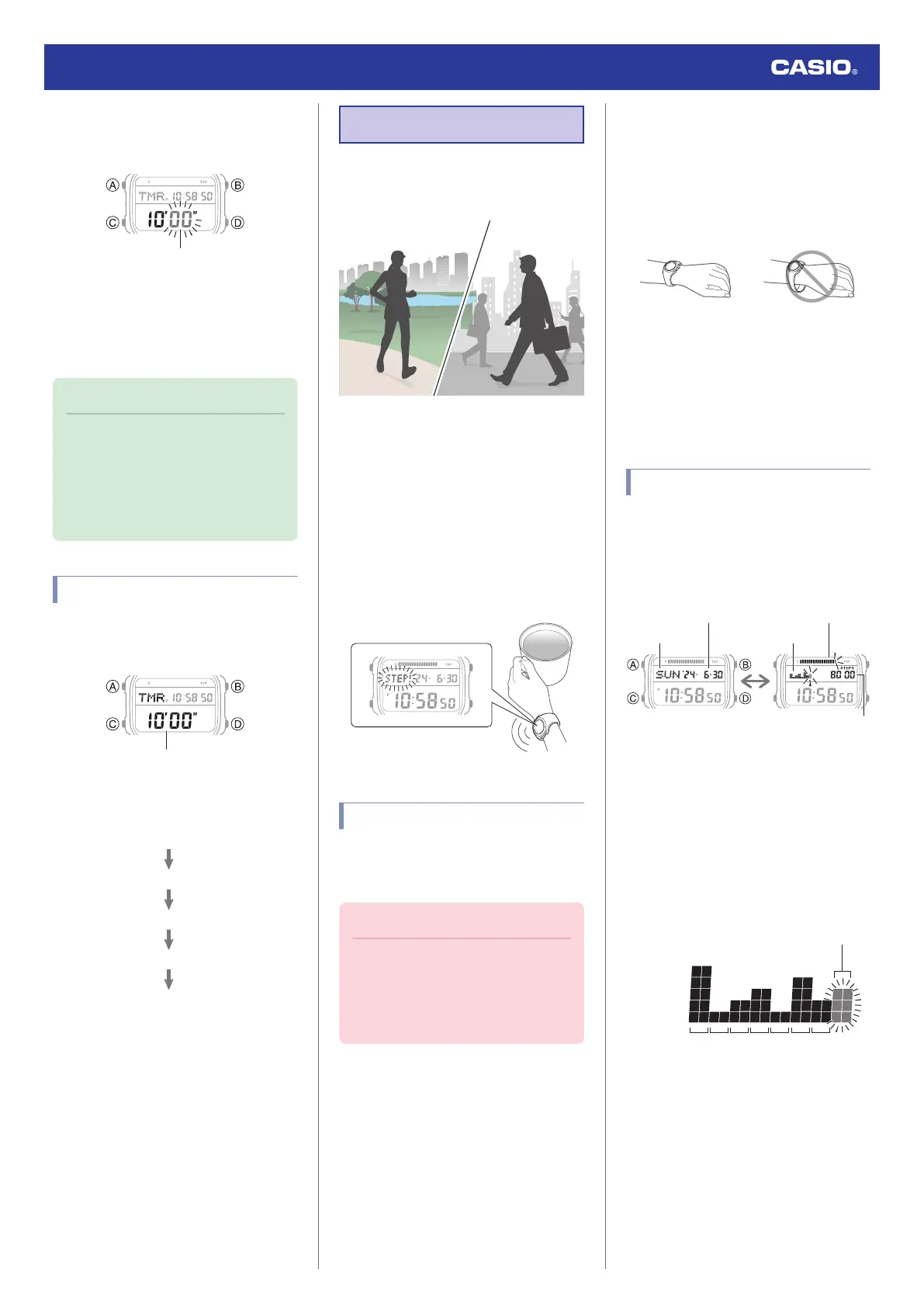
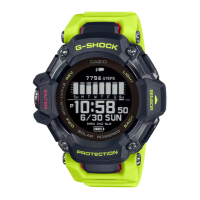
2. Press (A) to change to the step count
display.
Daily step count
Day of the week
Step count graph
Step count goal progressYear, month, day
●
Interpreting the Step Count Graph
The Step Count Graph shows the number of
steps (up to 1,000) you have taken each hour.
This lets you easily check your walking pace
over the past 7 or 8 hours.
●
The Step Count Graph is not displayed
while the step count is zero.
●
Graph contents are normally updated at the
top of each hour.
1‒250
251‒500
501‒750
751‒1000
1001‒
176
5
43
2
Time
Step count
Current
Watch Operation Guide 3565
22



 To Next Page