EasyManua.ls Logo

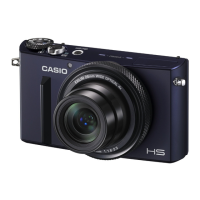
Casio EX-10 - User Manual

Casio EX-10
229 pages
Print Icon
To Next Page IconTo Next Page
Loading...
Digital Camera
EN
User’s Guide
Thank you for purchasing this CASIO product.
Before using it, be sure to read the precautions contained in this User’s Guide.
Keep the User’s Guide in a safe place for future reference.
For the most up-to-date information about this product, visit the official EXILIM
Website at http://www.exilim.com/

Table of Contents

Questions and Answers

  • B
    bbarajasAug 16, 2025
    What to do if Casio EX-10 does not turn on?
    • G
      Gabriel SchmidtAug 16, 2025
      If your Casio Digital Camera doesn't turn on, the battery may not be loaded correctly. Charge the battery. If the battery goes dead soon after being charged, it means the battery has reached the end of its life and needs to be replaced. Purchase a separately available CASIO NP-130A rechargeable lithium ion battery.
  • L
    Lindsey EllisAug 19, 2025
    How to fix auto focus on Casio Digital Camera?
    • B
      baileyglennAug 19, 2025
      If the auto focus on your Casio Digital Camera isn't working properly, try the following: If the lens is dirty, clean it off. If the subject is not in the center of the focus frame when you compose the image or the subject you are shooting may not be a type that is compatible with Auto Focus, use manual focus. If you are moving the camera when shooting, try shooting with Anti Shake or use a tripod.
  • T
    Timothy WallaceAug 22, 2025
    What to do if the back lamp does not light red and the battery won't charge in Casio EX-10?
    • T
      Trevor MillerAug 22, 2025
      Unplug the USB cable from the Casio Digital Camera and then plug it back in again. Remove the battery from the camera and then reload it.
  • J
    joseph97Aug 25, 2025
    Why does my Casio EX-10 power down suddenly?
    • A
      Amber MaddenAug 26, 2025
      Your Casio Digital Camera might be powering down for several reasons: Auto Power Off may have activated, so turn the power back on. The battery may be dead, so charge it. The camera's protection function may have activated because the camera temperature is too high. In this case, turn off the camera and wait until it cools down before trying to use it again.
  • T
    taylorkatherineAug 27, 2025
    How to fix Casio EX-10 if image is not recorded when pressing the shutter button?
    • D
      Diana CalderonAug 27, 2025
      If your Casio Digital Camera is in PLAY mode, press the shutter button to enter REC mode. If the flash is charging, wait until the charge operation finishes. If the message “Memory Full” appears, transfer images to your computer, delete images you no longer need, or use a different memory card.
  • S
    shaunphillipsAug 30, 2025
    Why does the flash not fire on my Casio EX-10?
    • A
      Angel GuerraAug 30, 2025
      The flash on your Casio Digital Camera might not fire for a few reasons. If the flash is off, change to another mode. If the battery is low, charge it. Also, if a BEST SHOT scene that uses flash off is selected, change to a different flash mode or select a different BEST SHOT scene.
  • D
    Dylan CohenSep 3, 2025
    How to fix Casio EX-10 Digital Camera if power will not turn off?
    • J
      John ClarkSep 3, 2025
      Remove the battery from the Casio Digital Camera and then reload it.
  • K
    Karen Lopez MDSep 6, 2025
    What to do if Casio EX-10 powers down during Self-timer countdown?
    • D
      dfisherSep 6, 2025
      If your Casio Digital Camera powers down during the self-timer countdown, the battery may be low. Charge the battery.
  • L
    lisamathisSep 8, 2025
    How to fix USB transfer issues with Casio Digital Camera?
    • B
      burnsjenniferSep 9, 2025
      If you're having trouble transferring images from your Casio Digital Camera over USB, check all connections to make sure the USB cable is securely connected. Select the correct USB communication protocol in accordance with the type of device you are connecting. Ensure the camera is turned on. Always connect directly to the computer’s USB port, as your computer may not recognize the camera if you connect via a USB hub. If the battery level indicator is low, charge the battery before connecting.
  • D
    davidjonesSep 12, 2025
    How to prevent date/time reset on my Casio EX-10 Digital Camera?
    • D
      Dr. Margaret HinesSep 12, 2025
      Load the Casio Digital Camera’s battery and reconfigure the time and date settings. Do not remove the battery from the camera for at least 24 hours after configuring time and date settings.

Summary

CASIO Digital Camera EX-10 Users Guide

Accessories

Basic Camera Operations

Attaching and Removing the Lens Cap

Instructions for attaching and removing the camera's lens cap, including proper alignment.

Attaching the Neck Strap

Step-by-step guide on how to attach the neck strap to the camera's strap rings.

Adjusting the Strap Length

How to adjust the length of the neck strap for comfortable carrying.

Important Information Before Use

Read This First!

Essential information and precautions to review before operating the camera.

LCD Panel Details

Information about the camera's LCD panel technology and pixel performance.

Test Shots Advice

Recommendation to shoot test images to ensure correct camera recording.

General Guide and Camera Overview

Camera Parts Identification

Identification of camera components shown in front, back, and bottom views.

Control Dial Operation

Explanation of how to use the camera's control dial for operations.

Monitor Screen Information

Snapshot Recording Indicators

Explanation of indicators and icons shown during single shot snapshot recording.

Burst Shooting and Movie Recording Indicators

Indicators for burst shooting and movie recording modes on the monitor screen.

Playback Screen Indicators

Explanation of indicators for snapshot, CS, bracketing, and movie playback screens.

Configuring Monitor Screen Settings

How to configure display settings for REC and PLAY modes on the monitor screen.

Quick Start Basics: Camera Features

Camera Capabilities Overview

Highlights of the camera's main features and functions for easier image recording.

Intelligent Bracketing

Shooting a series of images with slight setup changes for better results.

Tiltable Monitor Screen

Instructions and notes on tilting the camera's monitor screen for different shooting angles.

ART SHOT and Other Creative Modes

Explanation of artistic effects, Triple Shot, Premium Auto Pro, and Wireless LAN.

Essential Setup: Battery and Memory Card

Loading the Battery

Step-by-step instructions for correctly loading the camera's rechargeable battery.

Charging the Battery

Procedures for charging the battery using USB-AC adapter or computer connection.

Preparing a Memory Card

Information on supported memory cards and handling precautions.

Loading and Formatting Memory Cards

Instructions for loading and formatting memory cards for first-time use.

Basic Camera Operations

Turning the Camera On and Off

Instructions for powering the camera on and off, including monitor screen tilt options.

Holding the Camera Correctly

Techniques for holding the camera steady during shooting for optimal image quality.

Shooting a Snapshot

Guide to selecting auto recording modes and composing shots.

Snapshot Tutorial: Recording Modes

Selecting the Recording Mode

Overview of available recording modes like Program Auto, Premium Auto Pro, and BEST SHOT.

Exposure Modes (M, S, A)

Explanation of Manual, Shutter Speed AE, and Aperture AE modes for exposure control.

Using the Control Panel

How to use the Control Panel to configure various camera settings.

Camera Settings Configuration

Function Ring Settings

How to assign and use functions with the camera's function ring.

Self-timer Operation

Instructions on using the self-timer with various delay options.

Adjusting White Balance

How to adjust white balance settings to match different lighting conditions.

Focus Mode Selection

Guide to selecting focus modes like AF, Macro, and Manual Focus.

Advanced Shooting Features

Make-up Level for Portraits

How to use the Make-up Level function for enhancing portrait shots.

Correcting Image Brightness (EV Shift)

How to manually adjust image exposure values using EV Shift.

Using the Flash

Instructions and settings for using the camera's flash.

Specifying Metering Mode

How to select metering modes (Multi, Center Weighted, Spot) for exposure.

Zooming and Image Quality

Shooting with Zoom

Guide to using optical, HD, SR, and digital zoom features.

Zooming with Function Ring (Step Zoom)

How to use the function ring for step zoom operations within the optical zoom range.

Monitor Screen Zoom Information

Explanation of zoom modes, icons, and the zoom bar displayed on the monitor.

Special Shooting Modes

Super Resolution Zoom (Zoom SR)

How to use Single SR Zoom for expanding zoom range with minimized quality loss.

Multi SR Zoom for Clearer Snapshots

Using super resolution and CS images to expand zoom range for higher quality.

Intelligent Bracketing

How to shoot a series of images with slightly changed camera setups.

Burst Shooting Modes

Shooting with High Speed CS

How to shoot a burst of images continuously by holding the shutter button.

Shooting with Prerecord CS

Using prerecord buffer to capture fast-moving action without missing shots.

Continuous Shutter with Auto Focus (AF CS)

Shooting up to 30 images while keeping the subject in focus.

Advanced Shooting Techniques

Triggering Self-timer with Motion (Handsfree)

Controlling the self-timer remotely by waving your hand.

Repositioning Motion Detection Area

How to reposition motion detection icons (self-timer, preview) on the display.

Artistic Effects (ART SHOT)

Applying various artistic effects to make subjects more novel and exciting.

Custom Setups (CUSTOM SHOT)

Registering and using custom shooting setups for instant recall.

Movie Recording

Recording a Standard Movie

Step-by-step guide for recording standard (STD) movies.

High-definition and High Speed Movies

Recording high-definition (FHD) and high-speed movies with different settings.

Prerecord Movie Functionality

Using prerecord buffer to capture action before real-time recording starts.

Time Lapse Movie Recording

Recording movies of events over time to speed up the flow of action.

Using BEST SHOT Scenes

Shooting with BEST SHOT

Guide to selecting and using preset BEST SHOT scenes for various conditions.

Specific BEST SHOT Modes

Explanation of modes like HS Anti Shake, HS Night Shot, HDR, Blurred Background.

Advanced BEST SHOT Features

Details on Full Focus Macro, Triple Shot, HS Best Selection, and Panorama.

Connectivity: Wireless LAN and Smartphone

Wireless LAN Functions Overview

Functions enabled by connecting the camera to a smartphone via wireless LAN.

Establishing Smartphone Connection

Steps for installing the app and connecting the camera to a smartphone.

Remote Capture with Smartphone

How to use a smartphone as a remote controller for shooting.

Sending Images to Smartphone

Procedures for sending images via Quick Send, Send to phone, and View on phone.

Printing Images

Direct Printing Options

Connecting to PictBridge printers and printing via memory card or computer.

DPOF Settings for Printing

How to use DPOF to specify images, copies, and date stamping for printing.

Date Stamping for Prints

Methods for adding date stamps to images for printing.

Supported Printing Standards

Information on PictBridge, PRINT Image Matching III, and Exif Print standards.

Using the Camera with a Computer

Computer Connectivity Overview

Summary of operations possible when connecting the camera to a computer.

Using with a Windows Computer

Instructions for saving images and playing movies on Windows.

Using with a Macintosh Computer

Instructions for saving images and playing movies on Macintosh.

File and Folder Structure

Explanation of the camera's file and folder organization within memory.

Other Settings Configuration

Power Saving (ECO Mode)

How to enable ECO Mode for extended battery life and reduced power consumption.

Monitor Screen Brightness Adjustment

How to adjust the brightness of the camera's monitor screen.

Customizing Camera Sounds

How to configure startup, shutter, and operation sounds on the camera.

Timestamp and File Naming

How to stamp dates on snapshots and specify file name generation rules.

Camera Maintenance and Defaults

Sleep and Auto Power Off Settings

How to configure sleep state and auto power off settings to save battery.

Monitor Screen Tilt Operation

Specifying camera behavior when the monitor screen is tilted or returned.

Disabling File Deletion

How to disable the delete key to prevent accidental deletion of files.

Formatting and Resetting Camera

Procedures for formatting memory and resetting camera to factory defaults.

Troubleshooting Common Issues

Power Supply Problems

Troubleshooting steps for power not turning on or sudden power down.

Charging and Image Recording Issues

Troubleshooting for battery charging errors and image recording problems.

Focus and Flash Malfunctions

Troubleshooting steps for auto focus, flash, and digital noise issues.

Playback and File Management Errors

Troubleshooting for playback issues, file deletion, and wireless LAN connection.

Specifications and Battery Life

Snapshot Recording Capacity

Table detailing snapshot capacity based on image size, quality, and memory type.

Movie Recording Capacity

Table detailing movie recording capacity by image size, quality, and frame rate.

Camera Specifications

Technical details including file formats, image sizes, lens, zoom, and focusing.

Approximate Battery Life

Estimated battery performance for shots, movie recording, and playback.

Casio EX-10 Specifications

General IconGeneral
TypeCompact
Sensor TypeCMOS
Megapixels12.1
Aperturef/1.8-2.5
ISO Range100-12800
Storage MediaSD/SDHC/SDXC
Digital Zoom4x
LCD Screen Size3.0 inches
Shutter Speed30 seconds
Video Resolution1920 x 1080
ConnectivityHDMI

Related product manuals