157
Establishing a Wireless LAN Connection
Use the procedure below to establish a wireless LAN connection between the camera
and a smartphone for the first time. This operation is required for the first connection
only.
1. Select Program Auto as the recording mode.
2. Press [MENU].
3. Press [4], use [8] and [2] to select the
“
r
REC MENU” tab, and then press [SET].
4. Use [8] and [2] to select “Remote Capture”,
and then press [SET].
5. Use [8] and [2] to select “Remote Start”, and then press [SET].
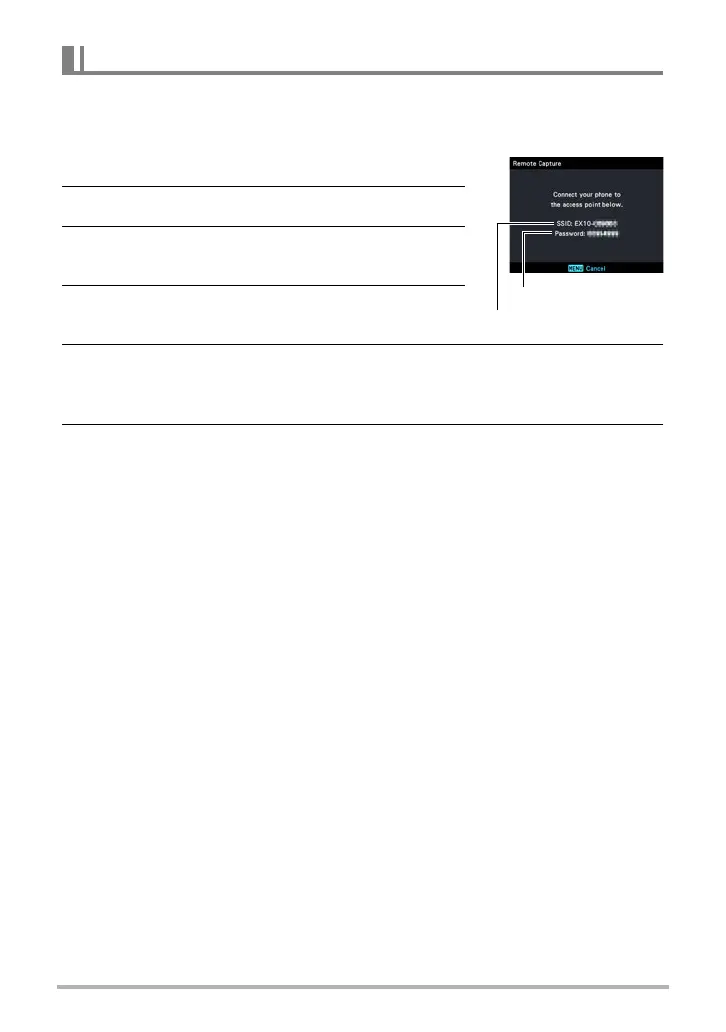
This will enable connection with a smartphone and the camera will display a
screen for input of an SSID and password.
6. For the smartphone Wi-Fi setting, input the camera SSID and
password.
When the message “Start up the phone app.” appears on the camera’s monitor
screen, it means that the smartphone has established a wireless connection with
the camera.
• To break the wireless connection, press [MENU].
• What you need to do to establish a wireless LAN connection depends on the
type of smartphone you are using. For details about how to establish a wireless
LAN connection see the user documentation that comes with your smartphone.
Configuring Wireless LAN Settings
password
SSID



 To Next Page